
In this post, we will show you how to add Repository Folders for File Explorer version control in Windows 11. When you create a repository on GitHub, it exists online as a remote repository. To work with the files, you clone the repository to your PC. This creates a working repository in File Explorer where you can locally edit files, track changes, and then sync updates back to GitHub.
Until now, File Explorer treated these repositories like regular folders. If you wanted to see the branch name, commit history, or file status, you had to rely on third-party tools like GitHub Desktop or Git for Windows. Microsoft is implementing File Explorer version control integration to make this easier. File Explorer can now natively identify repository folders and show basic Git information directly within its UI.
How to add Repository Folders for File Explorer version control in Windows 11
To add Repository Folders for File Explorer version control on a Windows 11 PC, currently you need to join the Windows Insider Program, switch to the Beta Channel, and install the latest updates. Right now, the File Explorer version control integration is still in preview – but it will soon be rolled out to all in the near future.
After updating, navigate to Advanced Settings > File Explorer settings > File Explorer + version control, and add your repository folders.
Let us see this in detail.
Add Repository Folders for File Explorer version control
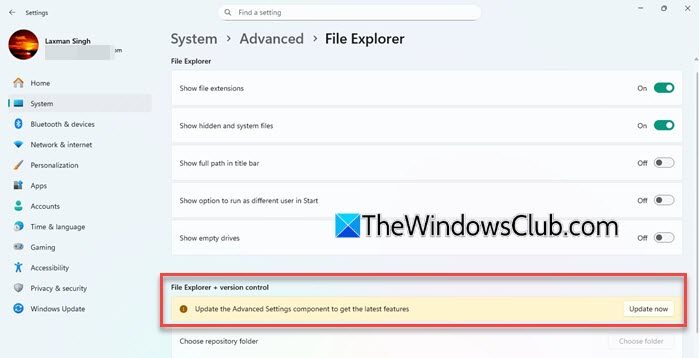
Press Win + I to launch the Settings app. After opening the Settings app. In the left pane, click System. Scroll down and select Advanced in the right pane. Under Advanced settings, click File Explorer. Under File Explorer + version control, click Choose folder.
If you’re already on Insider, go to System > Advanced > File Explorer. Under File Explorer + version control, click Update now.
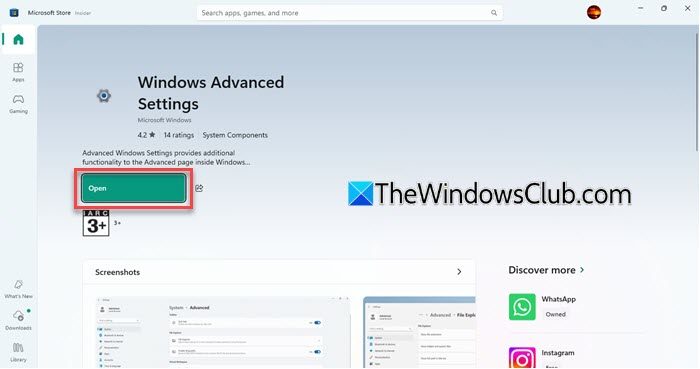
You will be redirected to the Windows Advanced Settings page in the Microsoft Store. Click Open.
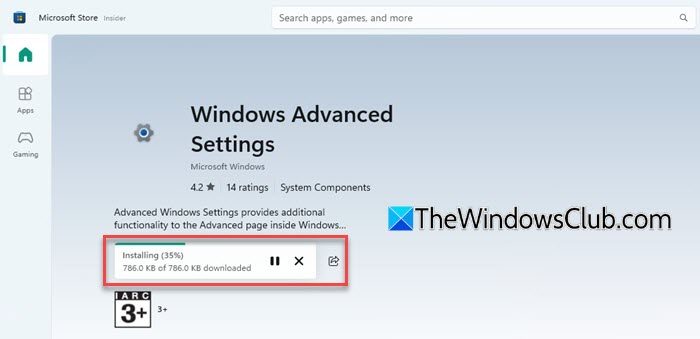
Windows will begin installing the latest updates to the advanced system settings.
Once the installation finishes, reboot your PC. Again, go to System > Advanced > File Explorer. Under File Explorer + version control, click Choose folder next to Choose repository folder.
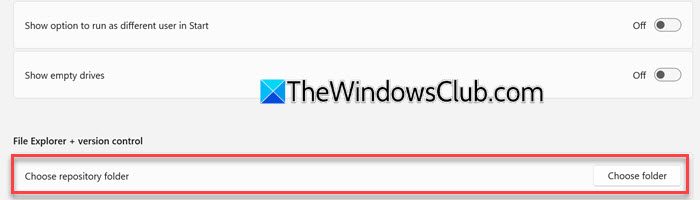
Navigate to your repository’s location in the Select Folder window that appears. For example, if you cloned a GitHub repository to C:\Repos\MyProject, navigate to that folder.
Once you locate the correct repository folder, click on it to highlight it, and then click the Select Folder button.
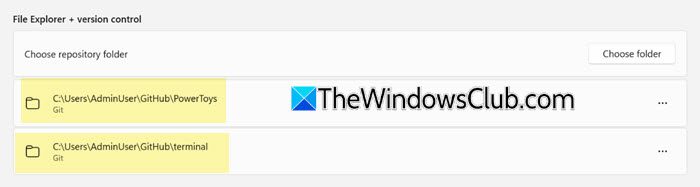
The selected repository will now appear under File Explorer + version control. You can add more than one repository folder. Simply repeat the process to register multiple repositories with File Explorer.
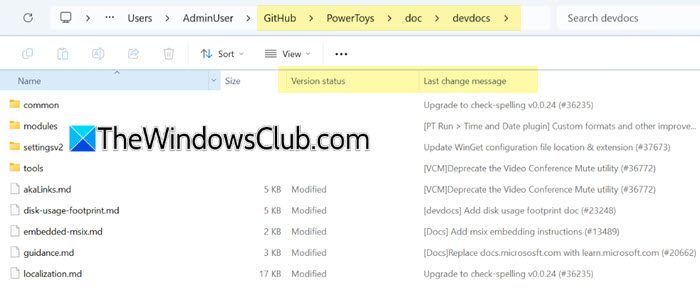
Also, Explorer will now display Git information (version status, last commit, etc.) for the selected Git folder.
Note: Only Git repositories are currently supported by the File Explorer version control integration. But since the system is meant to be expanded, it may eventually support more version control systems.
Note for advanced users: When you add a repository folder through Settings, Windows saves that reference in the Registry under the following key:
HKEY_CURRENT_USER\Software\Microsoft\Windows\CurrentVersion\Explorer\PerFolderRoots
Each repository you add gets its own unique subkey here. File Explorer uses these entries to recognize and display version-controlled folders consistently across sessions.
Remove Repository Folders for File Explorer version control
If you no longer want File Explorer to track a specific repository, you may remove it.
Open Settings (Win + I) and navigate to System > Advanced. Click File Explorer under Advanced settings.
Under File Explorer + version control, you’ll see a list of the repository folders you’ve added.
Locate the repository folder you want to remove. Click the three-dots icon next to it and select Remove (trash/bin).
The folder will no longer be associated with File Explorer’s version control integration.
Note: Removing a repository folder from File Explorer does not delete the folder or its files. It only stops File Explorer from displaying Git information for that repository.
I hope you find this useful.
Read: How to download and install Git in Windows.
How do I add folders under this PC in File Explorer in Windows 11?
To add a folder under This PC in Windows 11, you need to edit the registry. There’s no direct option for it. Generate a new GUID for your custom folder. Then copy the registry settings of an existing shell folder as a template. Modify the folder path in the new entry so it points to your custom folder. You should now see the custom folder in the navigation pane and the Folders section in This PC. You can also easily add or display any folder in This PC folder using our Ultimate Windows Tweaker.
How to show folders in File Explorer Windows 11?
To show folders in the File Explorer window in Windows 11, right-click anywhere in the Navigation Pane (the left sidebar) and select Show all folders from the context menu. This will expand the Navigation Pane to display additional system folders like Control Panel, Recycle Bin, Libraries, and your user profile folders.
Read Next: How to resolve Merge Conflicts in Git.
