
Accessing a Virtual Machine (VM) remotely is a fundamental skill for developers, system administrators, and IT professionals. It allows you to manage servers, deploy applications, and perform configurations from the comfort of your local machine. Two of the most popular and reliable tools for this task on Windows are PuTTY and MobaXterm. In this post, we will learn how to access a VM remotely through PuTTy or MobaXterm.
Access VM remotely through PuTTy or MobaXterm
Before you can connect to your virtual machine, you will need to gather a few essential pieces of information and ensure some basic configurations are correct. First, you must know your VM’s IP address, which is its unique identifier on the network. This could be a local address for a machine on your same network or a public address for a cloud-based VM. Secondly, the VM itself needs to have an SSH server, the software that allows secure remote connections, actively running.
Find your IP address
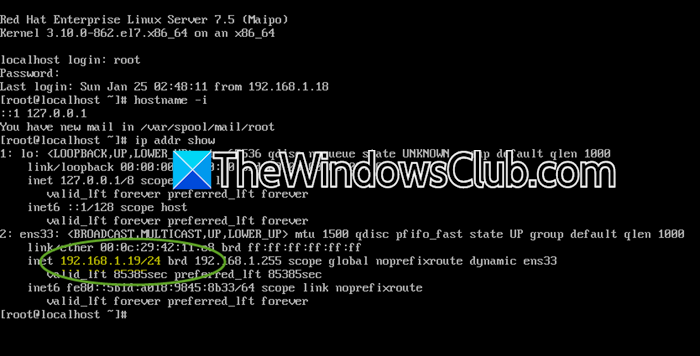
To connect to a virtual machine (VM) on Linux, first install openssh-server. Ensure your local computer has a clear network path to the VM, which may involve adjusting firewall rules to allow incoming connections on the default SSH port. Finally, have your login credentials ready, either a username and password or a private SSH key.
If your VM is running on your personal computer using software such as VirtualBox or VMware, you typically need its local, private IP address. You can find this by opening a terminal window within the VM itself and using a simple command.
The most universal and reliable command on modern Linux distributions is.
ip addr show
OR
hostname -I
Look for the inet entry associated with your active network connection, often named eth0 or ens33. It will be in a format like 192.168.1.25. Ignore the 127.0.0.1 address, as this is the local loopback and not used for external connections.
Note: If your local VM shows no IP address or only the loopback (127.0.0.1), its network adapter may not be correctly attached or configured. Check your virtualization software’s settings for the VM to ensure it is connected to a network adapter in Bridged or NAT mode.
Connect remotely to your VM using MobaXterm
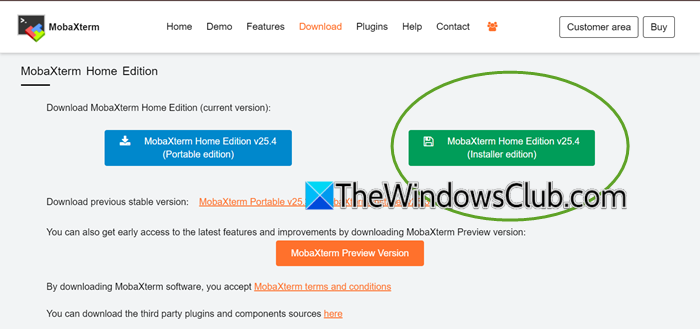
MobaXterm is often called the Swiss Army knife” for remote computing. It provides an enhanced terminal with built-in features like SFTP file browsing, X11 forwarding for GUI applications, and multiple session management.
Download the free Home Edition from the MobaXterm website (mobaxterm.mobatek.net) and install it. Upon launching, you’ll see its main dashboard.
Click on the Session button at the top left of the toolbar. In the new window that pops up, select SSH as the session type.
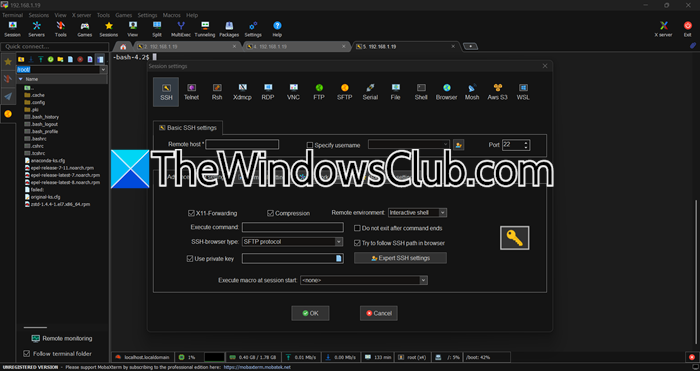
Follow the steps mentioned below to connect remotely.
- In the Remote host field, enter your VM’s IP address.
- Ensure the post is 22.
- Enter your VM username in the Username field. You can also leave this blank and enter it at the prompt later.
- If your organization has provided an SSH or Private key, click on Advanced SSH Settings > Use private key (check it). Browse to the location where you have stored the file and select it.
- Click OK. A new terminal tab will open within MobaXterm. If it’s your first connection, you will accept the host key. Then, enter your password when prompted.
Once connected, notice the left sidebar. MobaXterm automatically starts an SFTP session to the same server, allowing you to drag-and-drop files between your local machine and the VM easily, a major advantage over PuTTY.
Connect remotely to your VM using PuTTY
First, you need to download the putty.exe file from the official website (putty.org) and run it. You do not need to install it; it runs as a standalone application.
In the Host Name (or IP address) field, enter your VM’s IP address. Ensure the Port is set to 22. Under Connection type, select SSH. You can type a name for this session under Saved Sessions and click Save. This allows you to load all these settings quickly next time.
Click the Open button at the bottom of the window. A terminal window will appear.
When you connect to a new server with PuTTY for the first time, you will see a security alert about the server’s host key. This is normal. If you can, check the fingerprint, then click “Accept” to save the key and continue.
Next, enter your username and password in the terminal. Remember, when you type your password, nothing will appear on the screen due to a security feature. After typing your password, press Enter.
Once you are logged in, you will see the command-line prompt for your remote virtual machine. You will now have full control.
Read: Best PuTTy alternative for SSH Clients for Windows computers
Which is better, PuTTY or MobaXterm?
PuTTY is a small, straightforward SSH client that works well if you just want something fast and lightweight. MobaXterm is more like a toolbox, giving you SSH along with extras like an X11 server, built‑in SFTP, and tabs all in one program. Choose PuTTY if you prefer simple, minimal; choose MobaXterm if you want more features bundled.
Read: Cannot connect to VM (Azure VDI VM) using RDP
How to access VM using PuTTY?
To connect to a VM with PuTTY, type the VM’s public IP address into the Host Name box, make sure the port is set to 22, and choose SSH. If you’re using key‑based login, load your private key in PuTTY’s .ppk format under Connection > SSH > Auth. If your key is in .pem format, convert it first with PuTTYgen. Then click Open, accept the fingerprint the first time you connect, and you’ll be asked to log in.
Also Read: Remotely Control Windows Virtual Machine.
