
If you receive this error message A device attached to the system is not functioning in Windows 11/10, here are a few things you may try. It is quite possible that the attached device is not working for one of these reasons. The device could be your iPhone or Android phone, too, and the error can occur while copying or moving files, too.
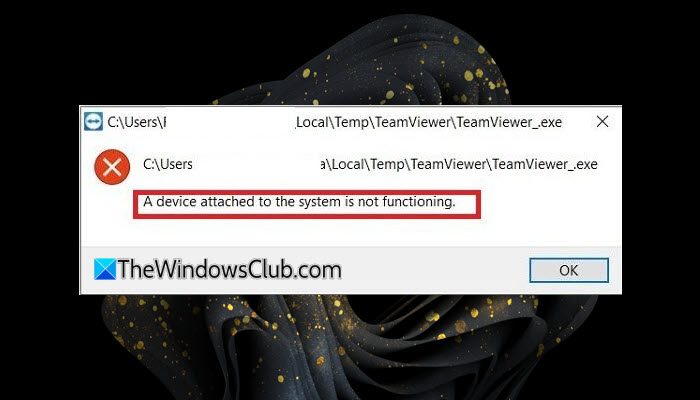
A device attached to the system is not functioning in Windows 11/10
The error message is straightforward. Something was plugged into the system, but it’s no longer available. It usually occurs with plug-and-play devices like USB drives, external storage, Printers, and more. When you try to connect, it results in this type of error.
If you open Device Manager, check for any yellow exclamation mark against any device. If that’s the case, then one of the solutions will definitely fix the issue.
- Check Device Status
- The external device and drive types are incompatible
- The external device is not properly inserted in the drive or connected to the port
- The external device is not properly formatted.
1] Check Device Status
If it is a plug-and-play device, make sure to check if it is turned on or is connected properly. When the computer boots, it doesn’t detect if it’s turned on or off, only when you request for the device – then it tries to connect.
2] External device & drive types are incompatible
When you connect an external device, Windows installs drivers to communicate with the device. It is similar to any hardware you connected to the motherboard. If the driver is corrupt or not compatible, then we need to update the device driver.
It is also possible that two devices have a conflict on the same port or hardware address or IP address. If that’s the case, you need to remove all the devices and connect them one after the other. Make sure to restart the computer once you have plugged out all the devices.
This method will make sure that the devices release their port or hardware address or IP address. When you connect the second device, it will get a new one.
3] External device is not properly inserted in the drive or connected to the port
If you are sure, that the device is connected, and turned on, you can turn it off and then on again. You should also plug it out, and then reconnect.
4] The external device is not properly formatted
It is possible that you formatted the device, and it was not done properly. When that happens, and you connect, it is not recognized. Since Windows Explorer is not able to find the device, I would suggest using Disk Management software.
Disk Management can find the devices connected but not visible to the end-user. If you are an admin, you can format, create new partitions using the interface. Once you do that, it will be available on the computer.
We hope one of these tips helped solve your problems, and you were able to access the device again.
A device attached to the system is not functioning when changing password
If you face this issue, unplug any external devices (USB drives, smart cards, etc.) and plug them back in securely. Then, switch to the laptop’s built-in keyboard to rule out hardware issues. Next, run the Device Troubleshooter to see if it helps. You should also update your Device Drivers.
A device attached to the system is not functioning while mapping a network drive
If you face this issue, ensure that you’re connected to the correct network and can access the target device via IP or hostname, restart Workstation Service, confirm you have read/write access to the shared folder, correct credentials for the remote system, and clear Cached Credentials. You could also map the drive using \\ServerName\SharedFolder in File Explorer or net use command in Command Prompt and see if that helps.
