
Disk partitions are necessary to organize your data into different drives. It also makes sense to keep the system drives separate and run scheduled maintenance tasks (such as defragmenting and cleaning) on them, so that the operating system provides a better computing experience.
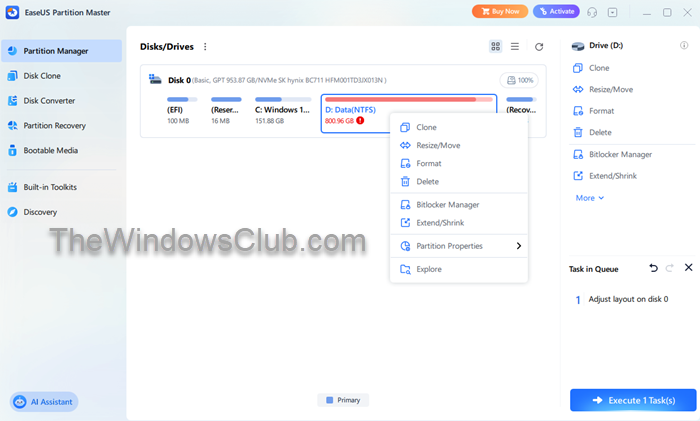
I would never recommend keeping both system files and data files on the same partition or drive because if you have to format the system partition for some reason, your data will be lost unless you back it up first. EaseUS Partition Manager is one of the popular tools to manage partitions and offers a little more services than others in the industry.
This review of EaseUs Partition Master Free checks to see what all options are available in the new version.
EaseUS Partition Master Free
EaseUs Partition Master has the following benefits
- Better user interface – I agree with that. I have used EaseUS in past, and the new version has a better UI that helps newbies to manage their partitions without any fear; the UI is self-explanatory
- Support for larger disks – the free version supports up to 8TB disks while the commercial version supports up to 16TB; since most hard disk drives today are mega capacity drives, it makes sense to use a partition manager that can handle huge volumes
- Conversion between GPT and MBR disks – GPT disks are faster and help with high-capacity hard disk drives so if you wish to convert your regular hard disk drive MBR into GPT; you can use EaseUs that’ll do the conversion for you without any data loss
Besides these, there are plenty of operations that you can perform on your hard disks without the fear of losing data – though I would recommend you to back up data just in case you get unlucky. They (EaseUs) have their own data backup and recovery software, but you can use anything you like to back up the data on partitions before performing any operations on them. It is just to ensure the data remains with you in case of any problem. Otherwise, EaseUs Partition Master is capable of performing different actions on partitions without damaging data. It has its own algorithms that take care that data on any of the partitions being worked upon is not destroyed or damaged.
Main Features of EaseUs Partition Master
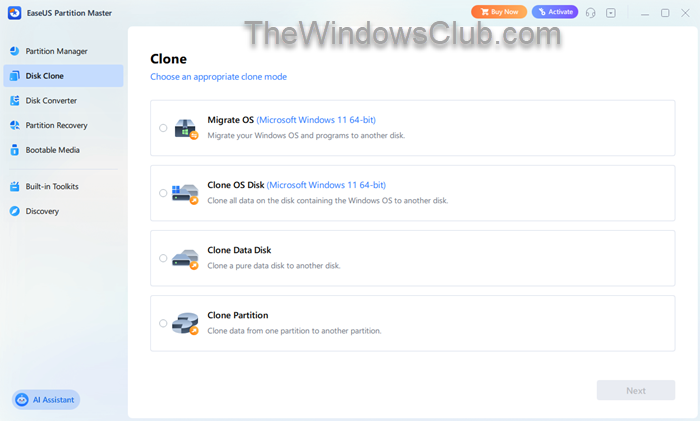
There are numerous features available with EaseUS Partition Master. A glance at the interface image above will reveal all the available options. I will talk about the options that interested me when reviewing the application.
The first option itself is interesting. You can move the entire operating system from one disk to another without damaging the files. I am yet to imagine a scenario where this function can be put to use, but it is interesting to have the feature handy. You can move the operating system and program files to other hard disks. The operating system works fine after moving. It is not cloning exactly, but it produces a similar effect – just that, instead of copying the operating system, it is moved from one disk to another, and then you can use the other disk as the primary to boot the computer and to run your program files.
Merge partition is yet another interesting option that EaseUs provides. You can merge two partitions without any loss of data. The partitions should be in succession. For example, you can merge drive F with G or E: the succeeding and preceding partitions. All you need to do is to select F, click on Merge partition and then select a partition succeeding or preceding it.
Among other options that you can use is to split partitions by shrinking them, enlarge partitions by merging them, copy a partition to some other hard disk, and explore partition. The tool features a built-in explorer that enables you to explore the selected partition. You will view all the system and hidden files, too, in addition to normal files.
The website provides extensive documentation that can be accessed through the Help menu. The documentation also includes video files that demonstrate how to use the various options, making it easy for anyone to become familiar with the program.
Drawbacks of EaseUS Partition Master
There are not many. I found it a bit irritating that I had to cross three screens that asked me if I wanted to install other programs.
But considering the range of operations the application performs on our partitions, making hard disk management easier, we can put up with the ‘extras’. Aside from these, I found no negatives related to EaseUS Partition Master.
It is a good tool for viewing and managing partitions on all your hard disks, and with support for larger disks, the tool becomes even better. You might want to give it a try the next time you wish to change something on your hard disk. Before starting, please review the documentation to ensure you understand how to perform the tasks. Let us know if I missed anything in this review of EaseUs Partition Master. You can download it from its home page.
You might want to check out Easeus Backup Free too.
