
The 9HEHW error is pretty common in Outlook or Teams. The error code typically indicates authentication or cache corruption issues in Microsoft 365 apps. The issue mostly occurs due to account sync issues, invalid credentials, or a faulty app update. However, resolving the error is straightforward, and we have listed all possible solutions below.

Fix 9hehw error code in Microsoft Outlook or Teams
These solutions can help you fix the 9hehw error code in Microsoft Outlook or Teams:
- Basic checks
- Sign out and sign back in
- Clear Microsoft Teams cache
- Remove Outlook and Office credentials
- Repair Microsoft Office
1] Basic checks
Before implementing any fixes, perform a few basic checks. First, close Outlook and Teams completely via Task Manager, then reopen the apps and see if the issue persists.
You should also ensure that your internet connection is stable and not down. A quick internet test should help you tick this box.
Apart from this, if you are using a VPN, then consider disabling it first and check if it works.
2] Sign out and sign back in
Signing out and back in should re-authenticate the app and resolve the error.
Open Outlook or Teams, then sign out. After that, close Outlook or Teams completely, reopen it, and log in again.
3] Clear Microsoft Teams cache
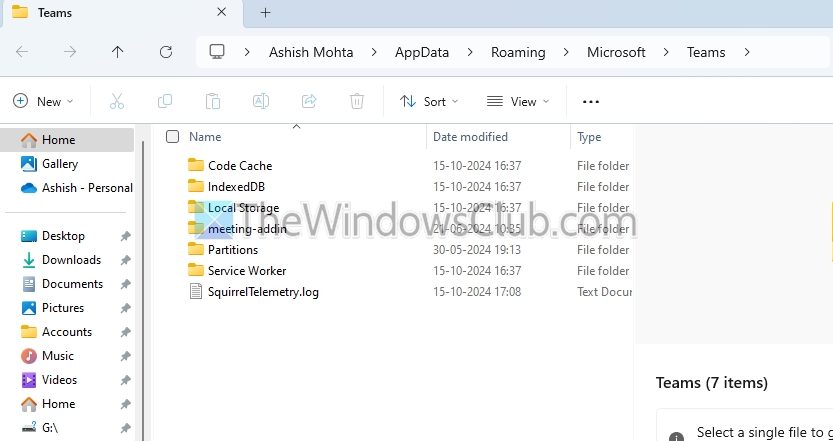
Cache can be another reason behind the 9HEHW error. So, clearing it should fix the issue. Start by closing Teams completely.
- Press the Windows key + R to open Run.
- Copy and paste the following path and press Enter:
%appdata%\Microsoft\Teams - Delete all the files inside the folder.
- Finally, restart Teams and see if it worked.
4] Remove Outlook and Office credentials
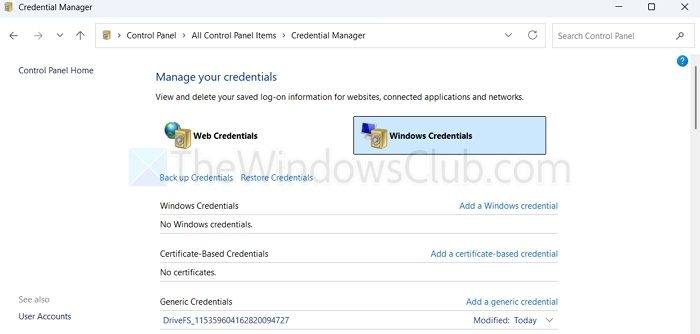
- Go to Windows search, type Control Panel, and open it.
- Go to Credential Manager > Windows Credentials.
- Over here, remove entries related to Microsoft, Outlook, Office, and Teams.
- Next, restart your PC and sign in again.
5] Repair Microsoft Office
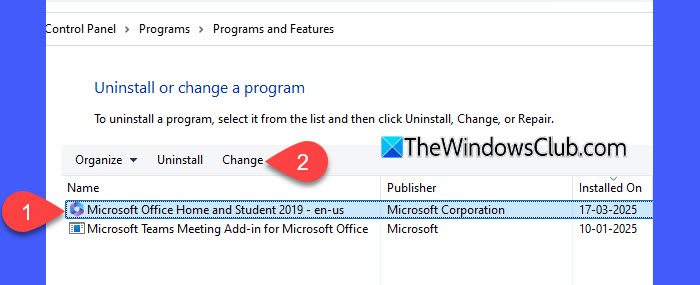
You should also try repairing Microsoft Office. Here’s how:
- Press the Windows key + I to open Settings.
- Go to Apps > Installed Apps.
- Search for Microsoft 365, click on the three dots icon, and select Modify.
- Select Quick Repair and let it run. If you encounter the same issue, choose Online Repair.
- Once done, check if it resolved the issue.
Read: Microsoft Office Installation Error Fixes
The 9HEHW error code is typically caused by cache corruption or authentication issues. Clearing cached data, resetting credentials, and re-authenticating the account usually resolves the issue.
Can outdated Windows or app versions cause the 9HEHW error?
Yes. Running outdated versions of Windows, Outlook, or Teams can trigger authentication or compatibility issues that lead to the 9HEHW error. Missing updates may break sign-in services or cached credentials.
Does reinstalling Outlook or Teams fix the 9HEHW error?
If clearing cache, removing credentials, and repairing Office don’t work, a clean reinstall can help. Corrupted installation files or failed updates sometimes cause persistent authentication errors.
