
Several users of Windows 11/10 are reporting that Windows Defender updates are failing to install and they receive a message – Windows failed to install the following update with error 0x80070643.
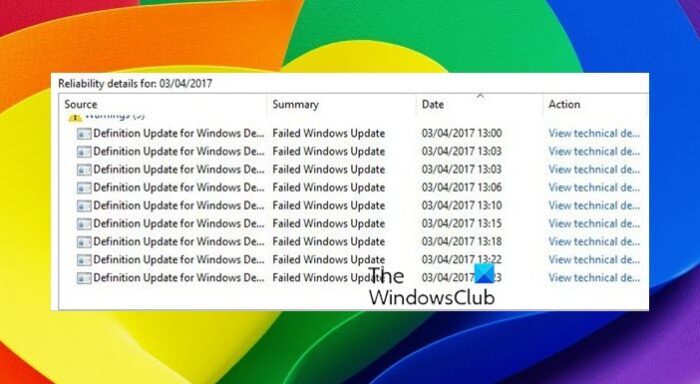
Windows Defender failed to install updates with error 0x80070643
To fix Windows Defender Update Error code 0x80070643, follow the two suggestions:
Update Windows Defender manually
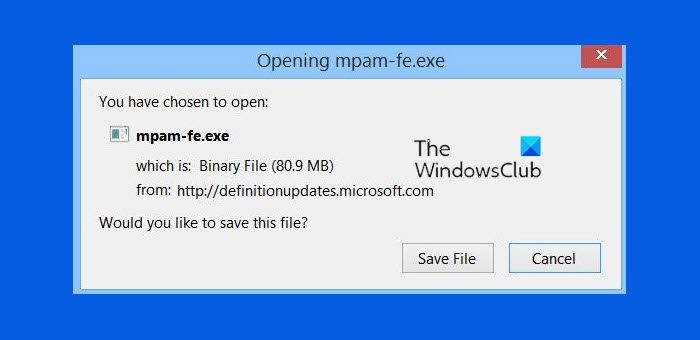
I strongly urge you to check if your Windows Defender is updating automatically.
If not, you should download and install the Windows Defender updates manually. Also go to Settings > Update & Security > Windows Update > Check for updates.
Read: How to run Windows Defender from the Command Line using MpCmdRun.exe
Trigger Microsoft Defender updates using command line
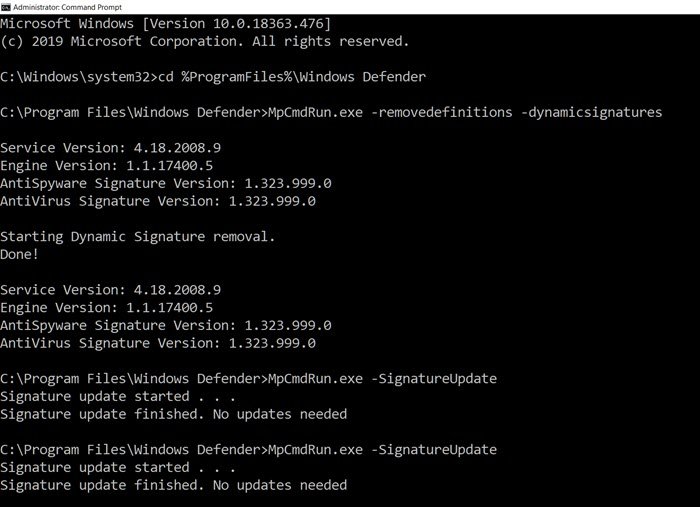
You can manually trigger the update to devices. The command will clear the current cache and trigger an update. You can directly run this on an elevated command prompt or create a batch script that runs the following commands as an administrator:
cd %ProgramFiles%\Windows Defender
MpCmdRun.exe -removedefinitions -dynamicsignatures
MpCmdRun.exe -SignatureUpdate
If you cannot update Windows Defender automatically and are facing this issue, it is recommended that you update Windows Defender manually periodically until Microsoft fixes the problem.
Troubleshoot: Definition update issues for Microsoft Defender in Windows
If you don’t want to get into the mess of checking up for updates, downloading them, and applying them, I suggest that you use a third-party freeware antivirus software till Microsoft fixes the issue.
If you wish to troubleshoot the issue further, perhaps this post will help you – Windows Defender will not update definitions.
Related:
