<?xml version="1.0" encoding="UTF-8"?>
<rss version="2.0"
	xmlns:content="http://purl.org/rss/1.0/modules/content/"
	xmlns:wfw="http://wellformedweb.org/CommentAPI/"
	xmlns:dc="http://purl.org/dc/elements/1.1/"
	xmlns:atom="http://www.w3.org/2005/Atom"
	xmlns:sy="http://purl.org/rss/1.0/modules/syndication/"
	xmlns:slash="http://purl.org/rss/1.0/modules/slash/"
	>

<channel>
	<title>The Windows Club &#187; Run</title>
	<atom:link href="http://www.thewindowsclub.com/tag/run/feed" rel="self" type="application/rss+xml" />
	<link>http://www.thewindowsclub.com</link>
	<description>The Windows Club is  created by Anand Khanse, a Microsoft MVP and is primarily targeted at the Windows 7, 8 &#38; Vista user and will address and cover issues in relation to Microsoft and Windows OS.</description>
	<lastBuildDate>Wed, 08 Feb 2012 18:37:32 +0000</lastBuildDate>
	<language>en</language>
	<sy:updatePeriod>hourly</sy:updatePeriod>
	<sy:updateFrequency>1</sy:updateFrequency>
	<generator>http://wordpress.org/?v=3.3.1</generator>
<xhtml:meta xmlns:xhtml="http://www.w3.org/1999/xhtml" name="robots" content="noindex" />
		<item>
		<title>Executor: An Advanced Alternative to Windows Run Dialog box</title>
		<link>http://www.thewindowsclub.com/executor-advanced-alternative-windows-run-dialog-box?utm_source=rss&#038;utm_medium=rss&#038;utm_campaign=executor-advanced-alternative-windows-run-dialog-box</link>
		<comments>http://www.thewindowsclub.com/executor-advanced-alternative-windows-run-dialog-box#comments</comments>
		<pubDate>Tue, 06 Dec 2011 20:19:05 +0000</pubDate>
		<dc:creator>HemantS@TWC</dc:creator>
				<category><![CDATA[Downloads]]></category>
		<category><![CDATA[Freeware]]></category>
		<category><![CDATA[Run]]></category>

		<guid isPermaLink="false">http://www.thewindowsclub.com/?p=39688</guid>
		<description><![CDATA[<div style=" float: left; padding: 4px; margin: 0 10px 5px 0; width: 75px; height: 75px;"><img style=" float: left; padding: 4px; margin: 0 10px 5px 0;" width="75" height="75" src="http://www.thewindowsclub.com/wp-content/themes/Twc/scripts/thumb.php?src=http://www.thewindowsclub.com/wp-content/uploads/2011/12/Executor-set-up-400x335.png&amp;w=75&amp;h=75&amp;zc=1"/></div>Today, a Windows user is very lucky to have such a wide eco-system of freeware that help organize our daily work and other various tasks on our computer. Though these applications are considered as useful, installing too many of them have <span><a class="more-link" href="http://www.thewindowsclub.com/executor-advanced-alternative-windows-run-dialog-box">...more &#62;&#62;&#62;</a></span>]]></description>
		<wfw:commentRss>http://www.thewindowsclub.com/executor-advanced-alternative-windows-run-dialog-box/feed</wfw:commentRss>
		<slash:comments>1</slash:comments>
		</item>
		<item>
		<title>3 geeky Windows Run commands you want to know!</title>
		<link>http://www.thewindowsclub.com/3-geeky-windows-run-commands-you-want-to-know?utm_source=rss&#038;utm_medium=rss&#038;utm_campaign=3-geeky-windows-run-commands-you-want-to-know</link>
		<comments>http://www.thewindowsclub.com/3-geeky-windows-run-commands-you-want-to-know#comments</comments>
		<pubDate>Tue, 25 May 2010 01:59:56 +0000</pubDate>
		<dc:creator>AnandK@TWC</dc:creator>
				<category><![CDATA[Windows]]></category>
		<category><![CDATA[Run]]></category>
		<category><![CDATA[Tips]]></category>

		<guid isPermaLink="false">http://www.thewindowsclub.com/?p=9468</guid>
		<description><![CDATA[<div style=" float: left; padding: 4px; margin: 0 10px 5px 0; width: 75px; height: 75px;"><img style=" float: left; padding: 4px; margin: 0 10px 5px 0;" width="75" height="75" src="http://www.thewindowsclub.com/wp-content/themes/Twc/scripts/thumb.php?src=http://www.thewindowsclub.com/wp-content/uploads/2010/05/geeky-run-commangs.png&amp;w=75&amp;h=75&amp;zc=1"/></div>We have earlier blogged about the new Run commands in Windows 7 &#38; Windows Vista &#38; also seen how one can create your own run commands for Windows 7. Now here are 3 lesser known but geeky Run commands you <span><a class="more-link" href="http://www.thewindowsclub.com/3-geeky-windows-run-commands-you-want-to-know">...more &#62;&#62;&#62;</a></span>]]></description>
		<wfw:commentRss>http://www.thewindowsclub.com/3-geeky-windows-run-commands-you-want-to-know/feed</wfw:commentRss>
		<slash:comments>11</slash:comments>
		</item>
		<item>
		<title>Ways to RUN any application from Windows 7 Start Search Box</title>
		<link>http://www.thewindowsclub.com/2-ways-to-run-any-application-from-windows-7-start-search-box?utm_source=rss&#038;utm_medium=rss&#038;utm_campaign=2-ways-to-run-any-application-from-windows-7-start-search-box</link>
		<comments>http://www.thewindowsclub.com/2-ways-to-run-any-application-from-windows-7-start-search-box#comments</comments>
		<pubDate>Sun, 20 Sep 2009 16:27:51 +0000</pubDate>
		<dc:creator>AnandK@TWC</dc:creator>
				<category><![CDATA[Windows]]></category>
		<category><![CDATA[Hacks]]></category>
		<category><![CDATA[Registry]]></category>
		<category><![CDATA[Run]]></category>
		<category><![CDATA[Tips]]></category>

		<guid isPermaLink="false">http://www.thewindowsclub.com/?p=3496</guid>
		<description><![CDATA[<div style=" float: left; padding: 4px; margin: 0 10px 5px 0; width: 75px; height: 75px;"><img style=" float: left; padding: 4px; margin: 0 10px 5px 0;" width="75" height="75" src="http://www.thewindowsclub.com/wp-content/themes/Twc/scripts/thumb.php?src=http://www.thewindowsclub.com/wp-content/uploads/2009/04/smile.gif&amp;w=75&amp;h=75&amp;zc=1"/></div>Via the Run command in Windows, you can use certain pre-defined commands to open up applications. In fact in Windows 7 &#38; Vista, its Start Menu Search box itself acts as a Run box. If you type the name of <span><a class="more-link" href="http://www.thewindowsclub.com/2-ways-to-run-any-application-from-windows-7-start-search-box">...more &#62;&#62;&#62;</a></span>]]></description>
		<wfw:commentRss>http://www.thewindowsclub.com/2-ways-to-run-any-application-from-windows-7-start-search-box/feed</wfw:commentRss>
		<slash:comments>0</slash:comments>
		</item>
		<item>
		<title>Pressing Ctrl+F does not bring up Find On This Page.</title>
		<link>http://www.thewindowsclub.com/pressing-ctrlf-does-not-bring-up-find-on-this-page?utm_source=rss&#038;utm_medium=rss&#038;utm_campaign=pressing-ctrlf-does-not-bring-up-find-on-this-page</link>
		<comments>http://www.thewindowsclub.com/pressing-ctrlf-does-not-bring-up-find-on-this-page#comments</comments>
		<pubDate>Sun, 10 May 2009 02:03:10 +0000</pubDate>
		<dc:creator>AnandK@TWC</dc:creator>
				<category><![CDATA[IE]]></category>
		<category><![CDATA[Administrator]]></category>
		<category><![CDATA[Run]]></category>
		<category><![CDATA[Tricks]]></category>

		<guid isPermaLink="false">http://www.thewindowsclub.com/?p=1176</guid>
		<description><![CDATA[<div style=" float: left; padding: 4px; margin: 0 10px 5px 0; width: 75px; height: 75px;"><img style=" float: left; padding: 4px; margin: 0 10px 5px 0;" width="75" height="75" src="http://www.thewindowsclub.com/wp-content/themes/Twc/scripts/thumb.php?src=http://www.thewindowsclub.com/wp-content/uploads/2009/05/inlineie8.jpg&amp;w=75&amp;h=75&amp;zc=1"/></div>If when you press Ctrl+F together, with a view to doing an in-line search in Internet Explorer 8, the Find Bar does not appear, here is what you can try.  It is quite possible that the relevant Active Accessibility Core <span><a class="more-link" href="http://www.thewindowsclub.com/pressing-ctrlf-does-not-bring-up-find-on-this-page">...more &#62;&#62;&#62;</a></span>]]></description>
		<wfw:commentRss>http://www.thewindowsclub.com/pressing-ctrlf-does-not-bring-up-find-on-this-page/feed</wfw:commentRss>
		<slash:comments>0</slash:comments>
		</item>
		<item>
		<title>How to Run as different user in Windows 7</title>
		<link>http://www.thewindowsclub.com/how-to-run-as-different-user-in-windows-7?utm_source=rss&#038;utm_medium=rss&#038;utm_campaign=how-to-run-as-different-user-in-windows-7</link>
		<comments>http://www.thewindowsclub.com/how-to-run-as-different-user-in-windows-7#comments</comments>
		<pubDate>Fri, 17 Apr 2009 18:36:11 +0000</pubDate>
		<dc:creator>AnandK@TWC</dc:creator>
				<category><![CDATA[Windows]]></category>
		<category><![CDATA[Features]]></category>
		<category><![CDATA[Run]]></category>
		<category><![CDATA[Tips]]></category>
		<category><![CDATA[Tricks]]></category>

		<guid isPermaLink="false">http://www.thewindowsclub.com/?p=617</guid>
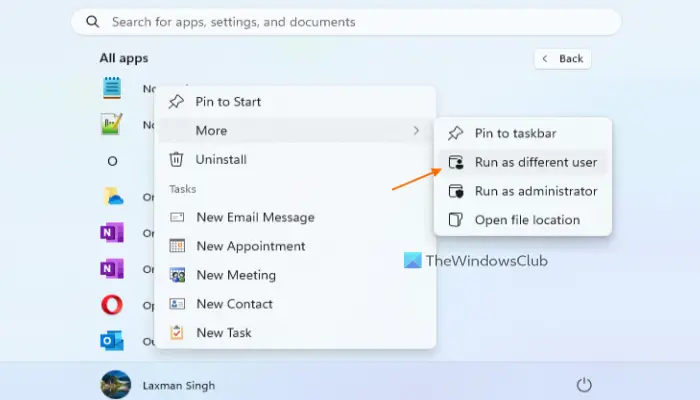
		<description><![CDATA[<div style=" float: left; padding: 4px; margin: 0 10px 5px 0; width: 75px; height: 75px;"><img style=" float: left; padding: 4px; margin: 0 10px 5px 0;" width="75" height="75" src="http://www.thewindowsclub.com/wp-content/themes/Twc/scripts/thumb.php?src=http://www.thewindowsclub.com/wp-content/uploads/2009/04/difuser.jpg&amp;w=75&amp;h=75&amp;zc=1"/></div>In Windows Vista, you had the ability to Run a program as an Administrator. But to run programs as a different / another user, you had to use the command line. In Windows 7 however, you can now perform both <span><a class="more-link" href="http://www.thewindowsclub.com/how-to-run-as-different-user-in-windows-7">...more &#62;&#62;&#62;</a></span>]]></description>
		<wfw:commentRss>http://www.thewindowsclub.com/how-to-run-as-different-user-in-windows-7/feed</wfw:commentRss>
		<slash:comments>0</slash:comments>
		</item>
	</channel>
</rss>