
Most software installations these days are done online. They directly download the setup file and install it. Then there are many issues that can hinder the process. If the same issue occurs when installing Office using the online installer, I will show you how to install Office offline in this guide. It includes Microsoft Office 2024/21/2019, Office for Business, and more.
How to install Office Offline
I am sure you have tried a couple of tips to get the online installer to work, but it still didn’t. The offline installation works differently, depending on your plan. Once you download the installer file, you can install Office anytime you want and activate it later.
How to install Office for Home
Download the offline installer:
- Go to office.com, and sign in with your account. It should be the same account you used to buy the subscription.
- Select Install Office > select Install Office > on the Installs page.
- In the Download and Install window, select Other options.
- Tick the checkbox to download the offline installer and select the language. Select Download.
- Save the installation file on a drive with enough storage space. The installation file will be a virtual drive.
Install Office
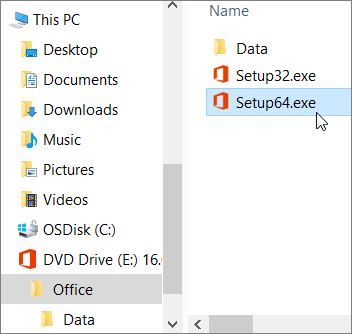
Double-click on the file you downloaded. It will appear in the File Explorer. Click the virtual disk, then double-click either Setup32.exe (32-bit version of Office) or Setup64.exe (64-bit version of Office) to start the installation. Post-installation, make sure to activate Office with the correct account or activation key.
How to install Office for Business
If your computer is part of Business, your IT admin is responsible for installing Microsoft Office on your computer. In the case of Office 365 for business, IT admin will have to use the Office Deployment Tool to download and install Office 365 offline. One can run this from the command line as well. Many people prefer scripts, and command-line options are beneficial in that case.
1] Download and install the Office Deployment Tool
- Create a folder on the computer’s hard drive named OffDow. Make sure to create this on OS installed drive.
- Download the Office Deployment Tool from the Microsoft Download Center. Save it in the Downloads folder.
- Double-click to open the file “Office Deployment Tool.exe” to initiate the download.
- Once you clear the UAC prompt and accept Microsoft Software License Terms, point the download files to OffDow folder.
2] Download and install Office
Since this is for business, and we have Office 365 Pro Plus & Office Business versions, things are going to be a little complicated. If you have an Office 365 Business or Office 365 Business Premium plan, you need to download the Office Business version. For all other plans, download the Office 365 ProPlus version.
-
Open Notepad on your computer.
- Copy and paste the following into a blank text file in Notepad:
<Configuration> <Add OfficeClientEdition="32"> <Product ID="O365BusinessRetail"> <Language ID="en-us" /> </Product> </Add> </Configuration> - Save the file as installOfficeBusRet32.xml in the OffDow folder.
- Open Run prompt, and type “c:\OffDow\setup.exe /download installOfficeBusRet32.xml”, and hit enter.
- Click ok to the UAC prompt, and then Office Setup download will start. It will download in the same folder, i.e., OffDow.
- Once the download is complete, the dialog box will close. All the files will be available in the Office folder.
- Open Run prompt again, and type “c:\OffDow\setup.exe /configure installOfficeBusRet32.xml”, and hit Enter.
- Click ok to the UAC prompt, and then Office installation will start.
The process is the same for all types of installations, but here the differences:
- When installing 64-bit, replace 32 with 64 everywhere.
- OfficeClientEdition=”32″ will become OfficeClientEdition=”64″
- installOfficeBusRet32.xml will become installOfficeBusRet64.xml
- When installing Pro Plus, Product ID=” O365BusinessRetail” will change to Product ID=” O365ProPlusRetail.”
Ask your IT admin to activate your copy of Office after installation is complete. He may use a Volume License Key to enable your copy. Optionally, your company email account works as well.
Other versions of Office, can be downloaded similarly. They are usually available directly from Microsoft and can be installed directly as any other software. Let us know if this works for you.
UPDATE:
Microsoft has officially launched a free version of Office for Windows and Mac.
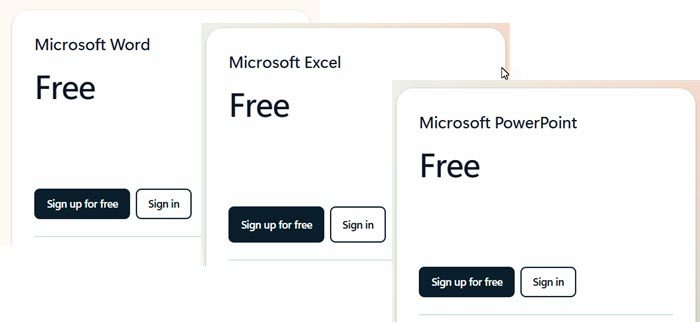
You can now download free versions of Word, Excel, PowerPoint.
Read:
- Download Office ISO Disc images from Microsoft
- How to download earlier versions of Microsoft Office
- Where to download Word, Excel, and PowerPoint?
