
Why do computers get slow or create problems over time? After all, it is a machine and should be as reliable as iron. However, remember that even iron rusts when kept in a humid environment. It is all about keeping your machines – from computers to phones to cars – well-maintained and cared for from time to time, just as you would care for your own baby. And for most of us here, our gadgets are more like our babies, aren’t they?
All machines, including computers & laptops, have a time period or lifespan as they call it. If you use it roughly, it will malfunction, break down, and eventually fail. If you handle it with care and show some love, it will continue to perform like new for a longer tenure. Additionally, you will also extend the battery life of the laptop.
Any electronic machine is composed of many parts and each part plays a role in the overall aging of the machine. For example, you have the motherboard, circuit joints, RAM, CPU, Hard Disks, and peripherals to name a few. I will provide a few tips on maintaining your computer.
Laptop Maintenance Tips
If you are using the Windows Operating System, you can significantly reduce the wear and tear on your essential computer components while also enhancing battery life. The Power Options in Windows help you manage not only power consumption but also help you in preventing wear and tear of computer components such as monitor, hard disks, RAM, and the CPU. All you need to do is to get into a little detail instead of just selecting from the given power plans. Here is an article on the pros and cons of different power plans in Windows by default.
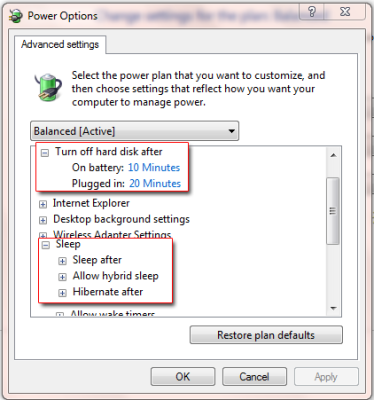
There is much more to the Power Options in Windows than is visible in the Control Panel. Navigate to Control Panel > All Control Panel Items > Power Options > Edit Plan Settings (Click any of the two listed). You will get a link below the usual Turn off Monitor etc. The link you need to click is labeled Change Advanced Power Settings.
Tweak Power Options
The following computer maintenance tips will help you in two ways: (a) They help in enhancing battery life and (b) They help in keeping your computer working as new for a longer period.
The above image of Change Advanced Power Settings Dialog Box shows you what you can do for enhancing battery life while at the same time, speeding up your computer. Once you are on the Advanced Properties dialog box, you just need to change settings under two sections: a) Hard Disks, and b) Sleep Settings.
Most of us set our computers to sleep for the entire night. I do not recommend this for two reasons. First and foremost, you never know if a storm suddenly strikes and sends a surge of heavy voltage to damage your computer while you are sleeping. You may be using a ‘fuse’ but then, the voltage can also pass through the Ethernet cable or phone cable.
The second reason is related to enhancing the lifespan of computers and keeping it new for a longer period. Now that we know that screensavers do not save any energy, it is better to turn off the monitor or screen after 5 minutes of inactivity. Gone are the days when monitors needed high voltage to start up. This, while saving battery, also gives the monitor or screen some rest.
Likewise, if you are away from the computer for, say 15 minutes, why keep other components running? Put it to sleep either manually, while leaving the machine, or set up the power plan to put the computer to sleep after 15 minutes. Many other devices – including audio peripherals – get rest that way. And if you are not sure if you would return early, set it to hibernate after 30 minutes or so. That way, it will store RAM contents on Hard Disk and shut down.
This means all your computer components are getting a rest until you return and press the power button. You won’t lose any data as it was written to a hard disk before the computer hibernated. For those who don’t know the difference, unlike shutdown and restart, hibernate resumes from where you left it. That not only saves power but also gives rest to components when you are not using it.
Read: How long does the average Windows PC last?
Tips To Increase Lifespan of Laptop
Here are four images I created for demonstration purposes. I have used CCleaner for two of the tasks. You can use any similar program. The bottom line is, if you want to increase the life of your computer, you need to perform these tasks on a regular basis as mentioned in the images.
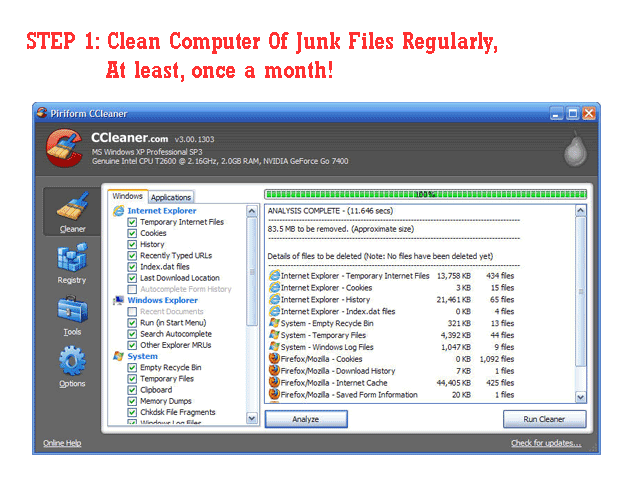
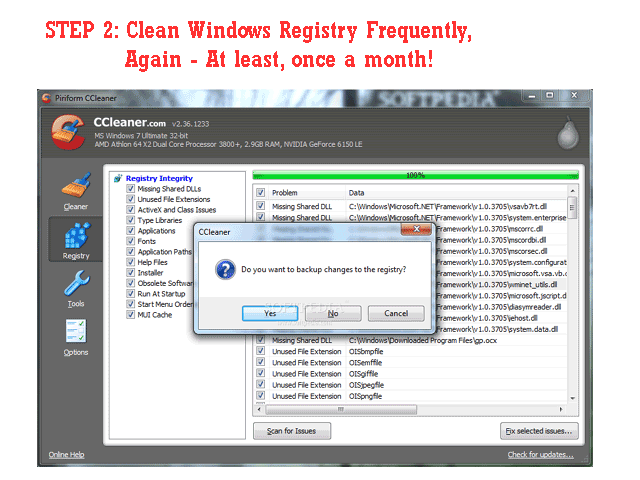

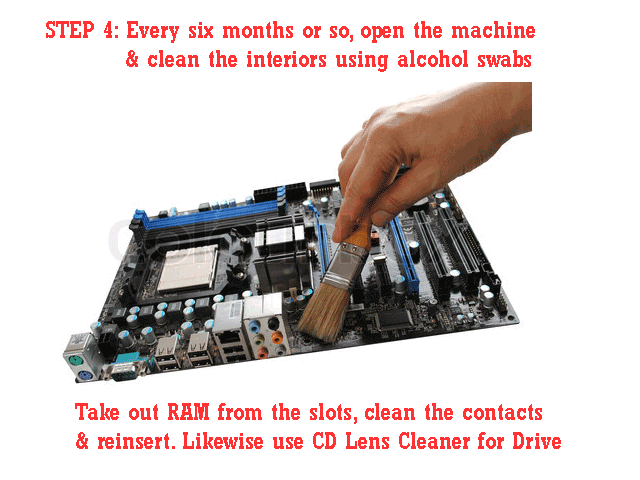
The above tasks do not require any specialized training. You can easily find a video demo on YouTube that shows how to clean the motherboard and RAM slots, in case you are skeptical about opening up your computer.
These computer maintenance tips are essential for extending the lifespan of your laptop. If you have questions or concerns about improving battery life or optimizing your computer’s performance, please leave a comment below.
How to extend the lifespan of a laptop?
To extend the lifespan of your laptop, regularly clean its vents and keyboard, ensure proper ventilation to prevent overheating, and keep your software and drivers up to date. Handle the battery carefully by avoiding extreme temperatures and charging it optimally. Also perform routine maintenance operations.
Now read: Warning signs that your PC is going to crash or die.
