
If you’d like to restrict or prevent users from changing the Sound Scheme in Windows 11/10, you can do so via the Registry Editor or Group Policy Editor.
Prevent changing of Sound Scheme in Windows 11/10
To prevent changing the Sound Scheme in Windows 11/10, follow these steps:
- Press Win+R to open the Run prompt.
- Type regedit > click the OK button > click the Yes button.
- Navigate to Windows in HKCU.
- Right-click on Windows > New > Key and name it as Personalization.
- Right-click on Personalization > New > DWORD (32-bit) Value.
- Set the name as NoChangingSoundScheme.
- Double-click on it to set the Value data as 1.
- Click the OK button and restart your computer.
To learn more about these steps, continue reading.
Open regedit and navigate to the following key:
HKEY_CURRENT_USER\Software\Policies\Microsoft\Windows
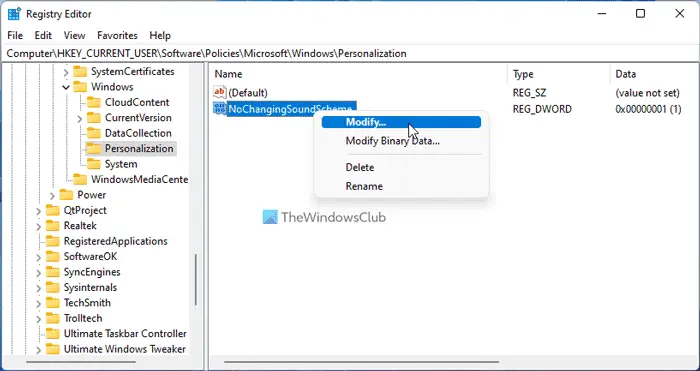
Right-click Windows in the left pane and create a new key and name it as Personalization.
Now select Personalization & in the right pane create a new DWord NoChangingSoundScheme & give it a value ‘1‘.
To enable it back, simply give it a value ‘0’ or delete the NoChangingSoundScheme DWord!
Alternatively, type gpedit.msc in start search and hit Enter to open the Group Policy Editor.
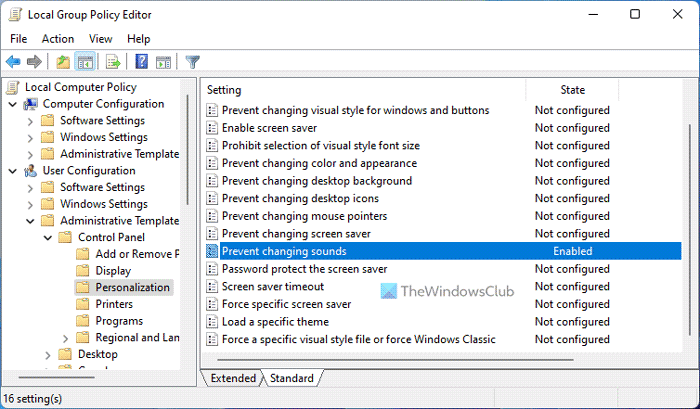
Navigate to:
User Configuration > Administrative Templates > Control Panel > Personalization.
Now double-click Prevent changing sounds in the right pane.
This will open a new window. Here, select Enabled. Click Apply/OK > Exit.
This setting prevents users from changing the sound scheme.
By default, users can use the Sounds tab in the Sound Control Panel to add, remove, or change the system Sound Scheme.
If you enable this setting, the user cannot change any of the Sound Scheme settings.
How do I stop Windows from changing Sound settings?
To stop Windows from changing the Sound settings in Windows 11 or Windows 10, follow the above-mentioned guides. The Local Group Policy Editor and the Registry Editor can help prevent users from tweaking any sound settings. In the GPEDIT, you need to open the Prevent changing sounds setting and choose the Enabled option.
Why does Windows keep changing my Sound settings?
Windows may change the Sound setting according to the hardware installed on your computer. If you unplug or plug in new hardware, Windows 11 and Windows 10 may change the Sound setting accordingly. However, you can prevent users and Windows from doing that by following these guides.
As you can see, you can set several restrictions pertaining to Personalization here.
