
If every time you open any Microsoft Office application, you receive the following message: Please wait while Windows configures Microsoft Office and it configures itself whenever it is running, you might want to read this article.
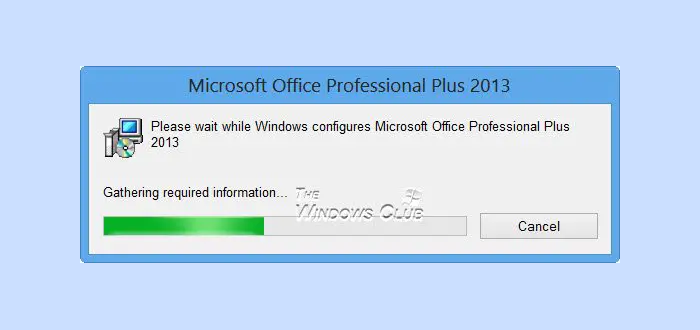
Please wait while Windows configures Microsoft Office
To resolve this issue, you can try the following troubleshooting steps:
1] Repair Office

Repair Office installation if you have recent Office versions installed.
2] Add this Registry key
If you have an older version of Office installed, such as Office 2003 or Office 2007, follow these steps:
Click Start, click Run, type the following command, and then press Enter:
reg add HKCU\Software\Microsoft\Office\14.0\Word\Options /v NoReReg /t REG_DWORD /d 1
Check if the problem is resolved.
3] Run SECEDIT
If this problem persists, try this:
Click Start, click Run, type the following command, and then press Enter:
secedit /configure /cfg %windir%\inf\defltbase.inf /db defltbase.sdb /verbose
See if the problem has been solved.
SECEDIT allows you to configure the current system settings.
4] Check in Office Safe Mode
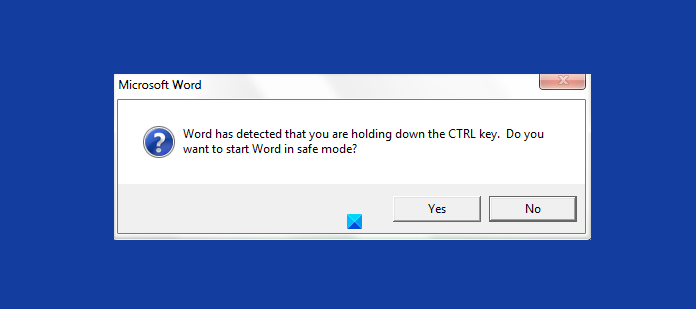
Start the Office program in safe mode.
If the problem does not occur in the safe mode, this issue might be related to some third-party add-ins in the Office program; you can try to disable them. Normally, you could do the following to disable the conflict add-ins in your Office program. To disable the add-ins, follow these steps:
- On the File menu, click Options, click Add-ins, click Go next to the Manage field that displays “Com-in Add”.
- Check for any add-ins, and then clear the checkbox to disable them.
- Close the Office program and restart it.
- Add one check back each time to the list of Add-Ins, restart the Office program, and repeat the above procedure. Once the issue reappears again, we can determine which add-in causes this problem and then disable it.
However, if the problem persists, you can visit KB2528748, download Fix it 50780, and use it to fix it.
If all fails, well, uninstalling Office completely and re-installing it is the only option you may have.
Read: Microsoft Support and Recovery Assistant will help fix Office & other problems.
What is Please wait while Windows configures Microsoft Office?
Please wait while Windows configures Microsoft Office is a message that appears during Office setup or updates. It often occurs if there’s a mismatch between the 32-bit version of Office and a 64-bit operating system or if the Windows Search Service is not installed, affecting Office’s configuration process.
How do I fix Microsoft Office encountered error during setup?
To fix Microsoft Office encountered an error during setup, follow these steps: Run the Windows Store Troubleshooter, rename the Microsoft Help Folder, perform Disk Cleanup, and remove any previous Office versions. These solutions can help resolve setup issues effectively, allowing for a smoother installation process.
