
System resources, such as file data, registry data, and even in-memory data, can develop inconsistencies during the lifetime of the operating system. These inconsistencies may be caused by various hardware failures or by software issues. In some cases, these inconsistencies can affect the Windows Servicing Store, and they can cause a Windows update to fail. When the update fails, it blocks the user from installing updates and service packs.
System Update Readiness Tool
System Update Readiness Tool or CheckSUR addresses this issue. These updates contain the Check for System Update Readiness (CheckSUR) tool. The CheckSUR tool will scan for inconsistencies on your computer and fix them as it’s being installed. Please note that the scan may take up to 15 minutes or longer to run on certain computers. Even if the progress bar seems to stop, the scan continues to run, so do not cancel the process.
How to run Microsoft CheckSUR
Users of Windows 7, Windows Vista, Windows Server 2008 R2, and Windows Server 2008 may follow the download links mentioned here and download the package for your operating system and then run it.
What the tool does is that, it verifies the integrity of the files that are located in the following folders and replace the incorrect data, if found:
- %SYSTEMROOT%\Servicing\Packages
- %SYSTEMROOT%\WinSxS\Manifests
It also verifies the registry data that is located under the following registry subkeys, and resets them to default values if required:
HKEY_LOCAL_MACHINE\Components
HKEY_LOCAL_MACHINE\Schema
HKEY_LOCAL_MACHINE\ Software\ Microsoft\ Windows\CurrentVersion\Component Based Servicing
The following are the installation errors, CheckSUR can potentially address:
- 0x80070002 ERROR_FILE_NOT_FOUND
- 0x8007000D ERROR_INVALID_DATA
- 0x8007370D ERROR_SXS_IDENTITY_PARSE_ERROR
- 0x8007370B ERROR_SXS_INVALID_IDENTITY_ATTRIBUTE_NAME
- 0x8007371B ERROR_SXS_TRANSACTION_CLOSURE_INCOMPLETE
- 0x80070490 ERROR_NOT_FOUND
- 0x8007370A ERROR_SXS_INVALID_IDENTITY_ATTRIBUTE_VALUE
- 0x80070057 ERROR_INVALID_PARAMETER
- 0x800B0100 TRUST_E_NOSIGNATURE
- 0x800F081F CBS_E_SOURCE_MISSING
- 0x80073712 ERROR_SXS_COMPONENT_STORE_CORRUPT
- 0x800736CC ERROR_SXS_FILE_HASH_MISMATCH
- 0x800705B9 ERROR_XML_PARSE_ERROR
- 0x80070246 ERROR_ILLEGAL_CHARACTER
- 0x80092003 CRYPT_E_FILE_ERROR
- 0x800B0101 CERT_E_EXPIRED
These errors are typically listed in the %systemroot%\Logs\CBS\CBS.log file or in the CBS.persist.log file.
The System Update Readiness Tool supports Windows 7, Windows Vista, Windows Server 2008 R2, and Windows Server 2008.
Windows 10, Windows 8.1 and Windows 8 users may follow these steps to run the built-in Deployment Imaging and Servicing Management. In Windows 11/10/8.1/8, the Inbox Corruption Repair brings the functionality of CheckSUR into Windows. You do not require a separate download to get the tool. You may simply Run DISM Tool.
Press Win+C or swipe and choose Search. Type CMD in the search box and hit ‘Enter’. Then, right-click Command Prompt, and choose the ‘Run as administrator’ option.
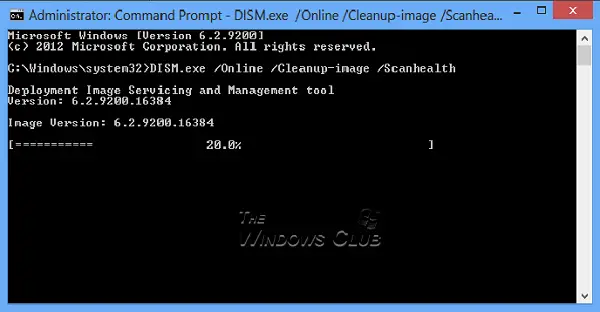
In the Administrator: Command Prompt window, type the following commands exactly as they appear. Press the Enter key after each command:
DISM.exe /Online /Cleanup-image /Scanhealth
DISM.exe /Online /Cleanup-image /Restorehealth
When done, type Exit and press Enter. Run Windows Update again.
These posts may also interest you:
Post ported from WinVistaClub, updated, and posted here.
