
Windows Defender has the ability to scan, update, or run other tasks from the command prompt. The tool MpCmdRun.exe is situated in the %ProgramFiles%\Windows Defender folder and is called the Microsoft Antimalware Service Command Line Utility. You can use this command-line tool to automate and troubleshoot the Microsoft Antimalware Service. In this post, we will show you how to run Scans, update or purge Definitions in Windows Defender using the MpCmdRun.exe command-line tool in Windows 11/10.
Run Windows Defender from Command Line using MpCmdRun.exe
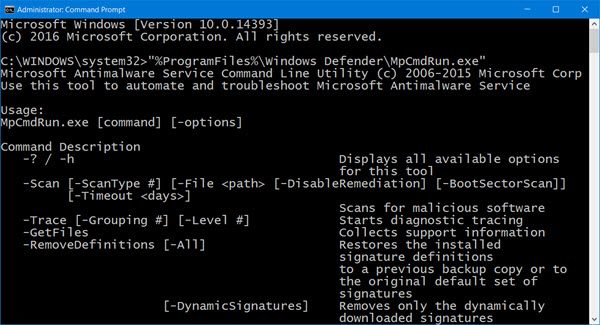
To use the MpCmdRun.exe command line tool, open the command prompt as an administrator. Type the following to get the entire list of commands:
"%ProgramFiles%\Windows Defender\MpCmdRun.exe"
Run Defender Quick scan from the command line
If you wish to run a Quick scan from the command line, you can use -Scan 1 parameter:
"%ProgramFiles%\Windows Defender\MpCmdRun.exe" -Scan -ScanType 1
Run Defender Full scan from the command line
To perform a Full scan, use:
"%ProgramFiles%\Windows Defender\MpCmdRun.exe" -Scan -ScanType 2
Run scan of a custom path using MpCmdRun.exe
You can run a scan of a custom path with the following command:
MpCmdRun.exe -Scan -ScanType 3 -File <Full-Path-Of-The-File-Or-Folder>
Purge Windows Defender Definitions cache using CMD
At a command prompt (admin) enter the following command and hit Enter:
%ProgramFiles%\Windows Defender\MpCmdRun.exe -removedefinitions -all
Update Windows Defender Quick from the command line
To update Windows Defender or to create a shortcut to update your Windows Defender, you can use the following command:
"%ProgramFiles%\Windows Defender\MpCmdRun.exe" –signatureupdate
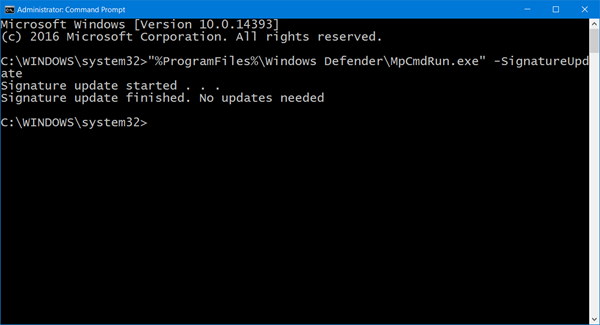
You can also create desktop shortcuts to run the above commands.
Read: You can also update Windows Defender definitions using PowerShell.
How to enable Windows Defender in Windows 11 using CMD?
To enable Windows Defender in Windows 11 using CMD, open Command Prompt as an administrator and type the following command: sc start windefend. Press Enter. This command starts the Windows Defender Antivirus service.
How to run Windows Defender via CMD?
To run Windows Defender via Command Prompt, open the Start menu, search for “Command Prompt,” and select “Run as administrator.” Navigate to the directory using the command: cd C:\ProgramData\Microsoft\Windows Defender\Platform\<antimalware platform version>. Then, execute MpCmdRun.exe to manage Windows Defender operations.
MpCmdRun.exe command line tool
Here is the entire list, which I have copied and pasted from the command prompt results:
MpCmdRun.exe [command] [-options]
Command Descriptions:
- -? / -h : Displays all available options for this tool
- -Trace [-Grouping #] [-Level #] : Starts diagnostic tracing
- -RemoveDefinitions [-All] : Restores the installed signature definitions to a previous backup copy or to the original default set of signatures
- -RestoreDefaults : Resets the registry values for Microsoft Antimalware Service settings to known good defaults
- -SignatureUpdate [-UNC] : Checks for new definition updates
- -Scan [-ScanType] : Scans for malicious software
- -Restore -Name <name> [-All] : Restore the most recently or all quarantined item(s) based on name
- -GetFiles : Collects support information
- -Restore : Restore or list quarantined item(s)
- -AddDynamicSignature : Loads a dynamic signature
- -ListAllDynamicSignatures : List the loaded dynamic signatures
- -RemoveDynamicSignature : Removes a dynamic signature.
Hope this helps you get started. For details, you may visit Microsoft.
