
If YourPhone.exe or Phone Link app is consuming more resources than usual, this guide will help you to troubleshoot the issue. You can fix follow these solutions if you are getting high CPU usage issues by YourPhone.exe process on Windows 11 or Windows 10 computer. Phone Link, previously called Your Phone, is an app developed by Microsoft for Windows 11/10 to help users connect their phones to their PC. The process YourPhone.exe belongs to this app.
For your information, YourPhone.exe is the Phone Link app that allows users to establish the connection between their computer and mobile to send notifications, use apps, etc. Although it doesn’t consume much resources, you can encounter the high CPU usage issue by YourPhone.exe on Windows 11/10 PC at times. In such situations, this guide will help you resolve the issue.
YourPhone.exe High CPU Usage on Windows 11
To fix YourPhone.exe’s high CPU usage issue on Windows 11/10, follow these steps:
- Terminate process using Task Manager
- Disable Phone Link from running in the background
- Update the Phone Link app
- Repair and reset the Phone Link
- Reinstall Phone Link
To learn more about these solutions, continue reading.
1] Terminate process using Task Manager
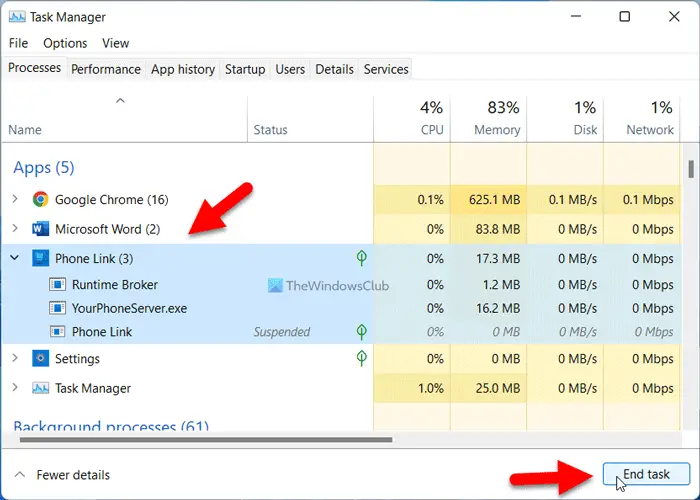
Terminating YourPhone.exe or the Phone Link app in Task Manager is a temporary solution. When an app starts consuming your resources, it slows down your PC. There may be times when you can’t use your computer at all. In such situations, you need to close the app responsible immediately so you can try other solutions.
If the same thing is happening to you, you must close YourPhone.exe or the Phone Link app using Task Manager. For that, do the following:
- Press Win+X to open the WinX menu.
- Select the Task Manager option.
- Choose the Phone Link app from the list.
- Click the End task button.
Now, you can find the computer normal.
2] Disable Phone Link from running in the background
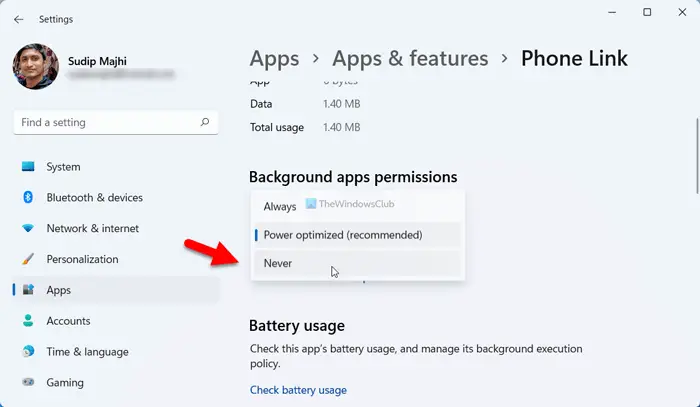
The Phone Link app runs in the background concurrently in order to provide you with a smoother user experience. Whenever your phone is near your computer, it connects to the PC automatically. It happens because the Phone Link app runs continuously in the background.
However, this practice may consume more resources than usual. Therefore, it is better to disable the Phone Link app from running in the background to prevent it from consuming CPU.
To disable the Phone Link app from running in the background, follow these steps:
- Press Win+I to open Windows Settings.
- Go to the Apps > Apps & features.
- Select Phone Link.
- Click the three-dotted button and select Advanced options.
- Expand the drop-down list.
- Select the Never option.
3] Update the Phone Link app
If you are using an old version of the Phone Link app, you might encounter a similar problem. If the old version of the Phone Link app doesn’t comply with the latest changes, or if there is a glitch, there is a high chance of getting such issues. Therefore, you can open the Microsoft Store on your computer and check whether an update is available. If yes, it is recommended to download and install the update.
4] Repair and reset the Phone Link
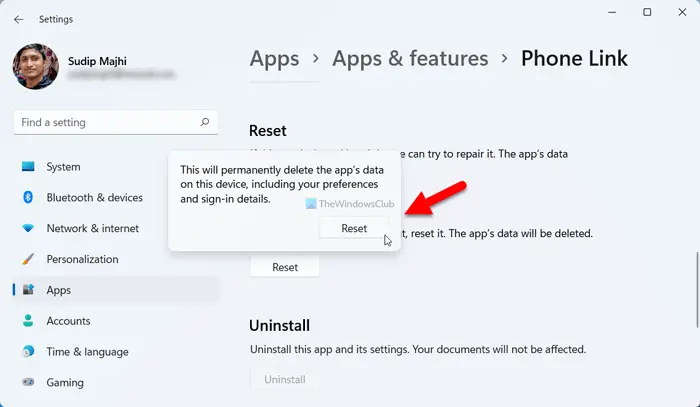
At times, an internal issue could cause the high CPU usage problem on your computer. In such a situation, it is better to repair the app first. However, if that doesn’t resolve the issue, it is suggested to reset it.
To repair and reset the Phone Link app, do the following:
- Press Win+I to open the Windows Settings.
- Go to the Apps section.
- Select the Apps & features menu.
- Find the Phone Link app > click the three-dotted icon > select the Advanced options.
- Click the Terminate button to close the app if it is running.
- Click the Repair button.
- If the problem doesn’t resolve, click the Reset button twice.
Following that, the Phone Link app won’t use more resources than usual.
5] Reinstall Phone Link
If none of the aforementioned solutions have worked for you, it is time to uninstall the Phone Link app from your computer and reinstall it accordingly. For that, you can take the help of Windows PowerShell or the PowerShell instance in Windows Terminal. To uninstall the Phone Link app using Windows PowerShell in Windows 11/10, follow this guide. For your information, you need to use this command:
Get-AppxPackage *windowsphone* | Remove-AppxPackage
Once done, open the Microsoft Store, find the Phone Link app, and install it on your computer.
That’s all! Hope this guide helped.
Can I disable YourPhone.exe?
Yes, you can disable YourPhone.exe on Windows 11 within moments. If you no longer use this app, you can simply uninstall it from your computer. However, if you use it occasionally, you can open the Windows Settings and prevent it from running in the background.
Why is Phone Link app using CPU?
Windows 11 runs the Phone Link app continuously in the background so that your phone connects automatically and displays notifications on your PC on the go. That is why the Phone Link or YourPhone app requires more resources than most of the other apps installed on your computer. However, if it is consuming more CPU than usual, you can follow the guides mentioned above to resolve this issue.
