
If you encounter the “Your Personal Vault isn’t up to date” error in OneDrive, the solutions provided in this article will help. This error prevents OneDrive from syncing files stored in Personal Vault. This error can occur for several reasons, such as an invalid file name or a corrupted file.

OneDrive error Your Personal Vault isn’t up to date
Use the following fixes for the “Your Personal Vault isn’t up to date” error in OneDrive. Before proceeding, restart your computer and see if it works, as sometimes problems occur due to minor glitches.
- Unlock Personal Vault
- Check the files stored in Personal Vault
- Delete or rename Personal Vault
- Reset OneDrive
- Create a new user profile
- Uninstall and reinstall OneDrive
All these fixes are explained in detail below.
1] Unlock Personal Vault
If your files are not syncing due to this error, you can try syncing them using this method.
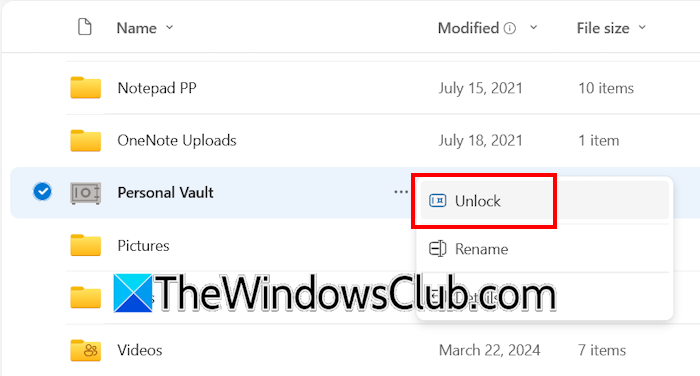
Follow these steps:
- Open your favorite web browser.
- Log in to OneDrive.
- Select the My Files folder from the left side.
- Scroll down to view the Personal Vault folder.
Now, open the OneDrive folder in File Explorer and locate the Personal Vault folder inside it. Double-click on the Personal Vault folder and follow the steps to unlock it locally. When you unlock the Personal Vault folder online and locally, your files should start syncing. This should also fix the error.
2] Check the files stored in Personal Vault
This error might be occurring because some of your files are stored in the Personal Vault. You have to check this manually. None of your files should have invalid names. Move all your files from Personal Vault to another hard drive partition or external storage and restart your computer.
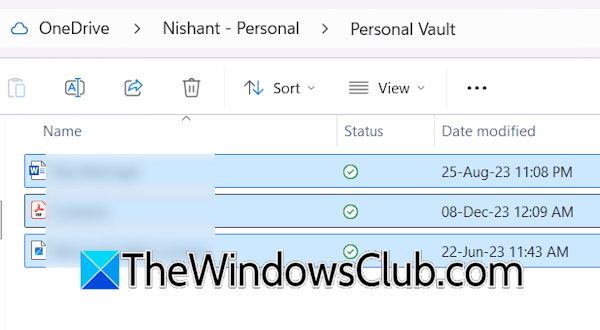
The error will not occur when the Personal Vault is empty. Now, move the files back to the Personal Vault one by one. When the error reappears, the file you just moved to the Personal Vault is causing it. To fix this error, you can rename that file. If this does not work, the file extension might not be allowed in Personal Vault. In this case, store that file anywhere outside the Personal Vault.
3] Delete or rename Personal Vault
Sometimes, deleting the Personal Vault shortcut fixes the error. Deleting the shortcut is safe because OneDrive automatically creates the new shortcut.
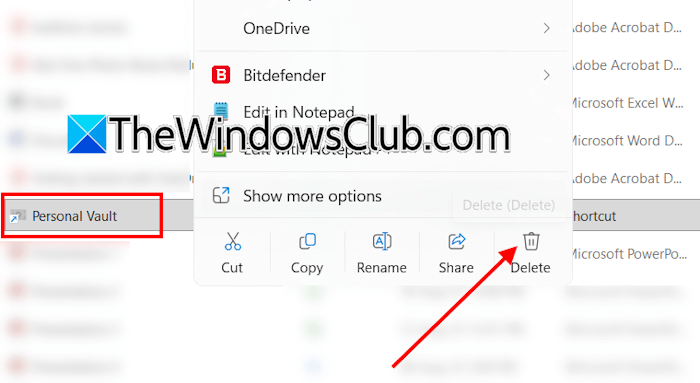
Open File Explorer and locate the Personal Vault shortcut. Select it and delete it. All your files inside the Personal Vault will not be deleted due to this action.
If deleting the Personal Vault shortcut does not work, rename it. You can give any name to the Personal Vault shortcut. If this works, you can try reverting the changes.
4] Reset OneDrive
If the error persists, you can reset OneDrive. This process usually fixes OneDrive issues. To reset OneDrive, you have to run the required command in the Run command box.
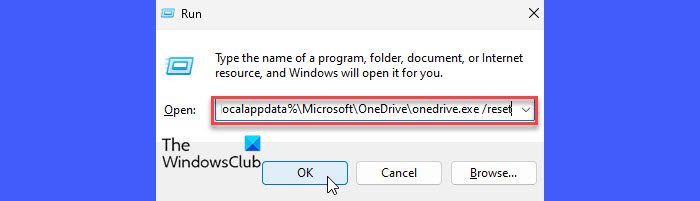
Open the Run command box, copy the following command, paste it into it, and click OK.
%localappdata%\Microsoft\OneDrive\onedrive.exe /reset
If the above command does not work, use the following command:
C:\Program Files\Microsoft OneDrive\onedrive.exe /reset
If you still can’t reset OneDrive, execute the following command:
C:\Program Files (x86)\Microsoft OneDrive\onedrive.exe /reset
The OneDrive folder will open automatically after running the reset command. The syncing process will start from scratch. After the sync completes, check for any errors.
5] Create a new user profile
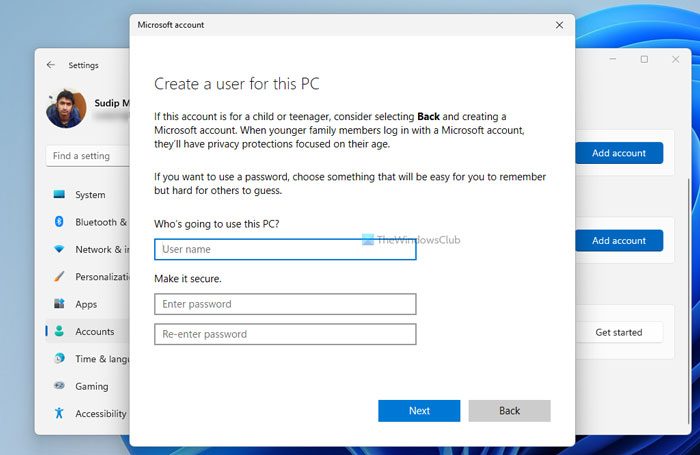
You can try creating a new user profile on Windows. Log in to the new profile and sign up for OneDrive with the same Microsoft account. If the error does not persist, you can keep using the new user profile. To transfer your user profile data from the previous profile, you can use a third-party tool, Transwiz.
6] Uninstall and reinstall OneDrive
If the error still persists, the last resort is to uninstall and reinstall OneDrive. Open Windows 11 Settings and go to Apps > Installed apps. Search for OneDrive. Click on the three dots next to it and select Uninstall. Restart your computer.

Visit Microsoft’s official website and download the latest version of OneDrive from there. Run the installer file to reinstall OneDrive.
That’s it. I hope this helps.
Is OneDrive Personal Vault necessary?
Personal Vault is a protected folder in OneDrive. You can keep your important files in Personal Vault. To access files stored in Personal Vault, you have to unlock it. It automatically locks after 20 minutes (default time). Personal Vault is not necessary. However, storing your important files in it keeps them safe. Additionally, you cannot permanently delete it because it is part of OneDrive.
How to get rid of Personal Vault on OneDrive?
You can’t get rid of Personal Vault in OneDrive because it’s part of OneDrive. When you open OneDrive locally on your system or online, you will see it there. If you delete it from your system, OneDrive will automatically recreate it.
Read next: This item name or type isn’t allowed OneDrive Personal Vault error .
