
Some users encountered the “This item name or type isn’t allowed” error in OneDrive Personal Vault. This error prevents OneDrive from syncing the files stored in Personal Vault. However, users can access all the files stored in the Personal Vault. Therefore, to start syncing, the error must be fixed. In this article, I will show you how to fix this error.
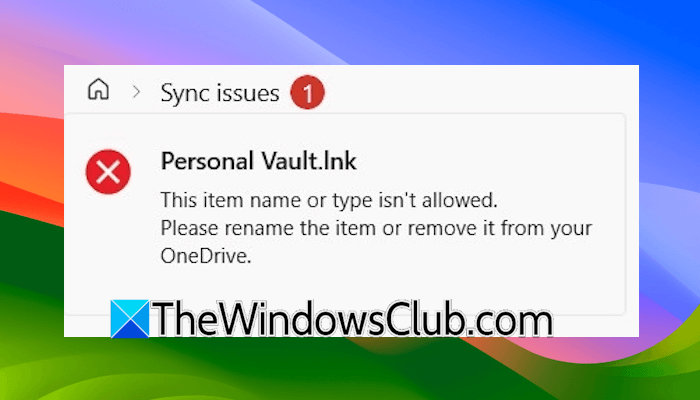
The complete error message is:
This item name or type isn’t allowed. Please rename the item or remove it from your OneDrive.
Fix This item name or type isn’t allowed OneDrive Personal Vault error
If OneDrive is not syncing the files stored in Personal Vault due to the “This item name or type isn’t allowed” error, use the following suggestions:
- Change the file name
- Unlink and relink OneDrive
- Delete the affected files and restore them
- Rename the Personal Vault shortcut
- Delete the Personal Vault shortcut
- Reset OneDrive
- Uninstall and reinstall OneDrive
- Create a new user profile
All these fixes are explained below in detail.
1] Change the file name
If you have recently added a file or changed its name in OneDrive, changing its name will fix this error. Rename the file and see what happens.
2] Unlink and relink OneDrive
Unlinking and relinking OneDrive can help fix this error. When you unlink OneDrive, any files that are not available locally on your system will be removed. They will appear again when you relink OneDrive.
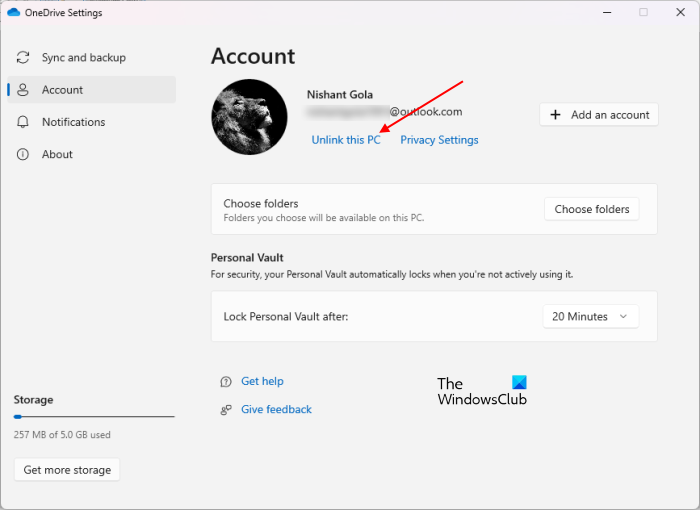
Follow these steps:
- Click on the OneDrive cloud icon on the Taskbar.
- Click on the gear-shaped icon on the top right side and click Settings.
- Select Account from the left side and click Unlink this PC.
After unlinking OneDrive, restart your computer. Click on the OneDrive cloud icon on the Taskbar and follow the on-screen prompts to set up OneDrive. OneDrive will take some time to sync your files. After the sync completes, check whether the issue persists with Personal Vault.
3] Delete the affected files and restore them
Delete the affected files in OneDrive and restore them from the Recycle Bin. When you delete a file in OneDrive, it goes to the OneDrive Recycle Bin. You can restore your deleted files anytime from the OneDrive Recycle Bin.
You have to perform this step online. Launch your favorite web browser and log in to OneDrive. Now, go to My files and open the Personal Vault folder. Select all the files and download them to your local storage device to create a backup. After that, delete all the files. Click Delete in the confirmation box.
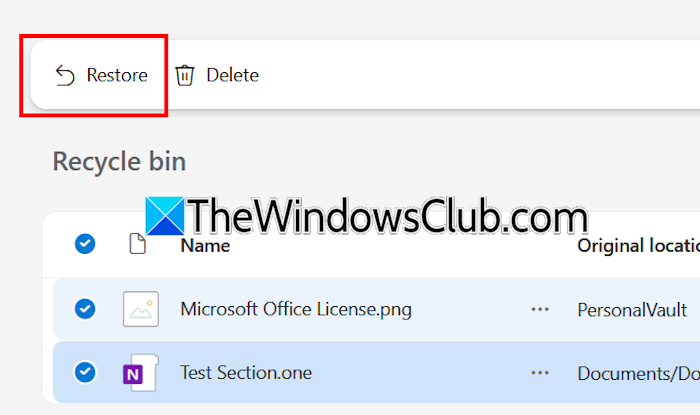
Open OneDrive Recycle Bin. You will see all your deleted files there. If not, reload the web page. Now, select the deleted files and click Restore.
4] Rename the Personal Vault shortcut
If the error still occurs, you can try renaming the Personal Vault folder. Open OneDrive in File Explorer on your system and locate the Personal Vault shortcut. Right-click on it and select Rename.
Rename it to PersonalVault or Personal_Vault. In some cases, it may fix the error immediately. If so, you can change the name back to the original name.
5] Delete the Personal Vault shortcut
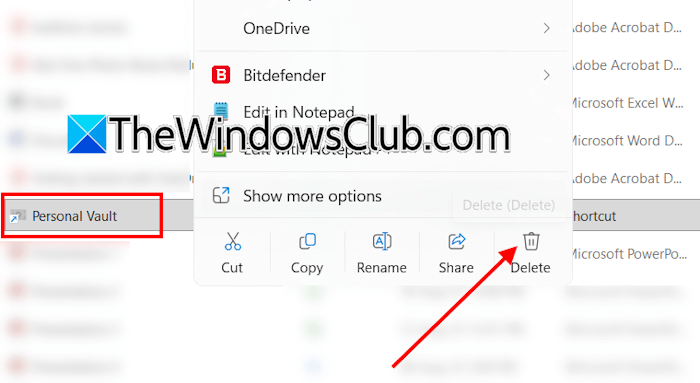
This is the simplest fix for the “The item name or type isn’t allowed” error in OneDrive Personal Vault. Open OneDrive in File Explorer and select the Personal Vault shortcut. Delete it. OneDrive automatically creates the Personal Vault shortcut immediately after you delete it.
6] Reset OneDrive
If the issue persists, reset OneDrive. To reset OneDrive, copy the following command and paste it into the Run command box. After that, click OK.
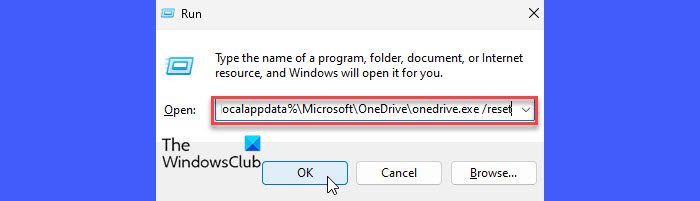
%localappdata%\Microsoft\OneDrive\onedrive.exe /reset
If the above command does not work and you get an error, use the following command:
C:\Program Files\Microsoft OneDrive\onedrive.exe /reset
If this command also does not work, use the following command:
C:\Program Files (x86)\Microsoft OneDrive\onedrive.exe /reset
After the execution of the above command, the OneDrive folder will open automatically, and your data will start syncing again.
7] Uninstall and reinstall OneDrive

If the error persists, you can try uninstalling and reinstalling OneDrive. Open Windows 11 Settings and go to the Installed apps page. Search for OneDrive and uninstall it from there. After doing that, restart your computer and download the latest version from the official Microsoft website. Run the installer file to install OneDrive.
Read: OneDrive Personal Vault not showing in Windows 11
8] Create a new user profile
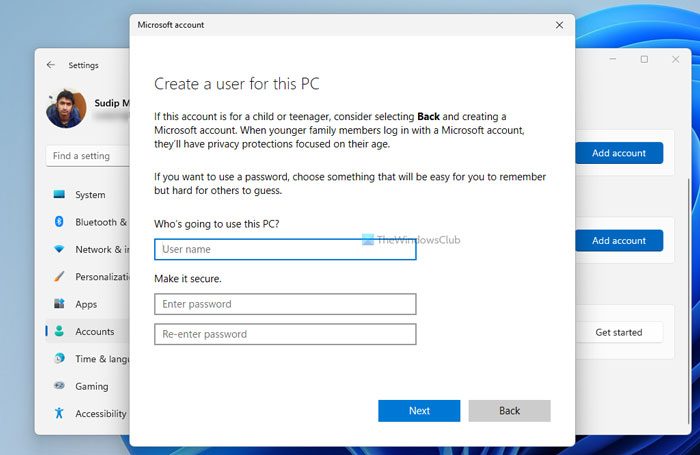
You can try creating a new user profile. Now, sign in to OneDrive with the same Microsoft account in the new user profile. If the error does not occur, the issue is related to your previous Windows user profile. In this case, you can transfer your user profile data from the previous profile to the new profile using a third-party tool, like Transwiz.
I hope this helps.
How to unlock Personal Vault?
To unlock Personal Vault, open OneDrive and locate the Personal Vault shortcut. Double-click on the Personal Vault shortcut. You will be asked to enter your Microsoft account credentials. Enter your account password or use Windows Hello sign-in methods to unlock Personal Vault. Personal Vault will be automatically locked after a period of inactivity.
How to enable Personal Vault in OneDrive?
You do not need to enable Personal Vault in OneDrive. When you sign in to OneDrive with your Microsoft account, Personal Vault will be automatically activated. Simply double-click on its shortcut and enter your Microsoft account credentials to unlock it.
Read next: How to move a file from OneDrive to Google Drive.
