
In this post, we will discuss how to fix the Yellow triangle warning on C or D Drive on Windows 11/10. The yellow triangle-shaped warning indicates that you must cross-check the information stored on the associated drive and ensure it is safe and protected with BitLocker. It basically indicates that Bitlocker is waiting, not activated or suspended.
BitLocker Drive Encryption is integrated with Windows and manages data protection. It provides the best protection when used with a TPM version 1.2 or later. This may happen if automatic device encryption is not enabled. The issue could occur if a user creates and logs on using a local account during the initial set up (out-of-box) of the computer. Nevertheless, worry not if you also see the Yellow triangle warning on C or D Drive. Just follow the solutions below to get rid of the issue.
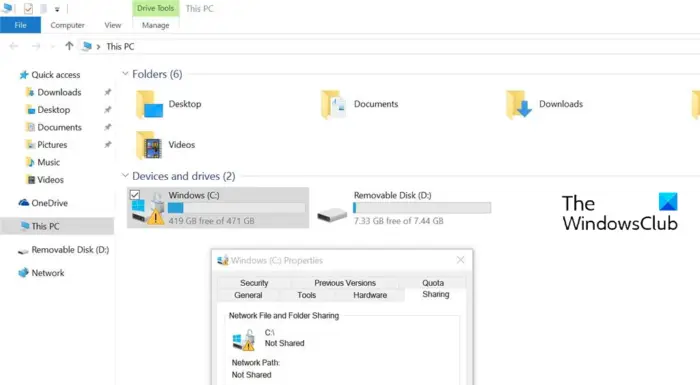
The lock for the hard drive may have various meanings:
| Lock position | Meaning | |
| Locked padlock | BitLocker locked: Volume is inaccessible. | |
| Unlocked padlock | BitLocker on: Drive is encrypted and keys are protected. | |
| Unlocked padlock with yellow warning triangle | BitLocker is suspended: Drive is encrypted but everyone has access. This icon is also used to indicate that BitLocker is pre-provisioned. | |
Yellow triangle warning on C Drive on Windows 11
Below is a list of all the effective solutions you can try to remove the Yellow triangle warning with a padlock on C or D Drive on Windows 11/10.
- Run the Chkdsk command
- Enable BitLocker Encryption
- Disable BitLocker Encryption
Now, let’s take a look at all these solutions in detail.
Bitlocker is waiting, not activated or suspended
1] Run the Chkdsk command
Before trying anything technical, you should run the Chkdsk command. It will examine the file system and its metadata for logical and physical errors. To run the command, follow the steps below.
- Press the Windows key to open the Start menu.
- In the search bar, type Command Prompt and press the Enter key.
- From the result, choose the Run as administrator option.
- Now, in the cmd window, type chkdsk /f and press the Enter key.
Once the command is executed, close the Command Prompt window and restart your system. Check if you are still facing the problem. If not, you are good to go. But in case the problem continues, try the next solution on the list.
See: OneDrive Exclamation Mark error Icon in Explorer
2] Enable BitLocker Encryption
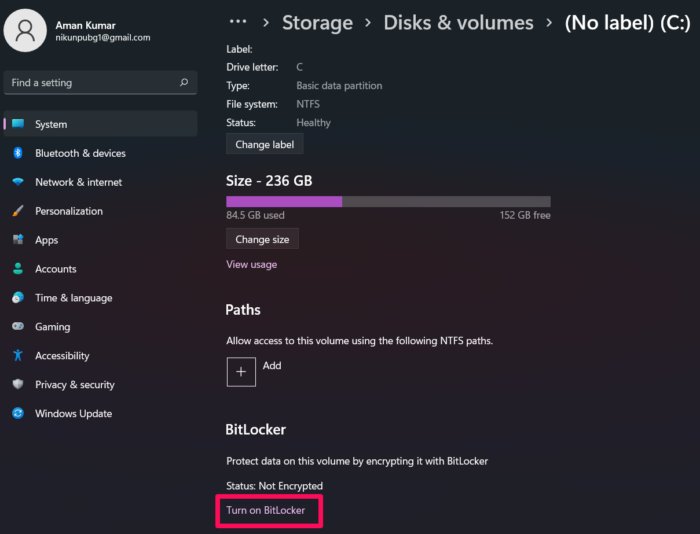
The Yellow triangle warning on the C or D drive indicates that the automatic device encryption is disabled. This option is enabled by default but can get disabled automatically after system updates. To solve the problem, you will have to enable and disable the BitLocker. Below are the steps to enable BitLocker on your system.
- To begin with, open the Settings menu by pressing the Windows + I shortcut key.
- In the System section, locate and open the Storage option.
- Click on the drop-down icon present next to Advanced storage settings.
- Choose Disks & volumes.
- Select C Drive and choose the Properties option.
- In the following window, select Turn on BitLocker.
- Choose Enter a password.
- Create a strong and unique password to unlock the drive.
- Tap on the Next option.
- Under How to back up your recovery key, select Save to Microsoft account.
- Click on Next.
- Select Encrypt used disk space only (faster and best for new PC’s and drives).
- Tap on the Next option.
- Choose New encryption mode (best for fixed drivers on this device) as the encryption mode to use.
- Now, click on Next > Start encrypting.
Now restart your system and check whether the problem is fixed.
See: Fix Disk Management errors on Windows
3] Disable BitLocker Encryption
The problem can also occur if you have previously used the BitLocker protection on the C drive. If this is the case, you’ll have to disable the BitLocker Encryption. You can do so by following the steps below.
Open Command Prompt in administrator mode.
Type the following command, and press the Enter key.
manage-bde -off C:
That’s it. The process will take some time.
Once it’s completed, restart your system. You’ll notice that you’re no longer seeing the Yellow Triangle warning.
Read: Explorer.EXE blank message with a yellow exclamation mark on startup
What does a yellow triangle with an exclamation mark mean on my computer?
If you see a yellow exclamation mark triangle on your PC then it indicates that there is an issue with the associated device. It indicates the current device status and notes a conflict between the devices and system resources. The problem mainly occurs when you try to plug a new device into your system. To solve the problem, you can plug the device back in. If this doesn’t make any difference, you can go with updating the associated driver. Reinstalling the driver can also prove to be an effective solution.
How do I fix the yellow triangle with exclamation mark on battery symbol?
It’s very common to see a yellow triangle over the battery symbol on a Windows PC. Thankfully, it’s very easy to troubleshoot this problem. You can try the following methods: Run the Power troubleshooter, manually restore defaults for the Power Plan, and Uninstall or Reinstall the Battery driver. For more information, you can check out our dedicated guide.
How do I fix The display adapter or GPU showing yellow exclamation mark?
This problem mainly indicates that the driver is not installed properly. To solve the issue you can download the latest driver update by visiting the device. Alternatively, you can even reinstall the driver if updating doesn’t make any difference.
Read next: How to remove Lock Overlay Icon on Encrypted Files.
