
If the Xbox PC app freezes, becomes unresponsive or keeps crashing during gameplay or streaming, these suggestions will help you. Windows 11/10 can stream Xbox One from a local network to your computer, which is why it is such a hit with gamers. But several users have complained that at times the Xbox PC app keeps crashing or freezes when streaming on their Windows system, and there could be several reasons for that.
Xbox PC app keeps crashing or freezes during gameplay in Windows 11/10
If the Xbox app freezes, becomes unresponsive or keeps crashing during gameplay or streaming, try the following suggestions:
- Log out and log back in
- Check Network Connection and Latency
- Update the app and Windows
- Change graphics
- Check EVGA PrecisionX
- Reset Xbox App
- Choose the Safe Mode.
1] Log out and log back in
Let’s eliminate the commonest ones first. Xbox in Windows sometimes freezes due to Xbox messages. Delete the messages and log out of the app, then log back in.
The problem could also lie with your graphics card, and you must make sure you’re using the right kind of graphics card and ensure that your graphics drivers are up-to-date.
But the problems with Xbox One are not always external or related to messages in Windows 10, and there could be other issues too. Here’s looking at a few of them:
2] Check Network Connection and Latency
This could be the most obvious, yet easy-to-miss reason. If the network isn’t connected, it halts every other associated functionality. While it would be obvious while re-initiating the setup, a better way to check would be to go to Home > Gaming > Xbox Networking. The Internet Connection should show ‘Connected’.
Now while the network might be connected, the connection may not be as stable. Check the same in the Latency section. Ideally, the latency should be less than 100ms and the packets lost should be minimal.
3] Update the app and Windows
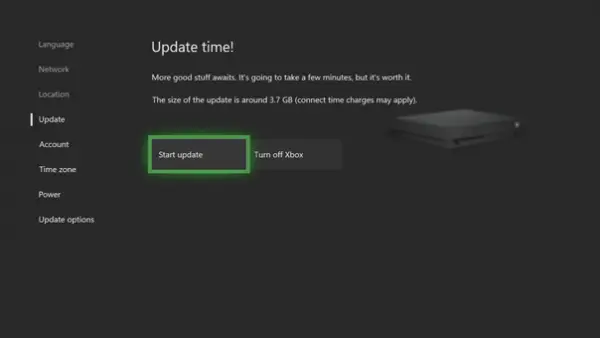
It’s probably the most obvious solution, besides network settings – but you need to make sure that your Xbox is compatible with your Windows 11/10 system and that both these platforms are updated and running on their latest versions. Especially if you’re looking to play a high graphics-reliant game, your system and the Xbox application must run right. The update option could be checked during the setup.
4] Change graphics
Sometimes when you’re previewing or streaming a game on Xbox One, it freezes and more often than not, the problem lies with the graphics. If you use your laptop for gaming purposes, consider switching to one with switchable graphics.
Change Xbox One settings from the “high performance to “energy efficient.” It’s an energy-saving mode and also makes it easier for Windows to work with graphics – sometimes, advanced graphics are difficult to run in Windows 11/10.
You can also switch the app to “Battery Saving/Low Performance” mode and make sure your drivers are updated.
5] Check EVGA PrecisionX
EVGA PrecisionX is a software that lets you fine-tune your graphics card, including Memory Clock Fan Speed, voltage and GPU Clock Offsets. It is used as an overclocking tool for your graphics card and provides a high-paced, advanced-level performance. But although several gamers use this software, they have complained that it creates issues Xbox One.
If you’re using EVGA PrecisionX and your Xbox One freezes, disable EVGA PrecisionX and then restart it.
6] Reset Xbox App
Repair or Reset Xbox App via Windows Settings and see if that helps.
7] Choose the Safe Mode
Many gamers would advise you to choose the Safe Mode while using Xbox One on Windows, and they are not wrong. It does help the gaming experience.
Go to the Start button and then press and hold the Shift key. You then need to click on Restart. After it starts up again, go to Troubleshoot and then select Advanced Settings. Choose the Startup Settings option and then again select Restart. Press F5 and then you should be able to enter Safe Mode.
Restart your Xbox application and check to see if it is working. If it is, restart your computer, and then resume work.
I hope something here helps you.
Xbox PC app is crashing due to hermes.dll
The hermes.dll file belongs to Acer Jumpstart Utility or the HERMES Dynamic Link Library. If your Xbox PC app is crashing and you see hermes.dll mentioned in the Event logs, you may consider removing these 2 applications or use the Xbox re-installer tool from Microsoft and see if it helps.
Why does my PC keep crashing when I play games?
Compatibility issues are one of the most common reasons why your computer crashes when you play games. If your system does not meet the hardware requirements for the game, it will either crash every time you play or freeze. Apart from this, corrupted or outdated drivers are also responsible for the issue.
Does Xbox app work on Windows 11?
The Xbox app is completely compatible with Windows 11. Hence, it will work on Windows 11. You may or may not find it pre-installed on your system. If you don’t find it on your system, you can install it from the Microsoft Store. Xbox features Xbox GamePass from where you can purchase PC games. Xbox also has free games. You can view and install all free and paid games from the Store in the Xbox app.
