
If you are receiving WslRegisterDistribution failed with error: 0x800701bc, then it’s a Kernel issue that can be fixed rather quickly. Make sure you have an admin account that has enough privileges to update the Linux Kernel.
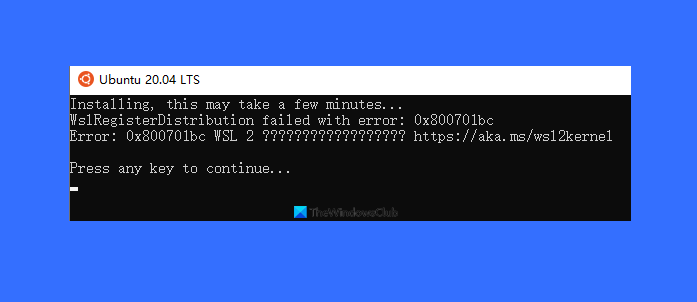
Here is the complete error message:
Installing, this may take a few minutes…
WslRegisterDistribution failed with error: 0x800701bc
Error: 0x800701bc
WslRegisterDistribution failed with error 0x800701bc
Microsoft maintains a dedicated WASD page where all updates, including the Kernel update, are available. Follow this link, and download the update package. Since there is a major shift in WSL versions, an update to the Kernel is required to continue using WSL.
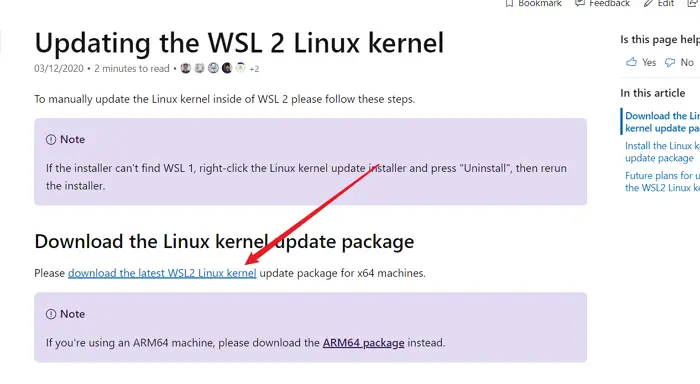
Makes sure to run it with Admin permission. Once the installation is complete, set the version to the next. If you are moving from WSL to WSL2, then run the following in PowerShell.
wsl --set-default-version
Some users have also reported that uninstalling a previous update and then installing the new version helps. In the installed Windows Update list, locate the update— Windows Subsystem for Linux Update, and uninstall it. Then install the latest kernel, and it should work.
If you can’t find it, go to Settings > Update & Security > View Update History. Click the Uninstall updates link, then locate the update mentioned.
Once complete, open the Microsoft Store and download your favorite Linux flavor, and it should work without a problem.
If it doesn’t, check whether you have Windows Update enabled. You may have to press the Check for Update button. If yes, download and install the update and then reboot.
I hope the post was helpful and that you were able to update the Kernel to the latest version, which caused the “WslRegisterDistribution failed” error.
Similar WslRegisterDistribution failed with errors:
0xc03a001a | 0x80041002 | 0x800700b7 or 0x80080005 | 0x80070422 | 0x80370114 | 0x80370102 | 0x80070003 | 0x80070032 | 0x8007023e | 0x8007019e and 0x8000000d.
