
If your Word equation is not converting to professional format, you’re not alone. Some users have reported that equations typed in Microsoft Word on a Windows 11/10 PC fail to switch from linear text mode to the neatly formatted professional style. This can be particularly frustrating, especially when preparing academic papers, reports, or technical documents that require proper equation formatting.

While some users found that equations refuse to convert automatically, others reported that certain LaTeX-style commands do not render properly, or pre-built equation structures appear empty or misaligned.
Word Equation not converting to professional format
To fix your Word Equation if it is not converting to a professional format, use these fixes:
- Enable automatic equation conversion
- Manually force Professional mode
- Enable LaTeX input
- Reset the equation template
- Disable conflicting add-ins
- Update/repair Microsoft Office
Let us see these in detail.
1] Enable automatic expression conversion
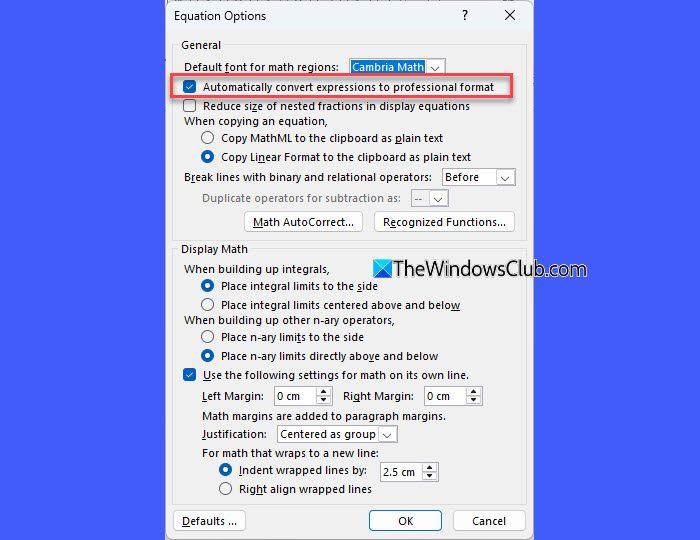
Start by checking if automatic expression conversion is enabled. This feature allows Word to automatically convert both equations and mathematical expressions from linear input to professional format when you press Space or Enter.
Open your Word document and go to the equation that isn’t converting properly. Click inside the equation to select it. Go to the Equation (Equation Tools) tab. Click the small arrow in the bottom-right corner of the Conversions group to open Equation Options.
In the dialog, make sure “Automatically convert expressions to professional format” is checked.
2] Manually force Professional mode
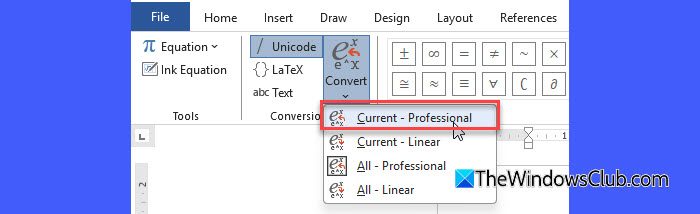
If automatic expression conversion is enabled and the equation still doesn’t convert automatically, you can manually force it into professional mode.
Select the equation. On the top menu, select the Equation tab. In the Conversion group, click Convert and select Professional from the dropdown.
Your equation should now display in Professional format.
3] Enable LaTeX input
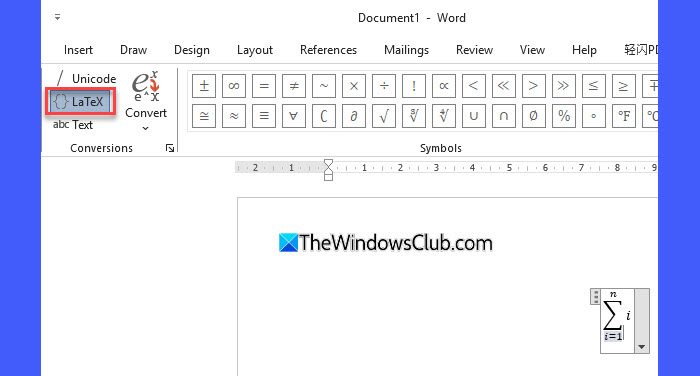
If you’re trying to format a LaTeX-style command, the issue is likely that Word isn’t set to interpret equations in LaTeX mode. Word supports both UnicodeMath and LaTeX environments for mathematical formulas. However, it often uses UnicodeMath by default, which prevents LaTeX commands from being recognized. Switching the equation input mode to LaTeX ensures that commands such as fractions, integrals, and square roots render correctly in professional format.
Select the equation that isn’t converting. Go to the Equation tab in the ribbon. In the Conversions group, select the LaTeX option.
The equation will now render in professional format based on LaTeX syntax.
Note:
- Direct LaTeX support in Word is available in Office 365 (version 1707 and later) and some earlier versions. If you are using a version that does not include full LaTeX support, you can create equations through the built-in Equation Editor. It uses Microsoft’s own OMML (Office Math Markup Language) format along with Math AutoCorrect shortcuts (for example, typing
\alphainsertsα). You can find the full list of supported commands and symbols in Microsoft’s Quick Start Guide to Math AutoCorrect here. - Both UnicodeMath and LaTeX formats work in Word, but mixing them in the same document can cause errors. Choosing one format and sticking with it across all equations in a document ensures that commands are interpreted correctly and formatting remains consistent.
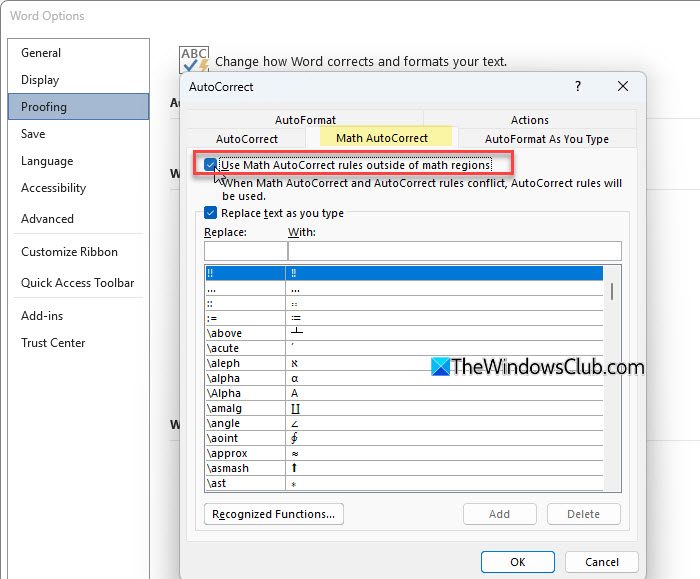
- If you are trying to insert equations outside of an equation box (for example, directly in text), make sure the option “Use Math AutoCorrect rules outside of math regions” is enabled. You can find this under File > Options > Proofing > AutoCorrect Options > Math AutoCorrect.
4] Reset the equation template
Word uses Normal.dotm as the base template for all new documents unless a different template is chosen. This template stores the default styles, equation settings, and other preferences that Word applies to the document.
Over time, Normal.dotm can be altered unintentionally. Such alterations can prevent equations from converting properly to the intended professional format. Resetting Normal.dotm restores Word’s equation settings to their original defaults, ensuring that they display correctly.
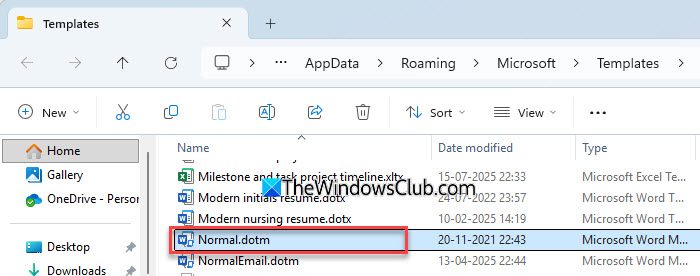
Close Word completely. Press Win + R. In the Run dialogue, type the following command and press Enter:
%appdata%\Microsoft\Templates
Locate the file named Normal.dotm and rename it to Normal_old.dotm (Word will recreate a fresh default template when reopened).
Open Word again and see if the equation renders correctly.
Note: This only resets the default template; your existing documents will not be affected.
5] Disable conflicting add-ins
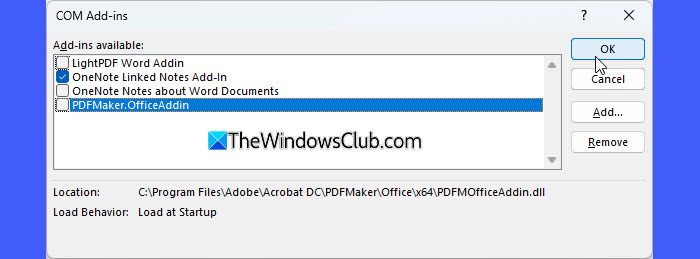
Some Word add-ins can interfere with the Equation Editor, preventing equations from converting to professional format.
To fix this, go to File > Options > Add-ins. At the bottom, in the Manage dropdown, select COM Add-ins, then click Go….
Uncheck any add-ins that might be interfering, especially recently installed ones, then click OK.
Restart Word and check if equations now render correctly. If they do, re-enable add-ins one at a time to identify the conflicting one. Once found, you can remove it from Word.
6] Update/repair Microsoft Office
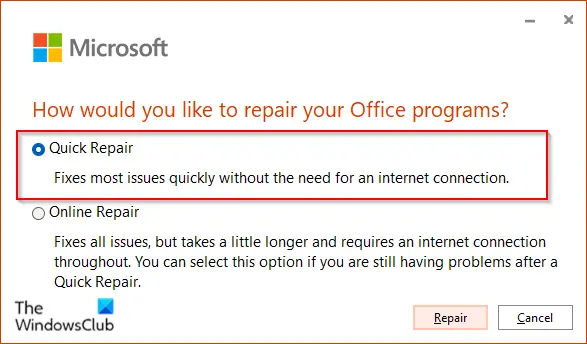
Sometimes, equation formatting issues occur due to corrupted or outdated Office files. Updating to the latest build or repairing the Office installation can resolve these problems.
Open Word and go to File > More… > Account. Under Product Information, click Update Options > Update Now.
To repair Office, close all Office apps. Press Win + R, type appwiz.cpl in the Run dialogue, and press Enter.
In the list of programs and features, select Microsoft Office, then click Change. Choose Quick Repair first. If the issue persists, run an Online Repair.
I hope this helps.
Read: How to write Fractions in Word.
How do I change the format of an equation in Word?
To change an equation’s format in Microsoft Word, select the equation and go to the Equation tab. In the Conversions group, choose your preferred input method — Unicode, LaTeX, or Text. You can also convert all equations in the document using Convert > All Professional/All Linear.
Why is MathType not working in Word?
If MathType is not working in Word on your Windows 11/10 PC, the add-in may be disabled, outdated, or not activated. Sometimes, conflicting Word add-ins, missing Office updates, or corrupted templates can also cause this issue. Re-enabling the MathType add-in, updating Word, or repairing Office usually resolves the issue.
Read Next: Copy and Paste not working in Word.
