
If you’re encountering the error code 0x8024D009 when trying to install updates on your Windows 11 or Windows 10 computer, then this post is intended to help you. In this post, we will identify the possible causes and provide the most suitable solutions for you to try and remediate the issue.
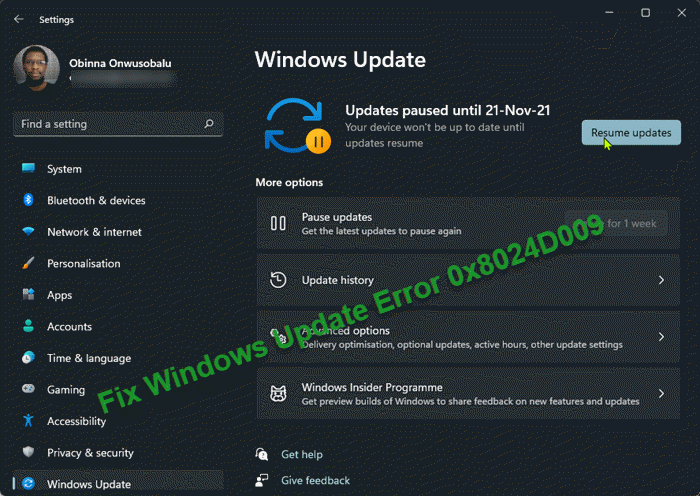
The Windows update error description reads thus:
0x8024D009 Message Description Mitigation WU_E_SETUP_SKIP_UPDATE An update to the Windows Update Agent was skipped due to a directive in the Wuident.cab file.
The most likely culprits to this update error include;
- Corrupt Windows Filesystem
- Intermittent Internet access
- Windows Update service is not running
- Misconfiguration of Windows Update components
- Malware
Windows Update Error 0x8024D009
If you’re faced with this issue, you can try our recommended solutions in the order presented below to resolve the Windows Update Error 0x8024D009 on your Windows 11/10 PC.
- Run Windows Update Troubleshooter
- Fix corrupt Windows Update Agent
- Reset Windows Update Client to default
- Troubleshoot Windows Server Update Services (WSUS)
- Perform Reset This PC, Cloud Reset or In-place Upgrade Repair Windows 11/10
Let’s examine the descriptions of the processes involved with each of the listed solutions.
1] Run Windows Update Troubleshooter
Most Windows update errors can be quickly resolved by the Windows Update Troubleshooter – a native automated wizard that ships with Windows 11/10. This solution requires you run this wizard and see if that resolves the Windows Update Error 0x8024D009 on your Windows system; otherwise, try the next solution.
2] Fix corrupt Windows Update Agent
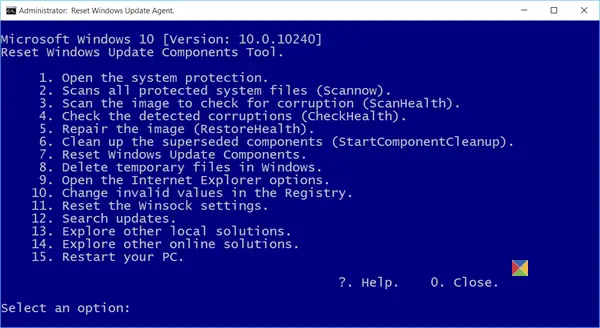
As the error description is pointing to Windows Update Agent, this might be a case of corrupt Windows Update Agent/Client – in this case, to rule out this possibility, you can try to fix the corrupt Windows Update Agent and see if that helps with the issue at hand.
3] Reset Windows Update Client to default
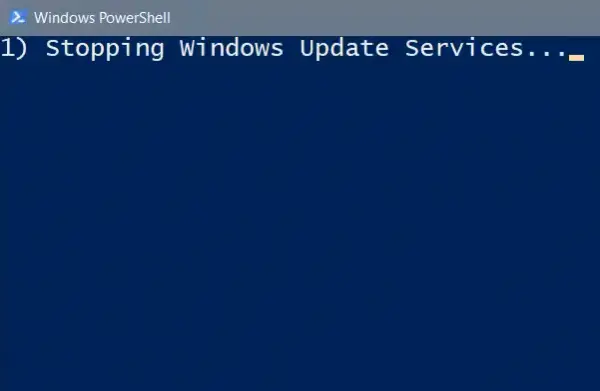
This solution requires you to reset Windows Update Client to default using PowerShell on your Windows 11/10 computer.
Once done, you can then rerun the Windows Update and see if the update installs successfully.
4] Troubleshoot Windows Server Update Services (WSUS)
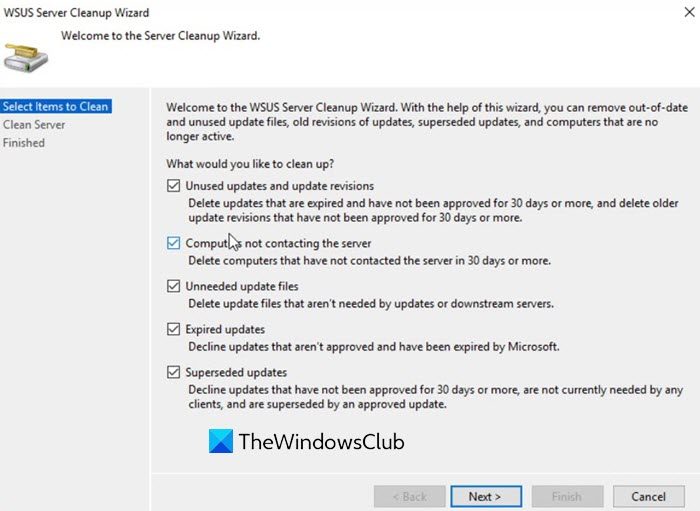
You may need to troubleshoot Windows Server Update Services (WSUS). The Windows Server Update Services (WSUS) helps administrators manage updates and hotfixes that the company releases for its products. The WSUS is a crucial part of a Windows server. As and when Microsoft launches the updates on its website, WSUS downloads it and distributes it across the network. You may need to run the WSUS Server Cleanup Wizard.
5] Perform Reset This PC, Cloud Reset or In-place Upgrade Repair Windows 11/10
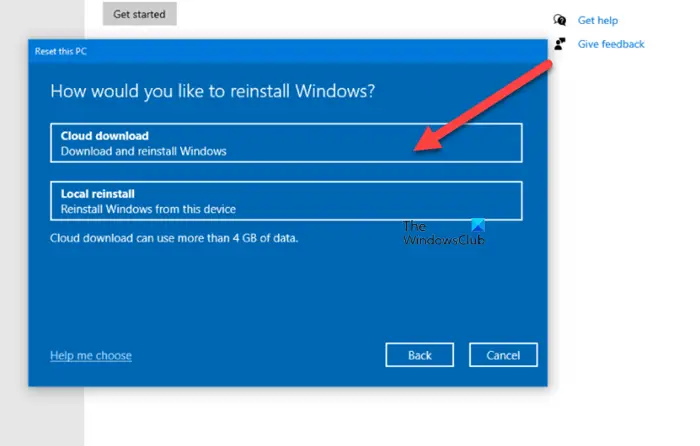
In cases of severe system corruption, you may have no other option but the most applicable solution here is that you can try Reset This PC, or Cloud Reset to reset every Windows component. You may also try In-place Upgrade Repair and see if that helps.
Any of these solutions should work for you!
Related: Windows Server Update Services Error Code 0x80072EE6.
How to update to Windows 11?
PC users looking to update to Windows 11 from Windows 10, can follow these simple instructions to operate: Just go to Settings > Update & Security > Windows Update and click Check for Updates. If available, you’ll see Feature update to Windows 11. Click Download and install.
Why can I not update Windows 11?
Suppose you’re experiencing issues updating Windows 11. In that case, you can troubleshoot Windows Update issues by following the suggestions below: Ensure you have sufficient free space on your C drive to install the latest Windows 11 updates. Restart your Windows 11 PC to ensure the previous updates are installed. Re-run the Windows updates by going to Settings > Windows Updates > clicking on Check for updates.
Does Windows have a repair tool?
Yes, Windows 11/10 ships with an inbuilt Startup Repair tool, which PC users can leverage to fix most Windows 10 boot problems. With this tool, PC users will spend less time trying to figure out the problem. Windows 11/10 includes the Startup Repair feature, designed to quickly fix the most common issues that may be preventing your computer from loading correctly.
Related post: Windows Update Client failed to detect with error 0x8024001f.
