
If your external camera doesn’t work with Windows Hello Enhanced Sign-in Security (ESS), enabling peripheral sign-in or adjusting security policies can restore facial recognition. However if this does not help, then this post will show what you can do if Windows Hello Enhanced Sign-in Security is not working with an external camera.

Windows Hello Enhanced Sign-in Security not working with External Camera
Windows Hello Enhanced Sign-in Security (ESS) uses Virtualization-Based Security (VBS) to isolate biometric data inside a secure memory enclave. Because most external USB webcams lack the dedicated, factory-certified hardware security chips ESS requires, Windows automatically blocks external facial recognition streams to prevent spoofing attacks.
If Windows Hello Enhanced Sign-in Security is not working with an external camera, follow the solutions mentioned below.
- Enable Enhanced Sign-in Security (ESS)
- Edit Registry SupportPeripheralsWithEnhancedSignInSecurity
- Manage Policy via Microsoft Intune/Enterprise MDM
- Re-enroll Biometrics in the Non-ESS State
- Look for Conflicting Services
- Upgrade to an ESS-Capable External Camera
Let us talk about them in detail.
1] Enable Enhanced Sign-in Security (ESS)

First, you need to enable Enhanced Sign-in Security (ESS), as Windows Hello requires it to work.
2] Edit Registry SupportPeripheralsWithEnhancedSignInSecurity

Adding a specific registry key forces Windows to allow external peripherals to bypass strict ESS enforcement. This is ideal if the toggle is missing or unavailable in Windows Settings. Press Win + R, type regedit, and press Enter to open the Registry Editor. In the navigation bar at the top, go to:
HKEY_LOCAL_MACHINE\SOFTWARE\Microsoft\Windows\CurrentVersion\WinBio
Look for a DWORD value named SupportPeripheralsWithEnhancedSignInSecurity in the right pane.
If it does not exist, right-click an empty area, choose New > DWORD (32-bit) Value, and name it SupportPeripheralsWithEnhancedSignInSecurity.
Double-click SupportPeripheralsWithEnhancedSignInSecurity and set its Value data to 1. Click OK and restart your PC to apply the changes.
3] Manage Policy via Microsoft Intune/Enterprise MDM
Modify domain-level security baselines to ensure central management systems don’t continuously overwrite local registry edits or block external cameras on work or school devices. To do so, log in to the Microsoft Intune Admin Center. Now, navigate to Devices > Configuration Profiles and open your active Windows Security Baseline or Endpoint policy. Then, under the Settings Catalog, search for Enhanced Sign-in Security or Biometrics.
Locate the policy rule Enable ESS with Supported Peripherals (or Windows Enhanced Sign-in Security Policy). Set the policy configuration to Allow External Peripherals (or value 0 to allow standard peripheral biometric authentication). Save and assign the updated policy profile to the target user group. On your Windows 11 PC, go to Settings > Accounts > Access work or school, select your account, click Info, and click Sync.
4] Re-enroll Biometrics in the Non-ESS State
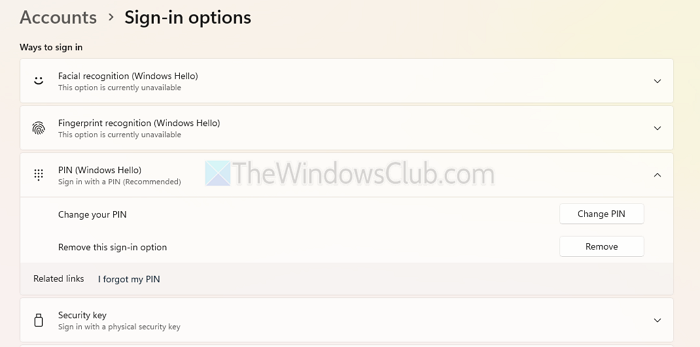
We need to wipe facial templates created while ESS was strictly active so you can generate a new biometric profile assigned to the external camera. To do so, follow the steps mentioned below.
- Press Win + I to open Settings.
- Go to Accounts > Sign-in options.
- Under Ways to sign in, expand Facial recognition (Windows Hello).
- Click Remove to delete the existing facial recognition data.
- Restart your computer.
- Return to Settings > Accounts > Sign-in options.
- Select Facial recognition (Windows Hello) and click Set up.
- Follow the on-screen instructions to register your face again.
Finally, check if your issue is resolved.
5] Look for Conflicting Services
Look for conflicting services and background processes. First, open Win + R, type services.msc, and hit Enter. Now, scroll down and look for Windows Biometric Service. Right-click on Windows Biometric Service and click on Restart. Check for any third-party virtual camera services (such as Logi Tune, OBS Virtual Camera, or manufacturer overlay utilities) running in the background. Right-click their processes in Task Manager (Ctrl + Shift + Esc) and select End task.
Finally, test your external camera to see whether sign-in works.
Read: We couldn’t find a camera compatible with Windows Hello Face
6] Upgrade to an ESS-Capable External Camera
You need to switch from regular UVC webcams to specialized, enterprise-grade cameras that use secure firmware channels certified by Microsoft. Standard consumer IR webcams do not meet the strict requirements for Enhanced Sign-in Security (ESS) verification, even with Windows Hello drivers. To keep ESS fully enabled when using an external camera, choose one that clearly states it supports Native Enhanced Sign-in Security (ESS) and includes a Secure Devices (SDEV) ACPI-compliant driver framework.
That’s it!
Read: Your credentials could not be verified – Windows Hello
Can Windows Hello work with an external camera?
Yes, Windows Hello can work with an external camera, provided the device includes a dedicated infrared (IR) sensor alongside the standard RGB lens. Windows Hello Facial Recognition relies on biometric depth mapping and IR technology to securely verify your identity. Standard USB webcams will not work for facial sign-in unless they are specifically manufactured with Windows Hello-certified IR capabilities and compatible driver support.
Read: Windows Hello not working in Windows 11
Why is my camera not compatible with Windows Hello Face?
Your camera is likely incompatible with Windows Hello Face because it lacks the required hardware-level Infrared (IR) sensor, which is necessary to detect depth and prevent photo-spoofing attacks. Additionally, strict features like Enhanced Sign-in Security (ESS) in Windows 11 block external non-ESS-certified hardware, while outdated drivers or software permissions can also render an otherwise compatible camera unrecognized by Windows Hello.
Also Read: Windows Hello Couldn’t turn on the camera.
