
While upgrading or even clean installing the Windows operating system on a computer, several complex tasks take place under the hood. Many users have been reporting encountering the Windows could not prepare the computer to boot into the next phase of Installation error.
The error states-
Windows could not prepare the computer to boot into the next phase of installation. To install Windows, restart the installation.
This error is not specific to any particular Windows version and can occur on any version. There are many causes of this issue, like incompatible BIOS, System File corruption, Improper installation media, excessive hardware plugged in, and more. It can also occur when Windows Setup cannot properly configure the boot phase due to a mismatch between partition styles (MBR vs GPT). In this article, we will learn how to resolve this error.
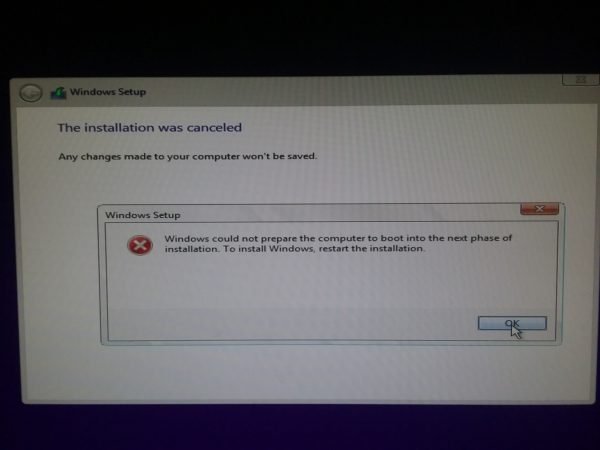
Windows could not prepare the computer to boot into the next phase of installation
We will be undertaking the following fixes to get rid of this error on Windows 11/10:
- Remove the unnecessary hardware.
- Check Partition Style
- Fix the BIOS.
- Disable Secure Boot
- Reconfigure all the created partitions.
- Recreate the bootable USB drive.
1] Remove the unnecessary hardware
You might need to disable or remove newly installed hardware, as external devices can trigger this error.
For that, I would recommend physically disconnecting any external devices connected to your computer and checking if that fixes the Error.
2] Check Partition Style
During installation, press Shift + F10 to open Command Prompt, and then run Diskpart and then execute:
list disk
If your disk shows a * under GPT, ensure BIOS is set to UEFI. If not GPT, set BIOS to Legacy/CSM or convert disk to GPT using the following Diskpart commands:
select disk 0
clean
convert gpt
Backup you data first as running this will delete all your fles.
3] Fix the BIOS
The main solution for this that you update the system BIOS. If that does not help, you may reset BIOS and see.
Start your computer and during the booting, press the F10 key to enter the BIOS – But it could be the F1, F2 or Del key too.
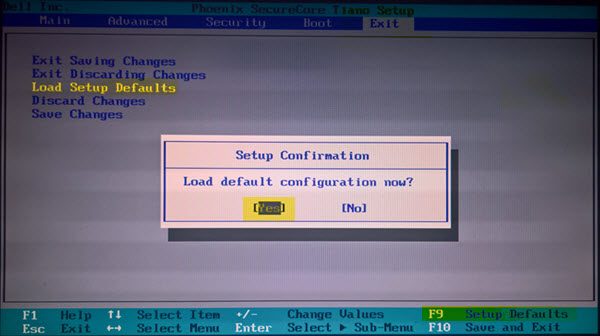
Now, hit the F9 key to get the prompt to Restore or Load default configuration now for the BIOS.
Click on Yes and follow the on-screen instructions to set the BIOS to its default settings.
Reboot your computer and check if it boots normally.
4] Disable Secure Boot
Open BIOS settings and disable Secure Boot temporarily and see if it helps.
5] Reconfigure all the created partitions
You can also try to delete and recreate all the partitions available on your computer and check if that fixes your issues.
6] Recreate the Bootable drive
To fix this issue, you will need to make a bootable Windows USB drive and then boot your computer using it
I hope this helps!
Why does Windows say it could not prepare the computer to boot into the next phase of installation?
This error usually happens due to partition style mismatches (MBR vs GPT). It can also occur if BIOS/UEFI settings don’t match the disk format. A corrupted or improperly created installation media is another cause. Moreover, extra drives or peripherals sometimes interfere with the setup. In rare cases, faulty hardware or SSD/HDD issues trigger it.
How do I fix the error “Windows could not prepare the computer to boot into the next phase of installation”?
Here are the steps you can take in a nutshell:
- First, check your disk partition style using diskpart.
- Ensure BIOS is set to UEFI for GPT or Legacy for MBR.
- Recreate the installation USB with Microsoft’s Media Creation Tool.
- Disconnect unnecessary external devices before reinstalling.
If issues persist, wipe the drive and perform a clean install.
