
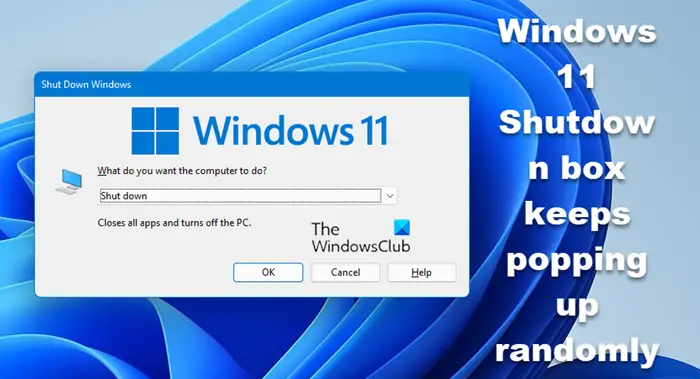
The shutdown box on Windows 11 gives you options to shut down, restart, hibernate, or sleep your machine. To access the shutdown box, press a key combination or open it from the Start menu. For some Windows 11 users, the shutdown box keeps showing up randomly without them doing anything. This is inconvenient and indicates that your operating system files contain errors or are incompatible with the program. If you are experiencing this problem, read this guide.
Windows 11 Shutdown box keeps popping up randomly
If you are experiencing the issue where the shutdown box (Alt+F4) on your PC keeps popping up unexpectedly, don’t panic; troubleshooting is straightforward. Before you begin, check that the Alt, Fn, and F4 keys are clean and working smoothly. Else, here are 5 solutions that may help you:
- Restart your computer.
- Run DISM and SFC scans on your system.
- Update your Windows 11 version.
- Uninstall problematic Windows 11 update.
- Uninstall an incompatible program.
Read this troubleshooting guide to the end carefully. Below, I’ll elaborate on the solutions listed here.
1] Restart your computer
Before attempting technical troubleshooting steps, the first thing is to restart your PC. If the Windows 11 shutdown dialog appears unexpectedly due to conflicting programs, a restart will resolve the issue.
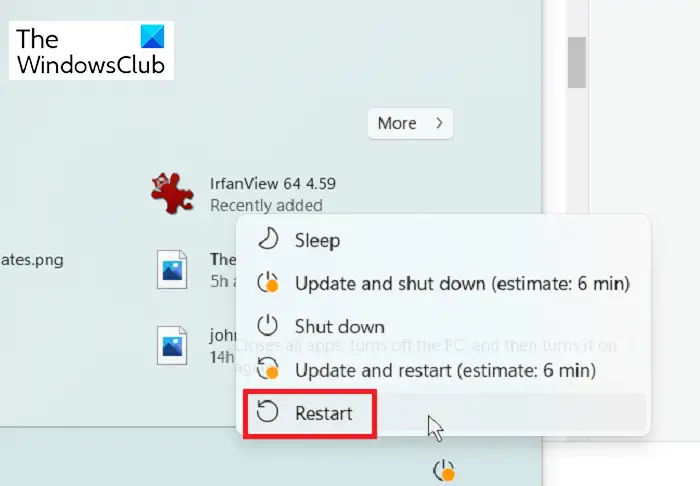
Simply press the Windows key, click on the Power button, and select Restart from the power menu. If you can’t restart the PC using this method, press the ALT + F4 key simultaneously to open the Shutdown Windows box. Select Restart and hit OK.
If restarting your computer does not fix the issue, proceed to the next solution.
2] Run DISM and SFC scans on your system
I recommend that you run two scans to detect system corruption – SFC scan and DISM scan. A System File Checker (SFC) scan finds corrupt system files and replaces them with their cached copies if available.
The Deployment Image Servicing and Management (DISM) scan goes further and checks for additional corruption and issues that may be causing the Windows shutdown dialog to appear unexpectedly.
Press the Windows key and search for Windows Terminal. Right-click on Windows Terminal from the search result and select Run as administrator from the context menu.
When the system asks if you want to allow this app to make changes to your device, click on the Yes button to continue to Windows Terminal.
Next, click on the downward-facing arrow on the tab area and select Command Prompt. This is where we will run the DISM and SFC scan commands.
First, perform an SFC scan by entering the following command and pressing the ENTER key to run it:
sfc /scannow
Next, you perform the DISM scans by entering the following commands. Press the ENTER key after each command.
DISM /Online /Cleanup-Image /CheckHealth
DISM /Online /Cleanup-Image /ScanHealth
DISM /Online /Cleanup-Image /RestoreHealth
After your system finishes running the SFC and DISM scans, restart the computer and check whether the Windows shutdown dialog still appears unexpectedly.
3] Update your Windows 11 version
Windows 11 is relatively new, and users have reported bugs on some versions of the operating system. In response to bugs, Microsoft releases updates to fix them.
Press the Windows key + I combination to go to Windows 11 Settings. Click on Windows Update on the left-hand panel and see if any updates are available. If you see updates available, click on Download & install.
NOTE: If you see no available updates, the shutdown box issue may be a bug in your current Windows 11 version. Skip the rest of this solution and continue to the next one. There, I’ll show you how to uninstall the problematic update.
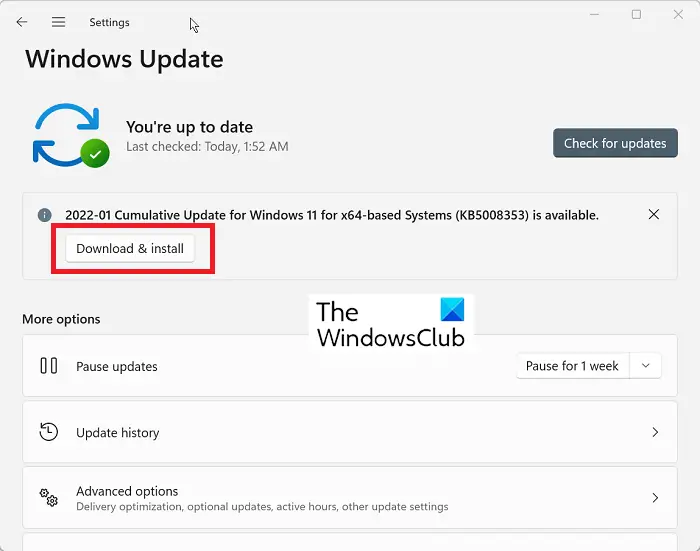
You will need to wait a while for the system to download these updates. After the download completes, restart your computer. Allow the system ample time to install the downloaded updates. The time will depend on the number and size of the updates.
4] Uninstall a problematic Windows 11 update
Similar to the previous solution, you may have upgraded to a Windows 11 version that includes the bug causing the shutdown box issue. In this case, you will have to uninstall this update to fix the issue.
Press the Windows key + I combination to open Windows 11 Settings. Next, go to Windows Updates from the left panel. This time, you’re not checking for updates but want to remove an update.
Click on Update history and then scroll down to the bottom of the page and select Uninstall updates under Related settings.
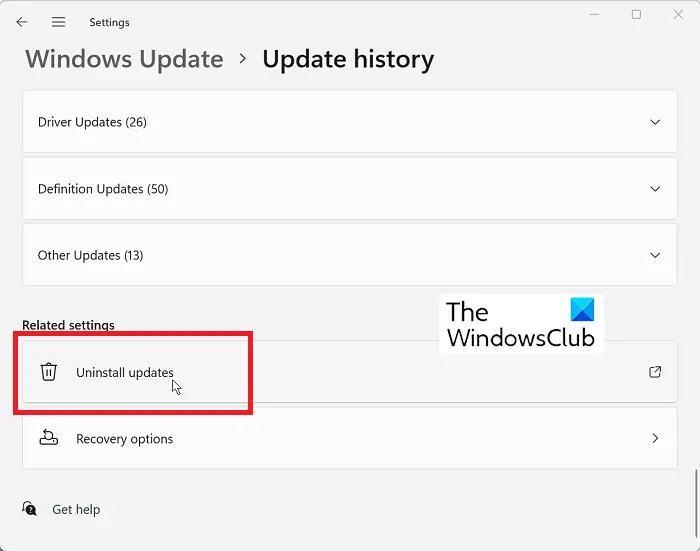
It takes you to a page that lists your Windows updates and the day you installed them. If you can remember the day you first noticed the shutdown box misbehaving, check if an update was installed on this day.
Right-click on this update and select the Uninstall option in the context menu. Alternatively, click on the update and click Uninstall which appears at the top of the updates list.
If you are unsure when you first noticed the shutdown box issue, you may uninstall the most recent Windows update. Either way, click Yes when prompted to proceed with the update uninstallation.
Finally, restart your computer and confirm that the issue has been fixed.
5] Uninstall an incompatible program
Not all Windows software may be completely compatible with Windows 11. The problem may be caused by an application that conflicts with Windows 11 features. If you can locate and uninstall this program, it may prevent the shutdown box from appearing randomly.
Go to Windows 11 Settings by pressing the Windows Key + I combination. Next, click on Apps from the left-hand menu.
Next, select Apps & Features, and you will see your installed applications listed here. Locate an app you installed around the time you started noticing the shutdown box problem.
Click the ellipse (three dots but stacked vertically) beside it and select Uninstall. Click on Uninstall when the system reminds you that this app and its related info will be uninstalled.
Why does Windows 11 shutdown box pop up randomly?
Your Windows 11 shutdown dialog box may appear unexpectedly for several reasons. It could be a bug in your Windows 11 version or corrupt installation files causing the issue. An installed application may also be conflicting with the operating system, or your machine may be infected with a virus.
How do I add the Power button to my Taskbar on Windows 11?
Unfortunately, you cannot add the Power button to your Taskbar on Windows 11. What you can do is create a shortcut for the Shutdown and Restart buttons and then pin these shortcuts to your Taskbar. To do this, right-click on your desktop and go to New > Shortcut. Type in shutdown /p as the location, then click Next and Finish in the next window. Now, right-click on the newly created shortcut and click on Pin to Taskbar.
What is the shortcut key to shut down my computer?
The key combination to shut down your computer is ALT + F4. This brings up the shutdown menu, from which you can shut down, restart, sleep, or hibernate your machine. Note that this key combination shuts down the active program. Therefore, you have to be on the desktop with no program in the foreground. If not, ALT + F4 would only close the program and not shut down your computer.
What if my computer keeps restarting when I select shutdown?
If your computer keeps restarting when you click on shutdown, hibernate or sleep, you have a problem with your Windows installation. You can fix this by updating Windows or troubleshooting in Clean Boot State.
