
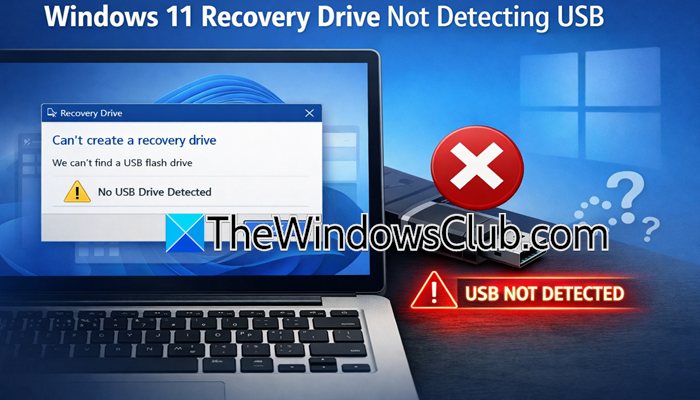
If the USB drive shows up in your File Explorer but not in the Windows Recovery Drive creation tool, you are not alone. The issue usually occurs without an error message; therefore its hard to pinpoint whether the root cause of it is the USB, Windows itself, or a hidden system limitation. In this article, we will explore why this happens and see what you can do if the Windows 11 recovery drive is not detecting a USB.
Why is my recovery USB not working?
The recovery USB may not be working due to incompatibility with USB 3.0 ports, incorrect drive formatting, or outdated system drivers. It can also be due to a specific bug in the Windows tools that fails with large system backups. If this is the case, continue with the next section to fix it.
Windows 11 Recovery Drive not detecting USB [Fix]
If the Windows 11 recovery drive is not detecting the USB device, follow the solutions below.
- Check the 32 GB recovery image limitation
- Fully reset the USB using Diskpart
- Update chipset and controller drivers
- Disable USB selective suspend in Power settings
- Reinstall USB controllers via Device Manager
Let’s get started with the troubleshooting guide.
1] Check the 32 GB recovery image installation
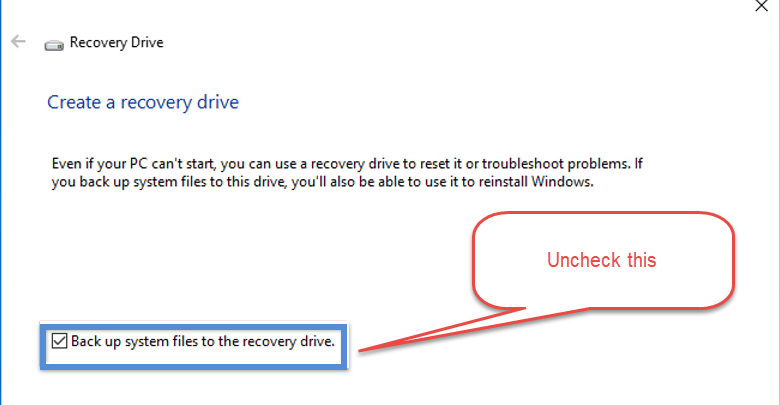
Windows can fail if the recovery file becomes too large for the recovery drive tool to handle. In such cases, the tool simply refuses to continue, and therefore, we encounter this issue. To confirm this, we will check the recovery log and adjust how the recovery drive is created.
- Go to the Search menu, search and launch the Recovery Drive tool, and follow the on-screen steps.
- Select the USB drive, click Create, and let it fail. After the failed attempt, open File Explorer, and navigate to C:\Windows\Logs\RecoveryDrive\.
- Find the file name setupact.log, right-click on it, and select Open With> Notepad. Now, scroll to the bottom and look for entries mentioning target directory size or error code 0xC180010D.
- If the size is above 32 GB, restart the Recovery Drive tool; however, do not check the Back up system files to the recovery files box, and continue.
If this doesn’t resolve the issue, see the next solution.
2] Fully reset the USB using Diskpart
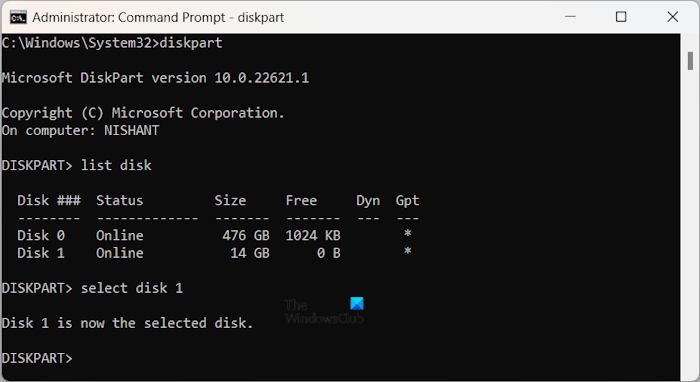
A USB drive may not be usable for recovery purposes due to a hidden partition or an unsupported format. If this is the case, Windows will ignore the drive during recovery creation. To wipe these conflicts and set the format correctly, we will be fully resetting the USB using Diskpart.
- Click on the Start button, type Command Prompt, select Run as administrator, and hit Yes when prompted by User Account Control.
- Type the commands given below to open Diskpart and list the disks, respectively, and press Enter.
diskpart
list disk
- Identify the USB drive by its size and note its disk number. To select the disk, execute the command given by replacing X with the disk number.
select disk x
- Type Clean and press Enter to remove all existing partitions and data from the USB drive, and then type Create partition primary to create a new primary partition.
- For format, type format fs=fat32 quick, press Enter, and wait until the formatting process is completed. Once done, type Exit to close Diskpart, and close Command Prompt.
After the process is completed, remove the USB drive, plug it back in, and try to create the Windows 11 recovery drive again. If the USB still does not appear, or the process fails again, move to the next solution.
3] Update chipset and controller drivers
Outdated or generic chipsets and corrupted USB controller drivers can prevent Windows from connecting properly with USB ports during recovery operations. It is necessary to install the correct drivers and keep them up to date to restore stable USB detection at the hardware level. Use any of the following solutions mentioned below to update drivers.
- Download the driver from the manufacturer’s website
- Get a driver updater software
- Install driver and optional updates
Download the latest chipset driver and any available USB controller drivers. Install the drivers, restart the device, and then see if the issue is resolved. If not, go to the next solution.
4] Disable USB selective suspend in Power settings
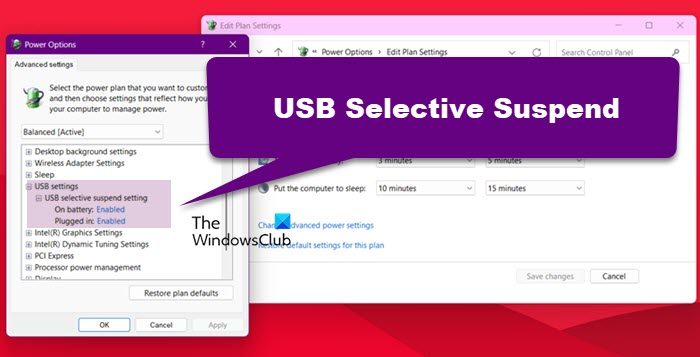
Windows uses power settings that can temporarily turn off USB ports to save energy. While this is helpful for battery life, it can interrupt USB detection. To ensure that it stays fully powered throughout the process, we will be disabling USB selective suspend.
- Click Win + R to open the Run dialogue box, type control, and hit Enter to open the Control Panel.
- In Control Panel, set the View by drop-down menu to Category, click on Hardware and Sound, and select Power Options.
- Find the power plan that is currently selected, and click on Change plan settings.
- Click on Change advanced power settings
- In the power options window, scroll down, expand USB settings, and then expand the USB selective suspend setting.
- Set both On Battery and Plugged in to Disabled, click Apply, and hit the OK button to save the changes.
Close the Control panel, restart the device to ensure the new power settings take place, and verify if the issue is resolved. Slide to the next solution if the situation remains the same.
5] Reinstall USB controllers via Device Manager
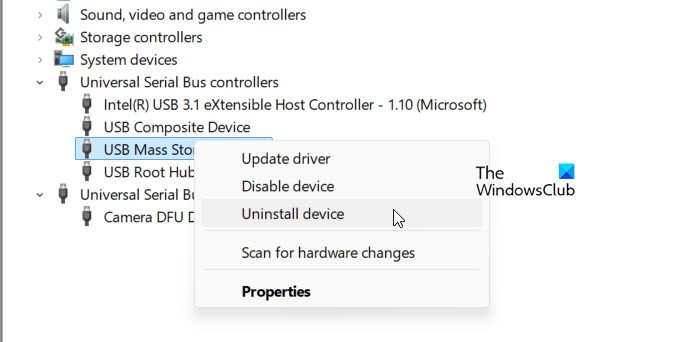
USB drivers can enter an unstable or corrupted state even when devices appear to function normally elsewhere. Reinstalling the USB controllers forces Windows to rebuild the USB driver stack from scratch to restore proper detection.
- Click Win + R to open the Run dialogue box, type devmgmt.ms, and hit Enter to open the Device Manager.
- Expand the Universal Serial Bus Controllers section, and right-click on the first device in the list.
- Select Uninstall Device; however, do not check the box to delete driver software, and repeat the same process for all the drivers listed under USB controllers.
Once all are uninstalled, reboot the device so Windows automatically reinstalls them at startup. Now, try recreating the drive again, and hopefully, the issue will be resolved.
Read: How to recover corrupted files from USB Drive
How to fix undetected USB?
A general USB device may not be detected due to a damaged port or cable, or power management settings that turn off the port to save energy. To fix this, check the physical connection, update or reinstall the USB drivers, and disable power saving options for USB ports.
Read: Recover data from an unbootable hard drive in Windows 11.
