
It’s a big scare if a Windows 11/10 PC skips the lock screen after waking from sleep. Not only is it unsettling, but it can also pose a security threat, as anyone can access the system without a password. The good news is that this is a fairly common issue and can be fixed easily. In this article, we will see what you can do if Windows is not locking your system on sleep.
![Windows 11 not locking on sleep [Fix]](https://www.thewindowsclub.com/wp-content/uploads/2025/08/windows-not-locking.png "Windows 11 not locking on sleep [Fix]")
When I put my computer to lock, it doesn’t lock?
The computer may not lock due to incorrect power settings. First and foremost, check the system’s sleep and screen timeout options. This ensures they are configured to require a password on wake. In the next section, we will delve deeper into this issue and explore potential solutions.
Windows 11 not locking on sleep [Fix]
If Windows 11/10 is not locking on sleep, execute the solutions mentioned below.
- Change the required sign-in setting
- Disable Fast Startup
- Check the screen-saver lock setting
- Update graphics and chipset drivers
- Run System File Checker
- Check Group Policy Settings
Let’s get started.
1] Change the required sign-in setting
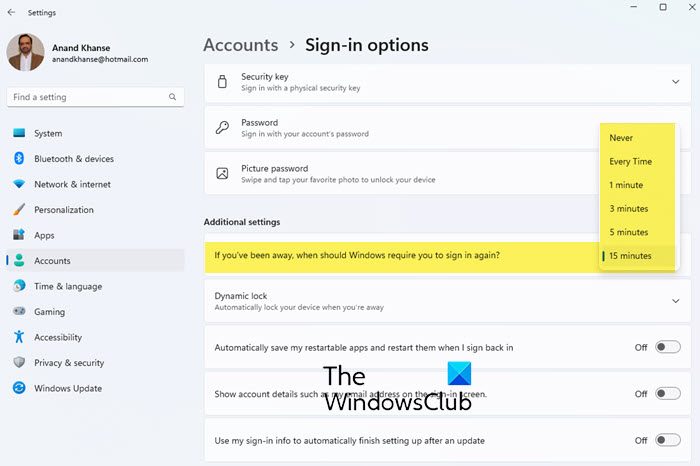
First of all, we need to make sure that Windows asks for a password every time it wakes up so that it has an incentive to lock your computer. To do the same, open Settings, go to Accounts > Sign-in options, and then configure If you’ve been away, when should Windows require you to sign in again? to Every time.
2] Disable Fast Startup
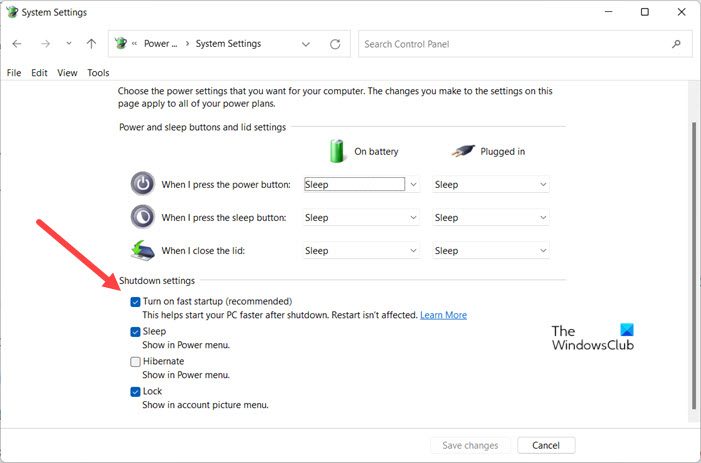
The Fast Startup feature can sometimes conflict with power states, preventing the lock screen from engaging correctly. Disabling this will help restore normal lock screen behaviour.
- Open the Run dialog box, type Control, and hit Enter to open the Control Panel.
- Click the Hardware and Sound tab, then find and click on Power Options.
- Now, select Choose what the power buttons does, and click on Change Settings that are currently unavailable link under the section titled Define power buttons and turn on password protection.
- Scroll down to find the Shutdown settings section, uncheck the box next to Turn on fast startup, and hit the Save button.
Once you have verified that the issue is in a static condition, apply the next solution to see if it resolves the issue.
3] Check the screen-saver lock setting
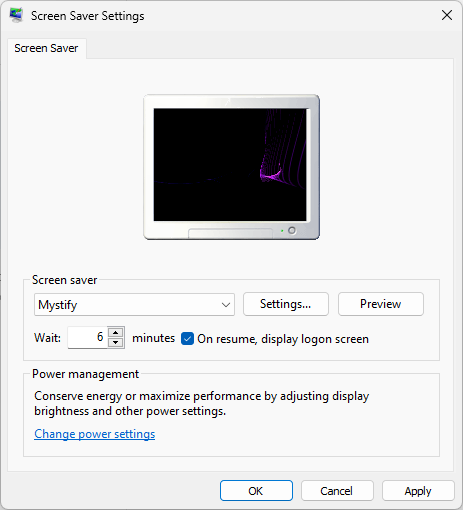
If the sleep function is unreliable, we can use the screen saver to enforce a lock. This will ensure that the PC remains secure, even if the primary sleep lock feature fails. Follow the steps mentioned below to get started with this workaround.
- Open Settings by Win + I.
- Now, search “Screen saver” in the search bar of Settings and open it
- Choose any screen saver, keeping in mind that ‘None’ will not work, and then set the Wait time.
- Check the box labeled ‘On resume, display logon screen’ and then click ‘Apply’ and ‘OK’ to save the changes.
If the device starts without asking for the password, see the next solution.
4] Update graphics and chipset drivers

Sleep and lock screen functions managed by the graphics and chipset driver can be disrupted by an outdated, incorrect, or damaged driver. It is essential to maintain current drivers for seamless interaction between the device’s components. To update these critical drivers, follow any of the solutions mentioned below to update the graphics drivers.
- Download the Drivers from the manufacturer’s website.
- Get a Driver Updater Software
- Install Driver and Optional Updates
After completing the update, restart the computer to ensure the new drivers are loaded correctly, and then verify that the issue is resolved. If the issue persists, slide to the next solution.
5] Repair System Files
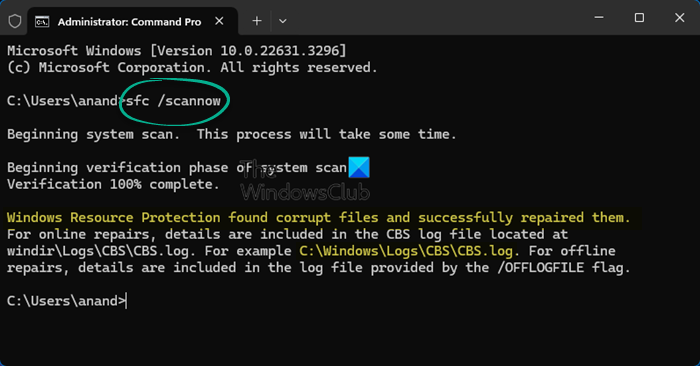
Underlying system file corruption can prevent core functions, like the screen lock process, from working correctly. We are going to use SFC and DISM to find nd fix these errors.
- Launch an elevated command prompt by clicking Win + X > Windows Terminal (Admin), and execute the following command to run the System File Checker (SFC) scan.
sfc /scannow
- Wait for it to complete, as the process takes time.
- After SFC is completed, it is a good practice to run the DISM tool next. Type or paste the following command to do the same.
DISM /Online /Cleanup-Image /RestoreHealth
- This process takes longer, so please be patient. Once both processes are completed, reboot the PC.
Hopefully, this will resolve the issue.
Read: How to auto lock computer after inactivity in Windows 11
6] Check Group Policy Setting
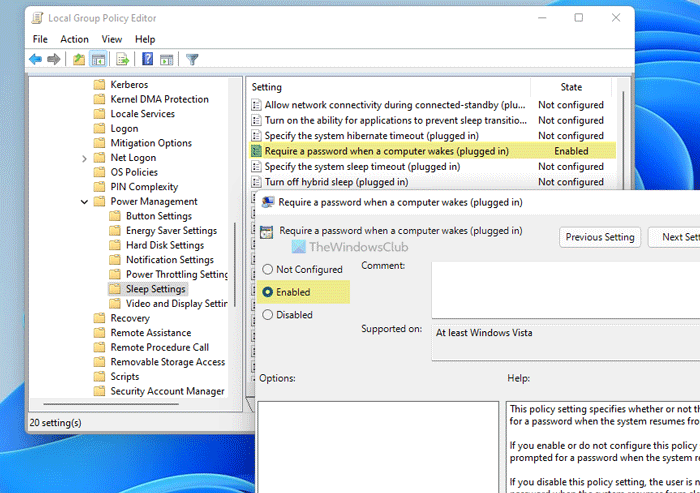
A specific policy might be enforced that prevents the lock screen from appearing after sleep, even if your personal settings are correct. Checking this ensures a local policy isn’t causing the conflict. Do keep in mind that this solution only works for Windows Pro or Enterprise edition.
Open Win + R, type “gpedit.msc”, and click Ok. Then, go to the following location.
Computer Configuration > Administrative Templates > System > Power Management > Sleep Settings
Look for Require a password when a computer wakes (plugged in) and Require a password when a computer wakes (on battery). Make sure that they are set to Not Configured.
If you are a Windows Home user, read our post to know how to enforce sign-in using the Registry Editor.
That’s it!
Read: Stop computer from locking Windows 11 automatically
How do I make my computer lock when it goes to sleep?
To make the computer lock upon sleep, users need to enable he screen saver setting. Search for screen saver, open it, and then check the box for On resume, display logon screen. This setting automatically locks the device whenever the screen turns off or it goes to sleep.
Also Read: Windows 11 enables Sleep Mode instead of locking the screen.
