
If you receive 0x80070652 error code with the message ERROR_INSTALL_ALREADY_RUNNING, then it means that a previous Windows Update or Microsoft Store app installation has not been completed successfully. This typically occurs when an update becomes stuck.
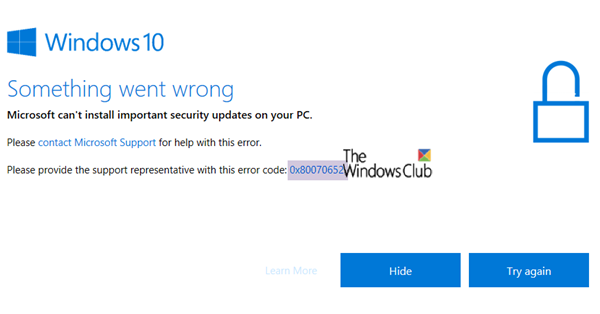
Fix Windows Update Error 0x80070652
Try the following suggestions to fix Windows Update Error 0x80070652 on your Windows 11/10 PC:
1] Restart your computer
For issues like these, the computer typically resolves the problem if you restart your Windows PC. You may want to try it multiple times though.
2] Terminate msiexec.exe
Open Task Manager, click on the Details tab and then locate and terminate all instances of the msiexec.exe process.
See if this has helped.
3] Run Windows Update Troubleshooter
Run this inbuilt Windows Update troubleshooter to fix the most common Update problems on Windows 11/10.
4] Download the Update that has Failed
If it’s not a feature update, and only a cumulative update, you can manually download and install the Windows Update. To find which update has failed to follow the steps:
- Go to Settings > Update and Security > View Update History
- Check which particular update has failed. Updates that have failed to install will display Failed under the Status column.
- Next, go to Microsoft Download Center, and search for that update using the KB number.
- Once you find it, download, and install it manually.
You could use Microsoft Update Catalog, a service from Microsoft that provides a listing of software updates that can be distributed over a corporate network. The Microsoft Update Catalog can be a one-stop location for finding Microsoft software updates, drivers, and hotfixes.
5] More suggestions
This post offers more suggestions of what to do if Windows Update fails to install.
6] Check for more Error Code
When you visit the Failed Update section and see another error code accompanied by a message, it indicates yet another issue. You will need to double-click on the update to view more information. Search on our website for a solution.
Fix Microsoft Store Error 0x80070652
To fix Error 0x80070652, Wait for other installation in Microsoft Store, try these suggestions:
- Restart your PC to clear any pending updates
- Clear the Microsoft Store cache by typing in the Run dialog
- Run the Windows Update Troubleshooter
- Run the Windows Store Apps Troubleshooter
- Reset Microsoft Store via Windows Settings.
This error code is straightforward to fix, and one of these solutions should help you resolve the issue.
