
If you want to know how old your Windows laptop is or when did you buy it, then read this post. After using a laptop for some time, you might wonder how long it’s been since you purchased it. Or at some point, you may want an upgrade to meet the latest hardware requirements. Whether you’re planning to buy a new laptop or want to know if the existing laptop is under warranty, knowing the exact age of your laptop is important.

How to check Laptop Purchase Date in Windows 11
It’s quite simple to know the age of your laptop. You can find the date of purchase on the sales receipt or bill of your laptop. If you no longer have it, you may call the retailer and ask for help. There’s a good chance they still have the bill copy in their system if the laptop is not too old. You may also visit the manufacturer’s website and look for any warranty or shipping information using your laptop’s serial number or service tag. If nothing helps, there’s no other way of telling the exact date of purchase. However, you can estimate it using the methods listed in this post.
The following are the methods you can use to get a ballpark idea of when you bought the Windows 11/10 laptop:
- Check the date of Windows installation
- Check the BIOS information
- Check the Date Modified of folders in the C drive
- Check the release date of the CPU
Let us see these in detail.
When did I buy my laptop?
1] Check the date of Windows installation
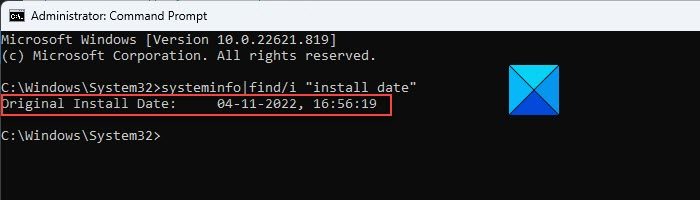
If your laptop is still running its initial Windows installation, you can find the date when Windows was first installed on your laptop by the manufacturer.
Open an elevated Command Prompt and type the following code in the Command Prompt window:
systeminfo|find/i "install date"
Now press the Enter key. The command will display the Original Install Date and time of the last successful Windows installation, as shown in the above screenshot.
Original Install Date is the date on which Windows was installed initially on your laptop (the first OS installation). However, when you upgrade your OS or perform a clean re-install, Windows resets this date. So if this is not your original Windows installation, this date can be misleading.
For example, the date shown in the above screenshot shows the year 2022, whereas I bought my laptop in November 2021. This is because I installed a feature update in the year 2022 (Windows 11, version 22H2). You can check this through Settings > Windows Updates > Update history section on your laptop.
Also, this method does not account for the time your laptop spent in the warehouse or on a store shelf before being purchased. So, this will not give you the exact date of purchase, but it’s somewhere around that time.
Read: How to find the Service Tag on Windows laptop
2] Check the BIOS information
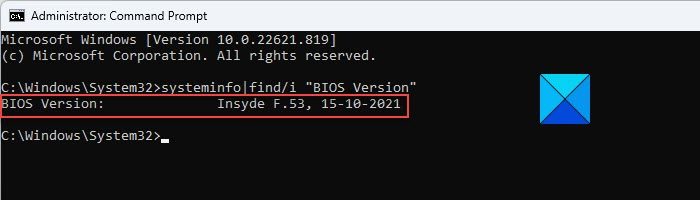
Another clue is BIOS information. BIOS stands for basic input/output system and is the first software that runs when you power on your system. It’s a firmware that comes pre-installed on a memory chip on the motherboard of your laptop. The BIOS version can give you an approximation of the age of your computer. To check your BIOS version, run Command Prompt using administrator rights and enter the following command:
systeminfo|find/i "BIOS Version"
Now press the Enter key. The above command will display your BIOS version along with a timestamp of when the BIOS was installed on your laptop.
For example, as you can see in the above screenshot, the BIOS installation date falls in October 2021, which is very close to the time when I purchased my laptop (November 2021).
It is important to note that manufacturers or motherboard vendors often release updates to their BIOSes. This method will help you determine the age of your computer, provided your laptop doesn’t have an updated BIOS.
Read: How to check Warranty Status of Laptop.
3] Check the Date Modified of folders in C drive
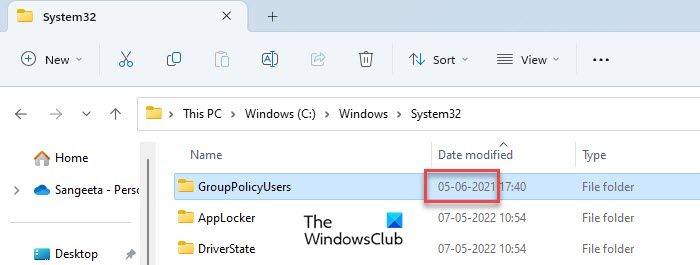
You can also check the ‘Date Modified’ field for the oldest folder in the Windows System32 folder. It can give you a rough idea of how old your computer could be. Now again, this may not give you the exact age of your computer, as this date reflects the time when your computer was manufactured and it may precede many months from the date of purchase.
To check this date, open File Explorer and enter the following path in the address bar:
C:\Windows\System32
Now click on the ‘Date modified’ field to sort the results. The oldest date will appear on top and this should be somewhere near your laptop’s original build date.
For example, the above screenshot shows the year 2021, which is exactly the year I bought my laptop.
Read: How to tell how old your Hard Drive is?
4] Check the release date of the CPU
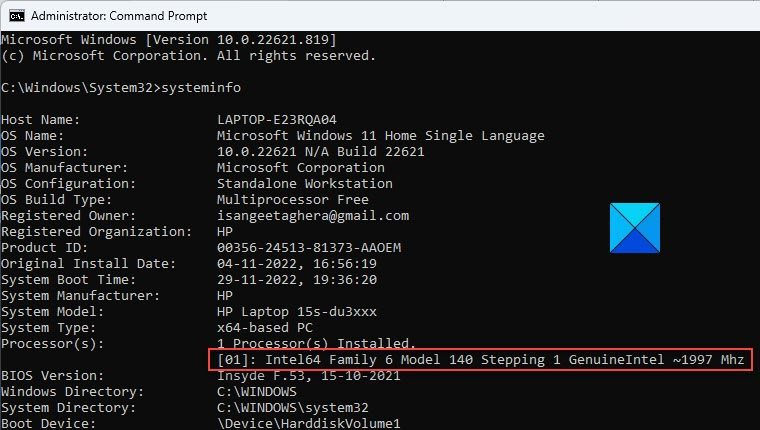
Manufacturers often build laptops with the latest processor technology, so knowing the initial release date of your laptop’s processor can give you a rough idea about its age. However, just like other methods listed in this post, this method is also not very reliable, though still worth checking out.
To find out when your laptop’s processor was launched, first check which processor is installed in your laptop.
Type the following command in an elevated Command Prompt window:
systeminfo
Press the Enter key. Now scroll down to the Processor(s) field. Copy your processor’s name and search for its release date on Google. This will give you a rough idea of your laptop’s age.
These are the various methods for determining the purchase date of your laptop.
Read:
- How long does the average Windows PC last?
- How to find the Installation date for apps and programs on Windows
