
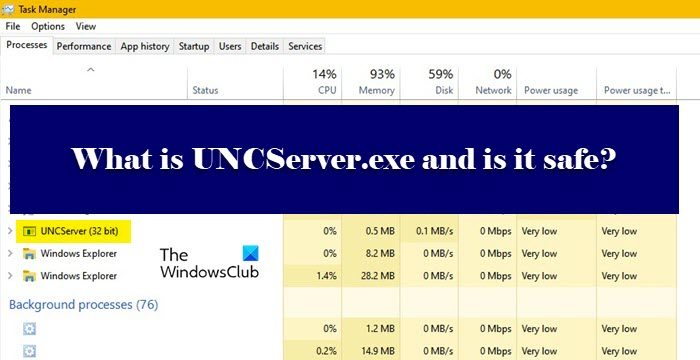
If you are seeing a process named UNCServer.exe in the Task Manager on your Windows 11/10 computer and are wondering what it is and whether it is safe, this post is sure to interest you.
What is UNCServer.exe and why is it running?
UNC is an abbreviation of the Universal Naming Convention and is present on your Lenovo computer to check for updates. If you can see the process running on your computer, it means the module is active and updating your system.
It runs in the background to install System Updates automatically. This is a genuine Lenovo process for Windows computers that ensures your computer is always up to date. However, it’s not supposed to be running and definitely shouldn’t take up much of your resources. Once your system is updated, the process should automatically deactivate. This is its nature.
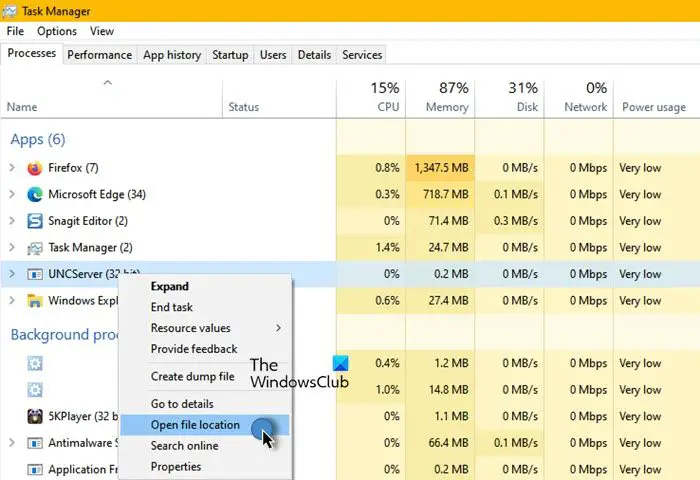
To find where this is stored on your computer, right-click the process and select Open file location. If you can’t the process, go to the Details tab and probe. For me, it was the following:
C:\Program Files (x86)\Lenovo\System Update
So, if your process is located in this folder, it is the legit Lenovo file; else, it could be malware.
Is UNCServer.exe safe?
As mentioned earlier, the process is there to ensure your computer is always updated and is genuine. However, a virus can masquerade as UNCServer and run on your computer. That’s why you need to check if a file is malicious or not and then run antivirus if needed. If you don’t have an antivirus, try using Windows Security to scan your computer for viruses and malware. Follow the given steps to do the same.
- Open Windows Security by searching it out of the Start Menu.
- Go to Virus & threat protection > Scan options.
- Select Microsoft Defender Offline scan > Scan now.
Wait for the process to complete, and you will have your results. You can do the same with any third-party antivirus that you may have. If you conclude that the process is a virus, it’s better to remove it.
How to stop or remove UNCServer?
You should not usually stop UNCServer, but if you don’t want your computer to update itself, then by all means be my guest and stop or remove the process. However, we would recommend you do that. If you see the process running continuously, try restarting your computer and see if the issue persists. If the process still appears in the Task Manager, then proceed.
The following are methods for stopping or removing UNCServer.
- End Task
- Stop TVSUUpdateTask
- Uninstall Lenovo System Update
Let us talk about them in detail.
1] End Task
First, let us take the safest approach, you want to stop UNCServer, just do that. Open Task Manager by Ctrl + Shift + Esc, then right-click on the process and click End Task. This will suspend the task and if everything works perfectly, you will be stopped for the time being and will only be launched when Lenovo needs to update your computer. This is a perfect solution for someone who wants to disable the feature without preventing the system from automatically updating itself. Once you have stopped the task, restart your computer and check whether UNCServer is still present. But if you are keen to remove the tool, then use the next solution.
2] Stop TVSUUpdateTask
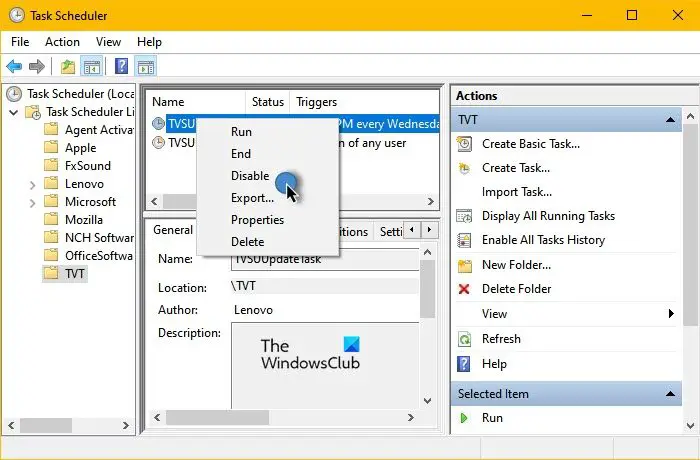
TVSUUpdateTask is what makes your computer self-update and if you stop the task, you won’t see UNCServer in your Task Manager. TVSUUpdate is the ThinkVantage System Update program and is present on most Lenovo computers. Follow the given steps to do the same.
- Open Task Scheduler.
- Expand Task Scheduler Library and click TVT.
- Right-click on TVSUUpdateTask and select Disable.
The process will take a few seconds and it will be disabled.
3] Uninstall Lenovo System Update
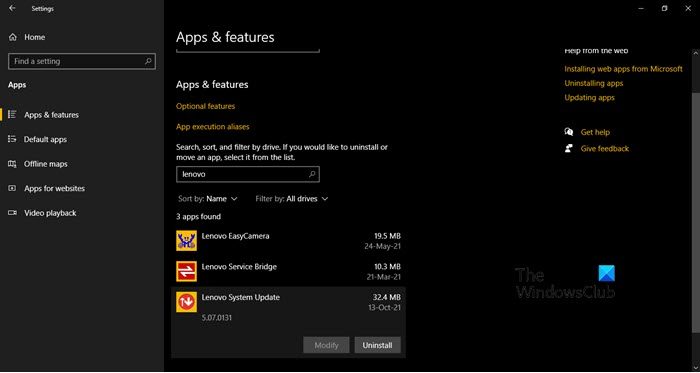
Last but not least, you can try removing Lenovo System Update as that will remove UNCServer once in for all. So, open Windows Settings, go to Apps, search for “Lenovo System Update“. If you are on Windows 11, click on the three vertical dots and select Uninstall, and for Windows 10, select the app and click Uninstall. In both cases, you will have to confirm your actions.
Hopefully, now you know what UNCServer is, whether you should remove it, and how to remove it.
UNCServer.exe not responding
If you constantly see the “UNCServer.exe is not responding” error box, you should either try uninstalling and reinstalling Lenovo System Update, or uninstall it altogether, as you do not really need it. Once the app is removed, restart your computer, and you will be good to go.
Do also check: Lenovo ThinkPad missing drivers? Download & install them properly!
