
Some of you might have seen a pop-up message in Chrome or Edge saying “Website wants to look for and connect to any device on your local network.” Chrome or Edge shows this message when visiting certain websites. This is due to an update in the Chromium-based web browsers. In this article, we will discuss what this message is and why Chrome or Edge displays it.
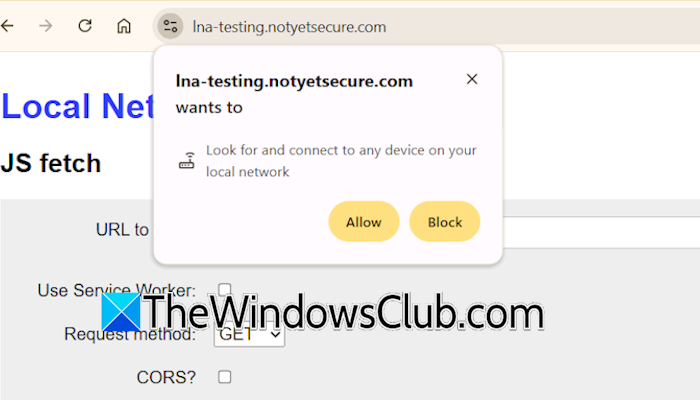
Edge or Chrome wants to look for and connect to any device on your local network
The pop-up message “Website wants to look for and connect to any device on your local network” is a new permission prompt in Chrome or Edge that appears when you visit some specific websites. This new permission prompt, named Local network access, was introduced in Chrome version 138 and Edge v 144.
What is Local network access?
Private network access is a security feature in Chrome or Edge that helps protect users’ local networks. This feature restricts websites from sending requests to servers on a user’s local network (including servers running locally on the user’s machine), requiring the user to grant the site permission before such requests can be made. The ability to request this permission is restricted to secure contexts, meaning only secure websites using HTTPS can request it.
Your local network includes devices such as Wi-Fi routers, printers, smart TVs, local servers, and IoT devices. Previously, some websites could communicate with these devices without the user’s permission. With this new update, such websites must obtain the user’s consent before communicating with their local devices.
What does this pop-up message mean?
The message “Website wants to look for and connect to any device on your local network” means the particular website is attempting to interact with a device connected to your local network. Now, Chrome or Edge wants you to decide if you wish to allow this website to access your local devices.
The message does not mean that the website is unsafe. It only means that the website is trying to communicate with the devices on your local network.
What kinds of requests are affected?
This permission primarily applies to requests from websites attempting to communicate with devices connected to a user’s local network. Such requests include accessing a private IP address or servers inside the user’s own private network.
Let’s understand it with an example. If you visit a website on Chrome or Edge and it attempts to communicate with your home router (using the IP address like 192.168.1.1), a smart device in your home (using a .local domain), or software running on your system (using localhost), Chrome will not approve such requests until you approve them.
What happens if you click Allow or Block?
When Chrome displays this pop-up message for a particular website, you will get two options: Allow and Block. Let’s see what will happen if you select any of these options.
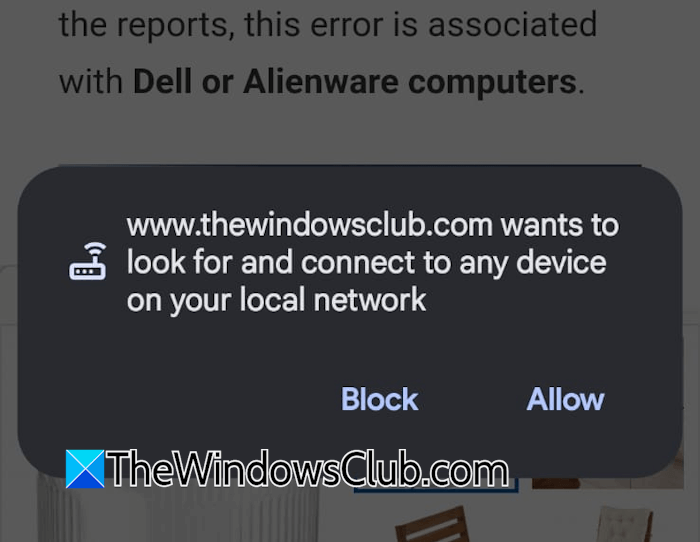
- Allow: On clicking Allow, you will grant permission to the website to communicate with the required devices on your local network.
- Block: If you click Block, Chrome will prevent that website from accessing the devices connected to your local network.
How to disable Look for and connect to any device on your local network in Chrome
Let’s see how you can manage Local network access in Chrome. This feature is enabled by default. You can change it by modifying the required flag.
Open a new tab in Chrome, type chrome://flags/#local-network-access-check in the address bar, and press Enter. The flag is set to Default. You can change it to Enabled, Enabled (Blocking), or Disabled. Let’s understand all these options.
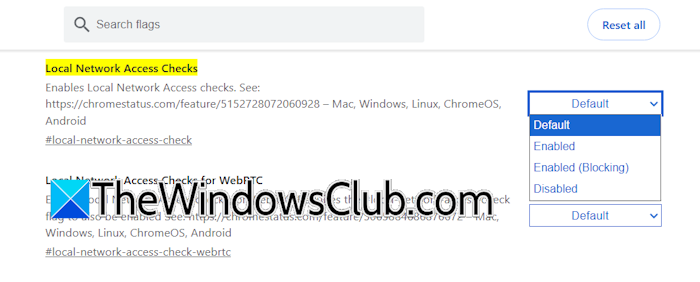
- Default: This is the standard setting for Chrome flags. When this setting is selected, Chrome will follow the default behaviour. This means Chrome decides whether to apply the local network access checks for a particular website.
- Enabled: This option enables the Local network access checks for all websites. Now, Chrome will show permission prompts whenever a website tries to access your local network devices.
- Enabled (Blocking): Selecting this option will block all network access requests by default. This option is useful when working in high-security environments.
- Disabled: Selecting this option is not recommended, as it reduces security by completely turning off the Local network access checks.
After modifying this flag, you need to relaunch Chrome for the changes to take effect. You can also define this setting for a particular website. The following steps will guide you:
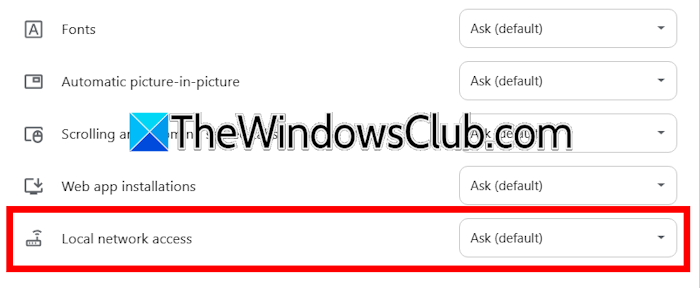
- Visit a website in Chrome.
- Click on the View site permission icon located just before the address bar.
- Click Site settings.
- Scroll down and select the required option in the Local network access drop-down.
Should you allow or block Local network access?
Now, the question is “Should you allow or block Local network access?” It depends on how safe the website is. You can allow the website to access your local devices if:
- The website is trusted.
- You require the website to access your local devices, such as a printer.
- You use tools such as video conferencing apps and remote desktop.
You should block the website if:
- It is suspicious.
- You do not know why the website is requesting this permission.
If you are in doubt, just go ahead and BLOCK such a request!
I don’t see such a message
If you don’t see such a message in Chrome while visiting such websites, you might be using an outdated version of Chrome. Update Chrome to the latest version, as this feature enhances your security online.
I hope this helps.
Why do websites ask to connect to devices on my local network?
Websites ask to connect to devices on your local network for various purposes. It depends on the task you give to such websites. For example, if you want to print a document online, that website needs to connect to your printer. However, if a website is malicious, its purpose to communicate with your local services is different. It may collect your network information or connect with your local device without your knowledge.
How to disable local network access checks?
You can disable local network checks for all websites at once or for some specific websites. To disable this feature for all websites in one go, modify the Chrome flag “local network access check.” To disable this feature for a specific website, open the site settings in Chrome and select Disable in the required drop-down. However, disabling this option is not recommended because it makes your local devices vulnerable to threats.
Read next: Should you disable JavaScript Optimization in Chrome?
