
Microsoft Store Apps are the central charm of Windows OS. One such app is the Weather app, and after using it, we observed strange behavior on our PC. When you use the Weather app, it generates too many error events if you closely monitor the system’s activity. Detailed information about these errors could be obtained from the same Event Viewer window.

It may be possible that you can come around to this issue because the services required for the Weather app to work efficiently depend on location. However, you can fix this issue by reinstalling the Weather app. But in case you’re not able to manage the problem by reinstallation, you can try the following fix.
Microsoft Store App creates too many Error Events in Windows
If Microsoft Store apps like the Weather app create too many Error Events in Windows 11/10, take these steps to resolve the issue.
Before you begin, create a system restore point first.
1. Press Windows Key + R combination, type Regedt32.exe in the Run dialog box, and press Enter to open the Registry Editor.
2. Navigate to the following location:
HKEY_CLASSES_ROOT\CLSID\{c2f03a33-21f5-47fa-b4bb-156362a2f239}
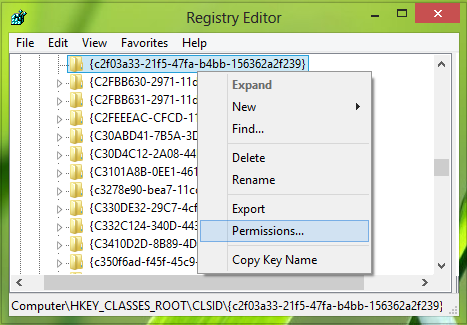
3. In the left pane of this location, take the ownership of {c2f03a33-21f5-47fa-b4bb-156362a2f239} key first.
Then right-click over it select Permissions.
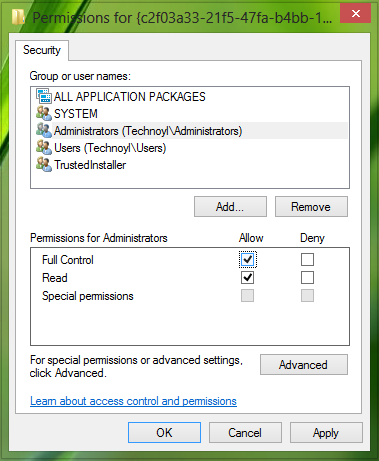
4. In the above-shown window, grant the Full Control for the Administrators group as shown in the above screenshot. Click Apply followed by OK. After this, take ownership and give complete control of this key as well:
HKEY_LOCAL_MACHINE\SOFTWARE\Classes\AppID\{316CDED5-E4AE-4B15-9113-7055D84DCC97}
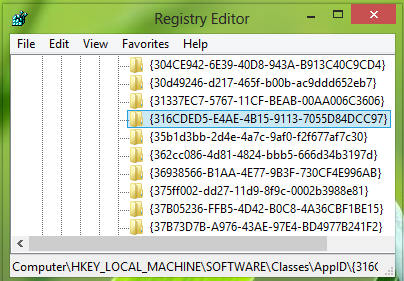
5. Moving on, Press Windows Key + R combination, type put comexp.msc in the Run dialog box, and press Enter to open the Component Services.
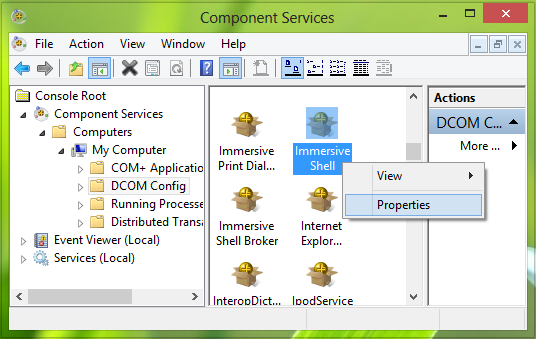
In the left pane, expand Component Services -> Computers -> My Computer. From the middle pane, select DCOM Config.
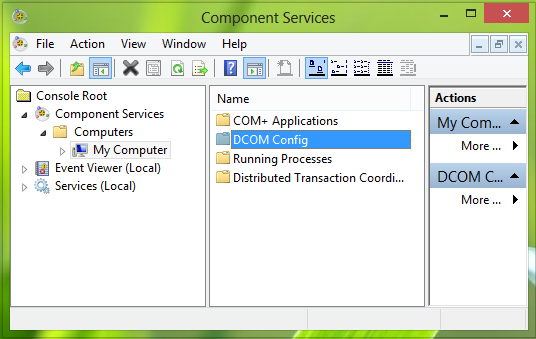
6. Now look for the Immersive Shell service in the exact middle pane, right-click on it, and select Properties.
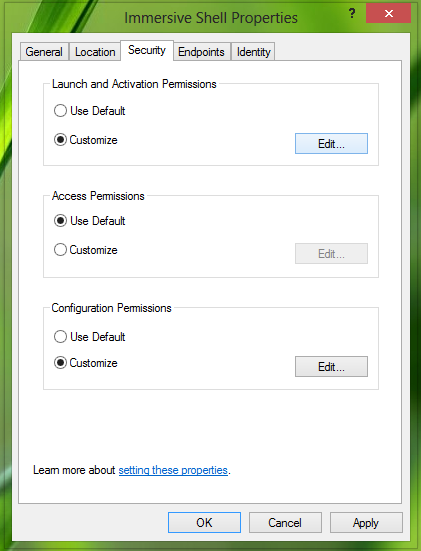
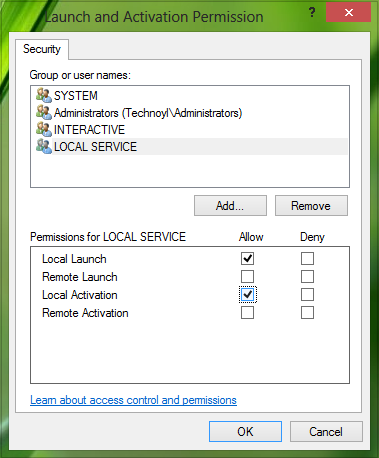
7. In the Immersive Shell Properties window, select Customize and hit Edit under the hood of Launch and Activation Permissions.
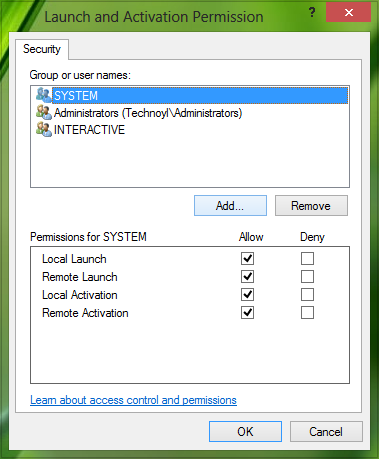
8. Click Add in the following window:
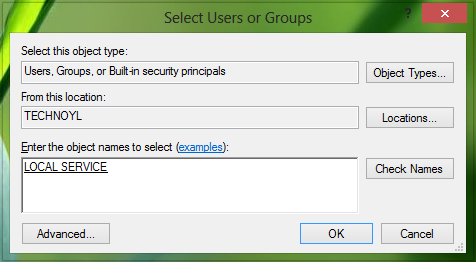
9. In the following window, type local service, click Check Names and click OK.
10. Thus, we’ve added Local Service, now put the checkmark on Local Activation. Finally, click OK.
At last, you need to reboot, and the issue should be fixed by now.
I hope this helps you.
Read: The application-specific permission settings do not grant Local Activation
How to fix an app that freezes or hangs often?
One way to fix it is to reset the app. Go to Windows Settings > Apps > Apps and features. Locate the app, and then click on the three-dot vertical menu. Select Advanced options, and scroll to find Reset and Repair Options. Execute them and check if the issue that made the app not responding is resolved.
Why does the weather app not update?
It is probably because the Microsoft Store app has an issue. The best way to resolve this is first by resetting the Store app, resetting the weather app, and then update it. Also, make sure you have a stable internet connection before updating the apps.
