
When we hit Publish in Copilot Studio, the agent should be published without errors. However, we have noticed complaints regarding the following error message, which is a roadblock. This error halts your deployment, but the issue is often solvable with a few targeted checks.
We failed to publish your agent. Try publishing again later. Validation for the bot failed.
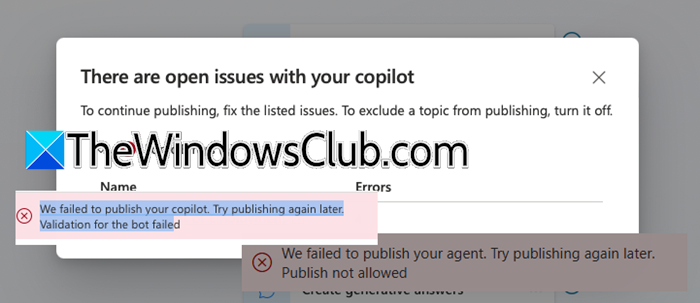
In this post, we are going to talk about this issue and see how to resolve it.
Why can’t I publish my Copilot agent?
You cannot publish your Copilot agent because a validation failure indicates an error in your agent’s configuration. The most common reasons include a failing Power Automate flow with broken connections or incorrect settings, structural errors within topics (like broken links or invalid variables), or temporary service glitches or browser cache issues that disrupt the publishing process. You must identify and fix the specific error, which is often indicated in the failure message, to proceed.
Fix We failed to publish your agent Copilot error
This Copilot error means that Microsoft Copilot Studio has run a series of automated checks on your agent’s configuration and content, and something has failed to meet the required criteria. This could be due to a system glitch during the check, but more commonly, it’s caused by a problem within your agent’s design, such as an invalid node reference, a problematic API call in a Power Automate flow, or content that violates ethical guidelines.
If you see the “We failed to publish your agent Copilot” error, follow the solutions mentioned below.
- Refresh your browser
- Review recent changes and topics
- Check Power Automate Flows and external connections
- Scan for Policy Violations in Content
Let us talk about them in detail.
1] Refresh your browser
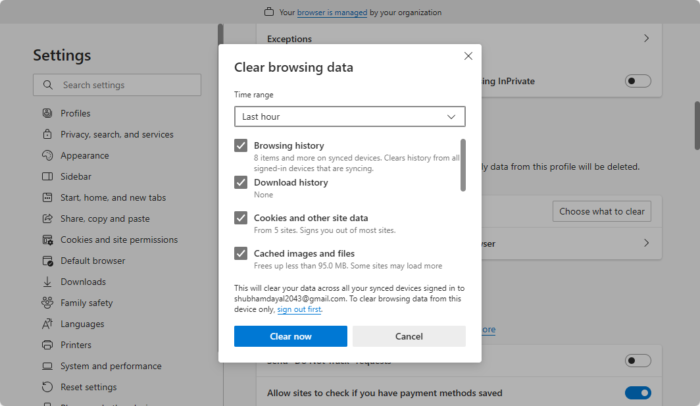
When you click Publish, Copilot Studio checks your agent’s logic, connections, and content with Microsoft’s servers. A short delay or a failed check can lead to a generic validation error. If this happens, wait a minute and try again. If it still doesn’t work, the issue might be with your browser. Cached files or an active session could be outdated and cause a conflict. You can fix this by doing a hard refresh or opening a private window. This will help clear any local issues and give you a fresh start.
First, in the Copilot Studio tab, simply wait 1-2 minutes and click on the Publish button in the top-right corner of the screen again.
If this doesn’t work, ensure you are on the Copilot Studio tab where the error occurred, then press Ctrl + Shift + R to force your browser to reload all page resources from the server rather than its cache. You may briefly see a loading indicator. Once the page is fully reloaded, try clicking the Publish button again.
You can even open an Incognito or an InPrivate window for the same.
In case this didn’t work, we need to clear your browser’s (Chrome or Edge) cache.
2] Review recent changes and topics
A publishing error is a validation failure, indicating that Copilot Studio’s system has scanned your agent and identified a structural issue that prevents it from running. Often, this is caused by a simple, recent edit that created an inconsistency, like a reference to something that no longer exists. Manually retracing your steps is the most direct way to find and fix that broken link or missing piece.
Check for Broken Topic Links: In your authoring canvas, select any Question or Message node. In its properties pane, find any Call another topic or Go to another topic action. Verify the selected topic exists in your Topics list. Names in italics there often indicate problems.
Check for Invalid Variables: In Message or Question nodes, look for text in {curly braces}. Ensure each variable is defined in a prior Set variable node or is a valid system variable (like {bot.Name}). Confirm that custom variables use the correct Topic or System scope where they are used.
Check for Empty Nodes: For every Question node, confirm that at least one Response option or Entity is defined. For every Message node, ensure the Message field is not empty.
Try publishing after fixing any issues found. If the error persists, the cause is likely external, such as a Power Automate flow.
3] Check Power Automate Flows and external connections
A failing Power Automate flow causes the validation error because, during publication, Copilot Studio runs checks on all connected components. If a flow has a broken connection, an expired token, or uses the wrong agent configuration, this external failure will cause the entire agent validation to fail.
Open the connected cloud flows in Power Automate. Ensure they are turned on, haven’t errored recently, and that all connection references (like SharePoint, SQL, etc.) are valid and not expired. A failing flow can cause the entire agent validation to fail.
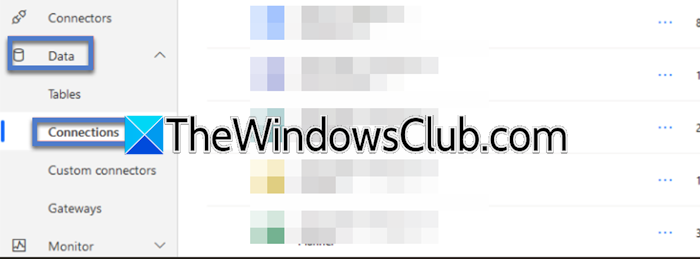
To troubleshoot a Power Automate flow connected to your Copilot agent, go to make.powerautomate.com and open My flows. Check that the flow’s status is set to On, then review its 28‑day run history for any failed runs and inspect the error details. Next, go to Data > Connections and repair any broken connections by re‑authenticating, and remove duplicates to avoid conflicts. Ensure the flow is configured correctly; the trigger must be When Power Virtual Agents calls a flow, it should ideally be created inside a Power Platform Solution, and the connector’s run‑only users must be set to Use this connection.
After making corrections, test the flow manually in the designer to confirm it runs successfully. Finally, return to your Copilot Studio topic, delete the old Call a flow action, and add a new one by selecting the repaired flow from the list.
After completing these steps, try publishing your Copilot agent again. If the error persists, the issue might be a Data Loss Prevention (DLP) policy. In that case, you should contact your Power Platform administrator.
Read: Create AI agents using LLMs Claude, Copilot, ChatGPT, Gemini
4] Scan for Policy Violations in Content
Copilot Studio enforces content moderation. Review your topics, especially new ones, for any language that could be flagged for promoting harm, hate speech, self-injury, or containing excessive profanity. Even inadvertently aggressive phrasing in test scenarios can sometimes trigger a validation block.
If the above steps don’t work, try publishing your agent to a different, test environment if you have one available. This can isolate if the issue is with the agent itself or the target environment. As a final step, use the official Help and support panel within Copilot Studio to report the issue. Microsoft support can often see more detailed validation logs on their end to identify the specific failing component.
That’s it!
Read: Copilot Agent Diagnostic tool for Teams released
How to fix “Unable to reach Copilot”?
To fix “Unable to reach Copilot,” first perform basic connectivity checks: ensure your internet is stable, refresh the page, and try signing out and back into Copilot Studio. If the problem persists, it may be a service outage; check the Microsoft 365 Service Health dashboard in your admin center. For a specific agent, the issue could be a publishing failure or an internal error, which requires following the validation troubleshooting steps to correct the agent’s configuration.
