
Imagine a situation when you are usually able to log in to your Windows 11/10 system with cached credentials and get the following error:
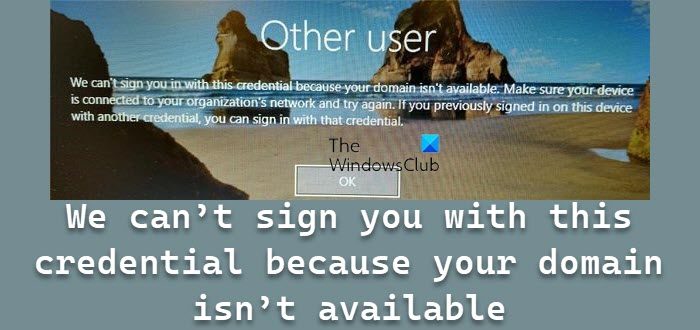
We can’t sign you with this credential because your domain isn’t available. Make sure your device is connected to your organization’s network and try again. If you previously signed in on this device with another credential, you can sign in with that credential.
Ideally, as soon as it indicates an issue with domain joining, users would delete the computer (s) from the domain and rejoin them. However, it doesn’t usually help. A few other preliminary steps that could be tried are trying to boot the system with no network connectivity, removing the local profile directory for the user, changing GPO for event log retention, etc.
We can’t sign you with this credential because your domain isn’t available
If nothing works, then to resolve the We can’t sign you with this credential because your domain isn’t available issue, you could proceed to the following troubleshooting:
- Remove the user from the protected user’s group
- Verify the DNS settings
- Using Security Policy snap-in
You will need a second admin account to execute these.
1] Remove the user from the protected user’s group
Many users who reported this issue cited the cause as being added to a specifically protected user group in Active Directory. For company-managed systems, please contact the system administrator. Learn more about protected user groups on docs.microsoft.com.
2] Verify the DNS settings
Conflict with the DNS settings could possibly cause this error. Check this reference to learn more about correct DNS settings.
3] Using Security Policy snap-in
Please backup your data before attempting this fix.
- Press Win + R to open the Run window and type the command secpol.msc. Press Enter and it open the Security Policy snap-in.
- In the security policy snap-in window, navigate to Security Settings > Local Policies > Security Options.
- In the right pane, search for the policy Interactive logon: Number of previous logons to cache (in case of the domain controller is not available), double-click on the policy to modify the value of the policy.
- Set the value of “Do not cache logons” to 0.
What does it mean when it says Your domain isn’t available?
When a PC or Laptop belongs to a domain or enterprise, it must verify that the PC and the account are part of the domain to log in. It ensures that system resources are not used unless authorized. However, when the PC cannot connect to the domain via the local intranet or the internet, it shows this error.
How do I log into a computer without a domain?
Technically, you cannot log into the computer, which is part of the domain. However, you may ask your IT admin whether a policy provides an exception for some accounts to log in without it. Another way to access the PC is to use a local account; you can still use it, but some resources might be limited.
How to remove a PC from a Domain?
Make sure you have a local admin account in hand; otherwise, you won’t be able to remove it.
Open Windows Settings and navigate to Accounts > Email & Accounts. Locate the account related to the domain, then choose to delete it. You may have to verify with your domain credentials. All the files related to that account will be removed in the process.
Hope this helps!
