
Did you like playing audio (music and videos) on your Windows computer? You must have encountered a loudness issue at times. It is not limited to Windows; it occurs on all devices and operating systems. Loudness issues can be roughly translated as different loudness levels across apps. This is often annoying and requires you to manually adjust the volume every time you switch apps. But the tool we discuss in this post can help you with exactly that. WALE controls each app’s volume independently and adjusts them to the same volume level.
WALE – Windows Audio Loudness Equalizer
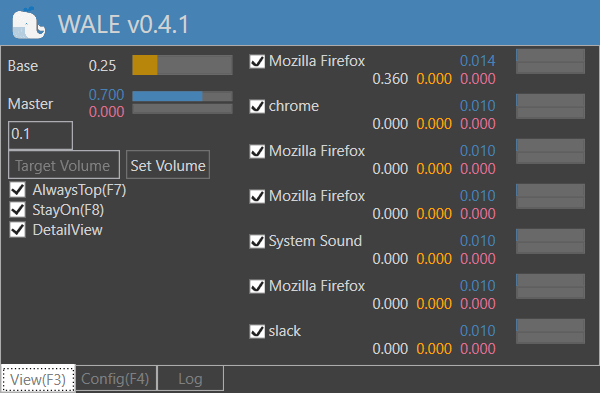
WALE stands for Windows Audio Loudness Equalizer, and the tool excels at that. It is a simple, standalone utility that sits in the system tray and does its job. The program uses some advanced audio terms, but that does not make it an advanced tool. But you must be wondering, how does it level the audio?
It calculates appropriate volume from average peak level and lowers the volume immediately when the peak is exceeding desired level. You can configure several parameters such as action timing, period of average, volume recovery function, target peak level, and so on.
Some serious calculations are running in the background, which is why you see a consistent loudness level on your Windows computer.
WALE is quite simple to use as well. As I mentioned, it is available in a portable format and can be accessed from the system tray. The UI is minimalistic and gets the job done quickly. The program displays a list of applications that are running and have an audio output. Use the checkbox for each to indicate whether Wale controls it.
Additionally, you can view all audio level values your computer is operating at. You can see the original audio level and the level at which the application is operating. You can also disable DetailView to get more concise and to-the-point information.
Moving on to the Config tab, you can control a few audio-related settings. The terms used here are a little advanced and it is recommended not to change them if you are not sure. Even if you change them, the default values are displayed there.
The program can automatically run at Windows startup and you can also adjust the window priority in settings. The log tab displays all logs generated and you can essentially view the levels that were set for different applications on your computer.
WALE is a great audio equalizer software for your computer. You must have experienced this feature already on your TV where all the channels have varying loudness. But WALE equalizes loudness on your computer. Now you can play audio from any application without having to manually adjust the volume every time.
Click here to download WALE.
Read: Spatial Sound keeps switching to Windows Sonic.
How do I control Windows Volume Mixer?
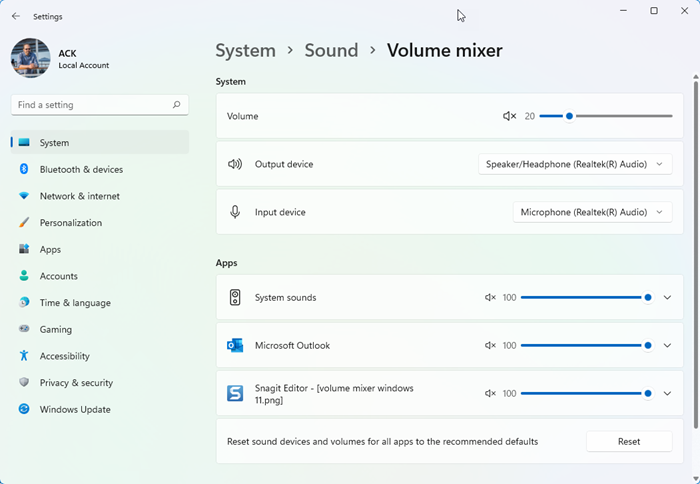
First, open Volume Mixer on your Windows 11/10 computer. Open Windows Search and type Volume Mixer or go to “Settings > System > Sound > Volume Mixer.” Here, you can control the volume of different apps on your system. For example, to adjust Firefox’s volume, move its volume slider. You can also set the default input and output devices for a particular app in Volume Mixer.
Does loudness equalization increase volume?
Loudness Equalization is the technique of adjusting volume by controlling the different frequency bands in an audio signal. Loudness Equalization does not increase volume. Instead, it aims to keep the volume level constant across different audio sources. For example, a user must adjust the volume whenever a commercial break occurs during a TV program. Today’s expensive HD-capable TVs can equalize volume so that the sound stays at a somewhat constant level.
Read next: How to adjust Bass and Treble in Windows 11.
