
With numerous data leaks and revelations, everyone is increasingly concerned about their privacy. And whatever device you use, having proper settings to ensure maximum privacy is a must. This post talks about freeware for Windows that lets you adjust your Windows Privacy Settings such that you have maximum privacy on your computer. The tool is a freeware and is called W10Privacy. It has been best tuned to work with Windows 11 and Windows 10.
W10Privacy for Windows 11/10
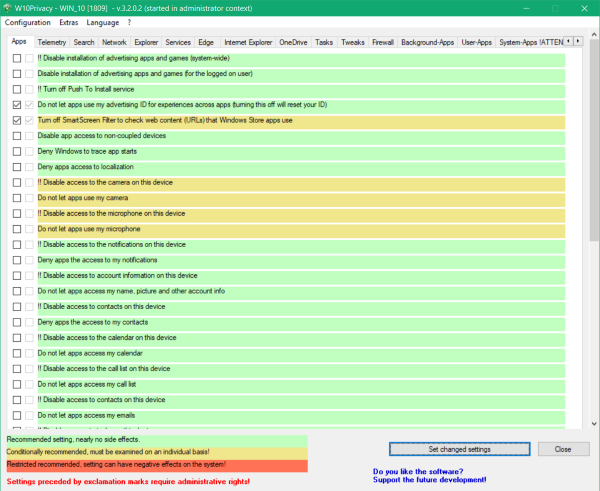
The main motive behind this tool is to bring all privacy-related settings on Windows 10 at one place. The tool does its job at its best. It organizes all the settings into well-categorized tabs and indicates their severity. All the recommended settings with no side effects are highlighted in green, conditionally recommended settings are marked in yellow, and all the restricted recommended setting are marked in dark orange. By ‘restricted recommended’ here, we mean that the setting can have a negative impact on your computer.
When you start the tool, you will be greeted with a lengthy list of settings and numerous categories. All the settings in the list are there to improve the privacy scenario on your system in some way or another.
Turn off Windows Privacy Settings
There are general privacy settings available, for example, Deny Microsoft to use diagnostics data. Then the tool gives you privacy control over Apps, Telemetry and Search. You can easily find settings such as Do not let Microsoft collect and use the information to give you suggestions, ideas, reminders, alerts and more.
W10Privacy not only provides privacy settings for Windows but also for other Microsoft apps. The applications include Explorer, Edge, Internet Explorer, and OneDrive. You can find plenty of these settings and find out whether it is recommended to have this setting or not.
Moving on, there are a few more settings that we have not yet discussed here. The categories include:
- Network
- Services
- Tasks
- Tweaks
- Firewall
- Background Apps
- User-Apps and
- System Apps.
Interestingly, under User Apps and System Apps you get an option to uninstall all applications which are not generally required and are known to collect personal data.
Since you are changing a lot of settings around, having a system restore point is must just in case something goes wrong. W10Privacy comes with a built-in option to create a system restore point before you start changing any settings on your computer. You will need to start the program with admin privileges to use the restore point feature.
Another interesting feature here is the ability to save and load configuration files. Once you’ve selected all the settings that you want, you can save it as a separate configuration file. You can use this configuration file later on another computer or your computer. The file can be easily sent to someone over email or other mediums. This feature enables you to preserve your settings, eliminating the need to manually configure the tool each time.
W10Privacy is a great privacy tool for Windows. The number of settings it lets you configure is commendable. You won’t find such a number of settings anywhere else. Apart from that, the tool is simple, portable and easy to use. Also, the added benefits of a restore point and a modular configuration file make this tool a complete solution. Click here to download W10Privacy.
More free tools here to fix Windows Privacy issues.
TIP: Ultimate Windows Tweaker is a popular tweaking freeware released by us. Under its Security & Privacy section, you will see options that allow you to disable various features, including Telemetry, Biometrics, Advertising ID, Bing search, Windows Update sharing, Feedback requests, the Password Reveal button, Steps Recorder, Inventory Collector, and Application Telemetry.
