
Sometimes, your VirtualBox VM gets stuck on the Saving State when booting up the machine. This could be due to various reasons, such as issues when taking a snapshot or because of a hung process. In this post, we will see what you can do if your machine is stuck in the Saving State.

Fix VirtualBox stuck on Saving state in Windows 11
The “Saving State” process can hang in VirtualBox due to competition with Microsoft’s Hyper-V. Modern Windows versions enable virtualization-based security (VBS) and Core Isolation by default, forcing VirtualBox to run nested on Hyper-V instead of directly on hardware. This transition can fail when saving the VM state, freezing the memory dump. Additionally, driver signature enforcement and fast startup in the host OS may cause improper loading of VirtualBox kernel drivers, leading to deadlocks during VM pauses.
If your VirtualBox is stuck in the Saving state, you need to follow the solutions mentioned below.
- Kill the VM via the Command Prompt
- Disable Core Isolation/Memory Integrity
- Turn off Fast Startup
- Roll Back VirtualBox Graphics Controller
- Edit the .Vbox file
Let us talk about them in detail.
1] Kill the VM via the Command Prompt
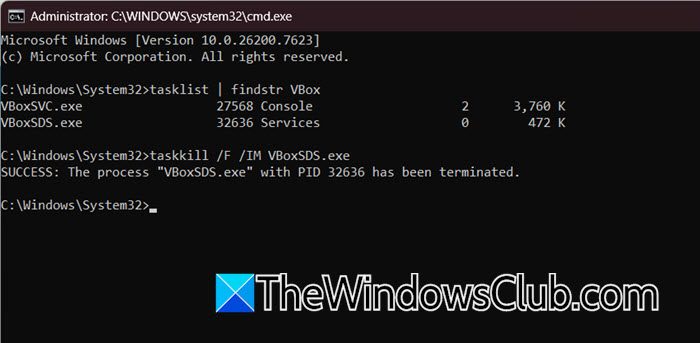
When the VirtualBox GUI is unresponsive, the Task Manager might also be slow to show the specific processes. Therefore, an easy way out would be to use Command Prompt.
First, open the Command Prompt as an administrator and then run the following command.
tasklist | findstr VBox
You will likely see VBoxHeadless.exe or a process named after your VM.
Terminate it forcefully using the command mentioned below.
taskkill /F /IM VBoxHeadless.exe
OR
taskkill /F /IM VBoxSDS.exe
If the VM Manager is still stuck, also kill the service using the following command.
taskkill /F /IM VBoxSVC.exe
Restart VirtualBox. You may see a medium lock error; unlock it and restart the VM.
2] Disable Core Isolation/Memory Integrity
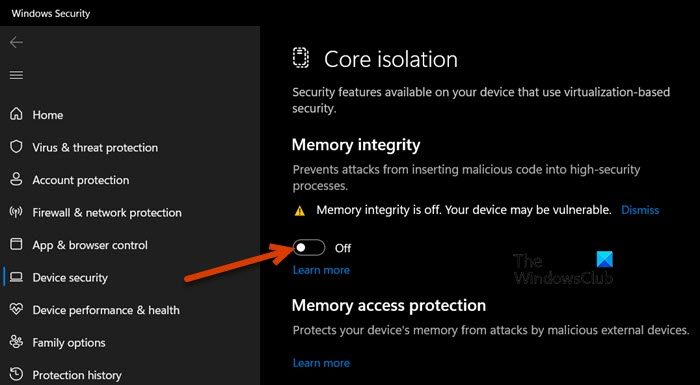
Disabling Core Isolation removes an extra security layer that acts as a middleman between VirtualBox and your computer’s memory. When this layer is active, VirtualBox struggles to directly access the memory it needs to quickly save your virtual machine’s state, causing a conflict that freezes the process. Turning it off allows VirtualBox to handle the memory directly, preventing the save operation from getting stuck.
- Open Windows Security from the Start Menu.
- Go to Device Security > Core Isolation details.
- Toggle Memory Integrity to Off.
- Restart your computer.
This often resolves random freezes during save operations because it forces the CPU to hand direct control back to VirtualBox.
3] Turn off Fast Startup
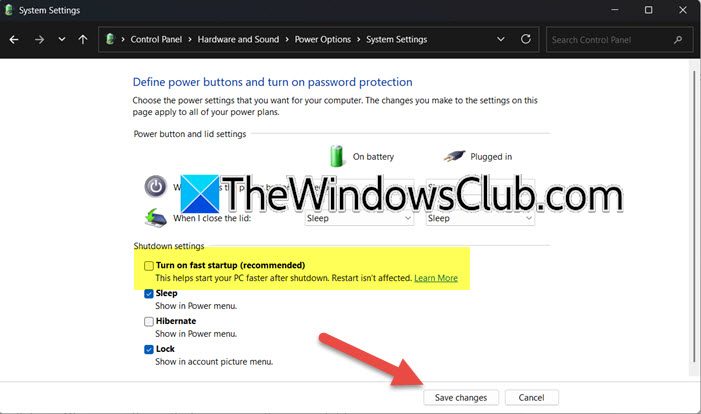
Fast Startup never fully shuts down Windows; instead, it saves the system kernel and drivers to a file to speed up future boots. This leaves critical system files partially locked or in a hibernated state, which prevents VirtualBox from gaining exclusive access to write your virtual machine’s saved state file. Turning it off ensures Windows completely shuts down and releases all file locks, allowing VirtualBox to save your VM’s memory without interference.
You need to follow the steps mentioned below to do the same.
- Open Control Panel > Hardware and Sound > Power Options.
- Click Choose what the power buttons does on the left sidebar.
- Click Change settings that are currently unavailable (requires admin privileges).
- Under Shutdown settings, uncheck Turn on fast startup (recommended).
- Click Save changes.
Reboot your machine. This ensures a clean shutdown of the Windows kernel, allowing VirtualBox to manage its VM states without file-locking conflicts.
4] Roll Back VirtualBox Graphics Controller
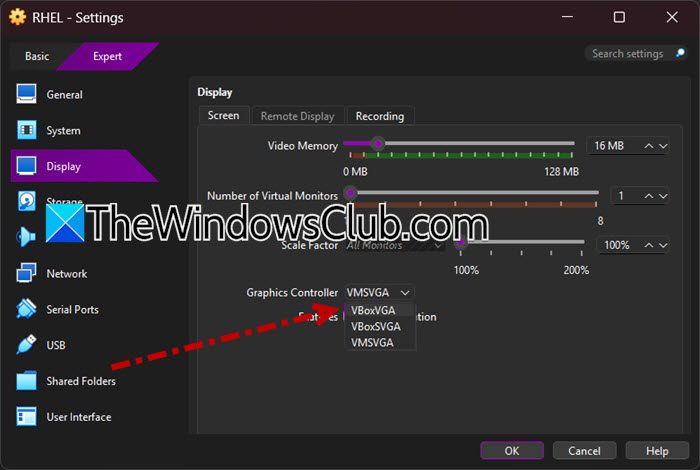
The default modern controllers (VBoxSVGA) use complex graphics drivers that can get confused when the system tries to pause and save the virtual machine’s state. This confusion often results in a frozen black screen during the saving process. The legacy VBoxVGA controller uses simpler, more stable drivers that reliably handle the suspend command without crashing.
Follow the steps mentioned below to do the same.
- Force kill the VM processes using the steps mentioned in the first solution.
- Then, open VirtualBox Manager, right-click your VM, and go to Settings > Display.
- Change the Graphics Controller from VBoxSVGA or VMSVGA to VBoxVGA (the legacy option).
- Click OK and start the VM.
This older controller is less likely to crash during the suspend/save routine on Windows 11 hosts, as it doesn’t rely as heavily on the host’s WDDM drivers.
5] Edit the .vbox File
Sometimes, after killing the process, the VM gets stuck in an Aborted or Saved state that you cannot exit. So, to manually reset a virtual machine, you can directly edit its configuration file. First, navigate to C:\Users\[YourUsername]\VirtualBox VMs\[YourVM] and locate the .vbox file, then open it with Notepad.
Inside this file, search for the line containing <Machine uuid=”…”> and look for the attribute state=”saved” or state=”aborted” within that tag. Change this value to state=”poweroff” and save the file; if the system indicates it is read-only, save a copy to your desktop first and then overwrite the original file, which may require administrator permissions.
Once this is done, open VirtualBox, and the virtual machine will now show as Powered Off and ready to start normally.
That’s it!
Why is my VM stuck in Saved State?
A virtual machine typically gets stuck in a “Saving State” loop when VirtualBox cannot complete the memory dump due to a system conflict or resource limitation. Common causes include running Hyper-V or Core Isolation on Windows, which prevents VirtualBox from accessing the hardware directly to pause the guest OS.
Read: Hyper-V Virtual Machine stuck in Saved State
How do I get a 3D passthrough in Virtualbox?
You cannot get true GPU passthrough in VirtualBox, as the software does not support physically assigning a graphics card to a virtual machine. Instead, you can enable 3D acceleration by installing the Guest Additions and selecting a controller like VMSVGA in the Display settings, which significantly improves graphics performance for tasks like video playback or basic 3D rendering. For workloads requiring full GPU access (such as AI training or modern gaming), you must use alternative hypervisors like KVM or VMware that support PCIe passthrough.
Also Read: VirtualBox window stuck on Getting Ready or Boot logo.
