
While opening or using VirtualBox, if you encounter an error stating that The VirtualBox kernel modules do not match this version of VirtualBox, here is how you can resolve this issue. You can also find an error code saying:
VERR_VM_DRIVER_VERSION_MISMATCH (-1912).
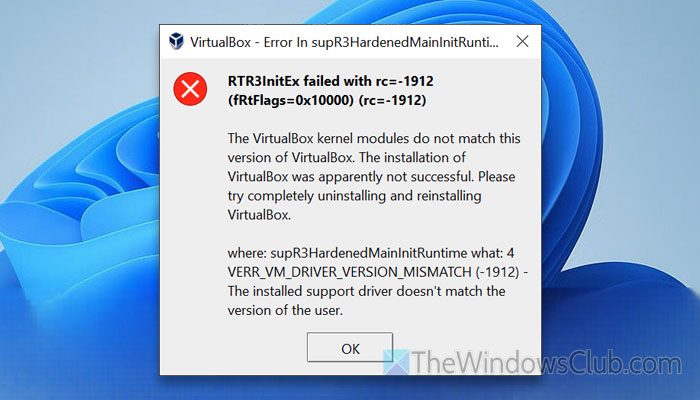
The entire error message says something like this:
The VirtualBox kernel modules do not match this version of VirtualBox. The installation of VirtualBox was apparently not successful. Please try completely uninstalling and reinstalling VirtualBox.
Where: supR3HardenedMainInitRuntime what: 4 VERR_VM_DRIVER_VERSION_MISMATCH (-1912) – the installed support driver doesn’t match the version of the user.
The VirtualBox kernel modules do not match this version of VirtualBox
To fix The VirtualBox kernel modules do not match this version of VirtualBox error, follow these solutions:
- Disable Hyper-V and other virtual machine software
- Update VirtualBox
- Check for firewall blockage
- Reinstall VirtualBox
- Install an older version
To learn more about these solutions, continue reading.
1] Disable Hyper-V and other virtual machine software
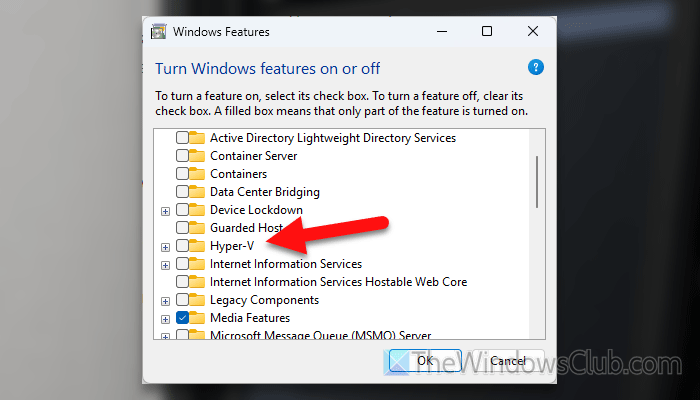
In case you don’t know, Hyper-V and other virtual machine software do not get along on the same computer. You must choose either Hyper-V or any other third-party virtual machine software. In this case, as you are using VirtualBox, it is highly recommended to disable Hyper-V or any other third-party virtual machine software that you may have on your computer.
To disable Hyper-V, search for turn windows features on or off and click on the respective search result to open the Windows Features window.
Remove the tick from the Hyper-V checkbox and click the OK button.
It may take a few moments, and you need to restart your computer.
2] Update VirtualBox
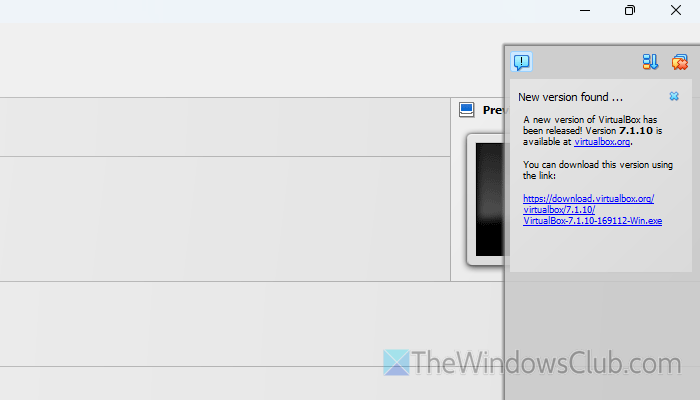
If you have recently updated your computer from Windows 10 to Windows 11 and the problem above started immediately after the update, it is recommended to update VirtualBox. On the other hand, if you haven’t updated your computer for a very long time, the solution is advised.
To update VirtualBox, follow these steps:
- Open the VirtualBox window on your computer.
- Go to File > Check for Updates.
- Click on the notification panel on the right-hand side.
- Click on the download link to start downloading.
Read: Software Update Checkers will scan your computer for latest available updates
3] Check for firewall blockage
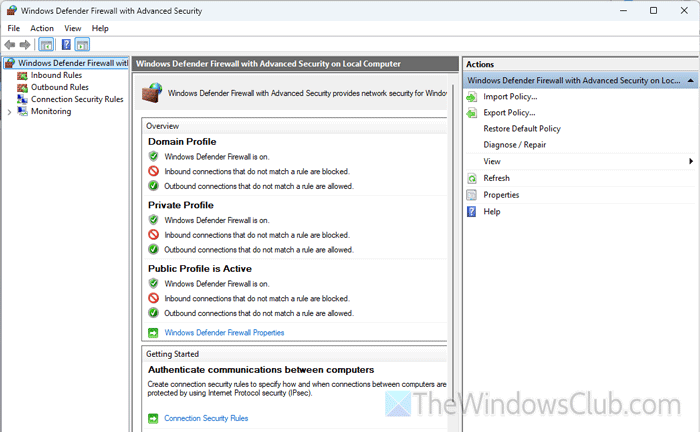
VirtualBox sometimes requires an uninterrupted internet connection to update various modules and provide a unified user experience. However, if you have, by mistake, blocked VirtualBox from using your internet connection, you may face trouble.
Therefore, do the following to fix the issue:
- Open Windows Defender Firewall with Advanced Security and check all the Inbound Rules and Outbound Rules.
- If any rule is applied to VirtualBox, you need to examine it thoroughly.
- If you have installed third-party firewall software, it is suggested that you check the rules as well.
Read: How to remove duplicate Windows Firewall rules
4] Reinstall VirtualBox
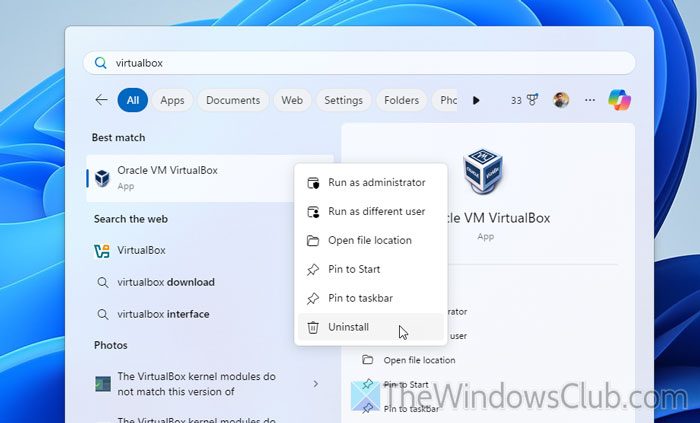
If none of the above solutions have worked for you, it is time to follow the advice suggested by the error message earlier. However, you need to completely uninstall VirtualBox first. For that, you can use a software uninstaller program.
Following that, you can download the latest version of VirtualBox from the official website, virtualbox.org.
5] Install an older version
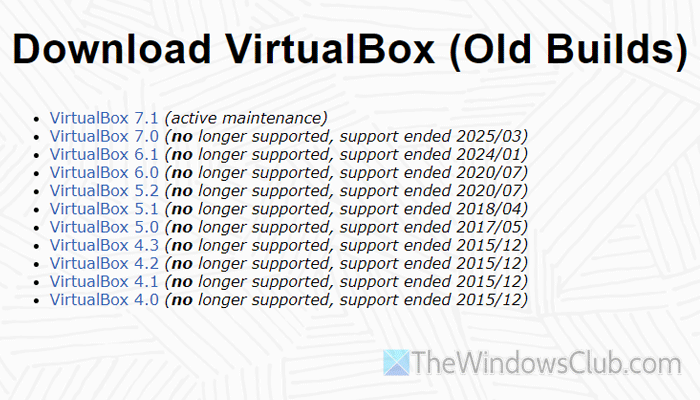
At times, the latest version may cause problems, which is why it is recommended to install an older version. Luckily, you can download an older version of VirtualBox from the official website. For that, head to virtualbox.org and find a suitable version.
Read: How to install Windows 11 on VirtualBox
How do I update my VirtualBox version?
To update your VirtualBox version, open VirtualBox and go to File > Check for Updates. If an update is available, you can find a panel on the right-hand side. Click on the ‘New version available’ option to start the download process.
What is the kernel module for VirtualBox?
Kernel takes care of your processor and other resources when you start VirtualBox on a host computer. In other words, the kernel helps you establish a connection between your virtual machine and host computer. Without the kernel modules, you cannot start any virtual machine, even though it is possible to create one.
Read: Speed up a VirtualBox Virtual Machine and make it run faster
