
If your VirtualBox virtual machine can access the network but cannot ping the Windows 11 host while using the Bridged Adapter network mode, the problem is usually related to Windows networking, firewall rules, or VirtualBox network settings. In this post, we will see what to do if VirtualBox Bridged Adapter cannot ping the host.
This issue usually occurs because Windows Defender Firewall blocks ICMP (ping) requests, the wrong network adapter is selected for bridged networking, network discovery is disabled, or the VirtualBox Bridged Networking Driver is not working correctly. In some cases, third-party antivirus software, VPNs, or incorrect IP configuration can also prevent communication between the host and the virtual machine.
VirtualBox Bridged Adapter cannot ping host
If VirtualBox Bridged Adapter cannot ping the host, you need to follow the solutions mentioned below.
- Allow ICMP Echo Requests through Windows Defender Firewall
- Verify the correct Bridged Network Adapter
- Enable Network Discovery on Windows
- Check IP configuration on both hosts on guests
Let us talk about them in detail.
1] Allow ICMP Echo Requests through Windows Defender Firewall
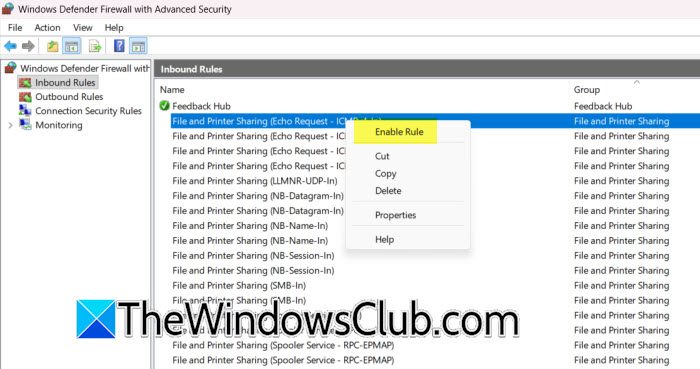
Windows Defender Firewall blocks incoming ping requests by default on many network profiles. Enabling the ICMP Echo Request rule allows the host to respond to ping requests from the VirtualBox guest. To allow ICMP Echo Requests through Windows Defender Firewall, follow the steps mentioned below.
- Hit Win + R, type wf.msc, and hit Enter.
- Expand Inbound Rules.
- Go to File and Printer Sharing (Echo Request – ICMPv4-in).
- Right-click the rule and select Enable Rule.
- If multiple rules exist, enable the ones matching your active network profile (Private or Domain).
- Close the firewall console.
- Try pinging the host again.
Now, check if the issue persists.
2] Verify the Correct Bridged Network Adapter
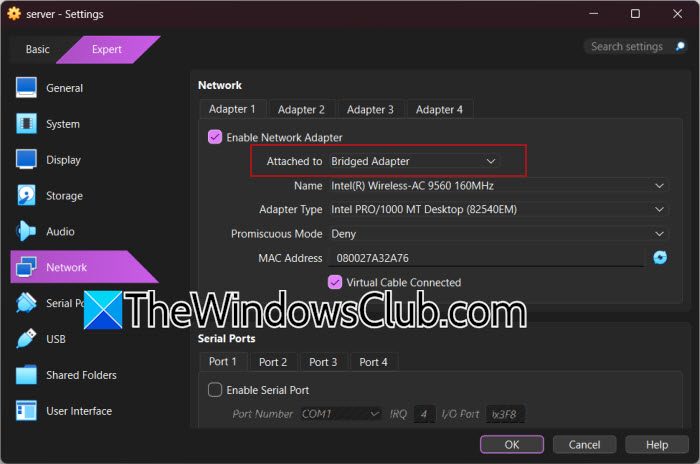
VirtualBox must bridge the virtual machine to the same physical network adapter that the host uses. Choosing the wrong adapter prevents proper communication between the host and the guest.
First, shut down the virtual machine, open VirtualBox, select your VM, and click Settings. Now go to Network, ensure that Adapter 1 is Enabled, and set Attached to Bridged Adapter. From the Name drop-down menu, select your active Ethernet or Wi-Fi adapter. Click OK, start the virtual machine, and test connectivity.
3] Enable Network Discovery on Windows
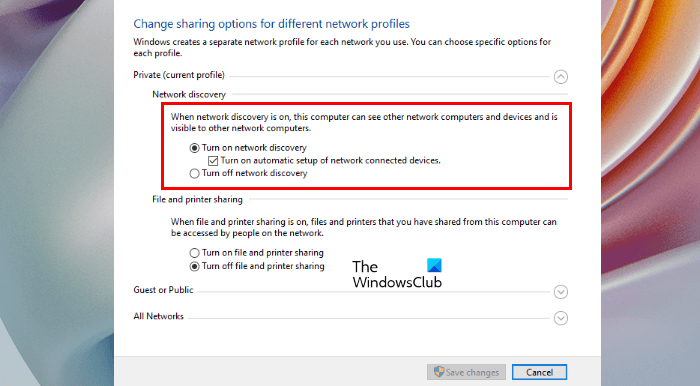
Network Discovery allows Windows devices to detect and communicate with each other on the local network. If it is disabled, the host may not respond correctly to requests from the guest machine. Follow the steps mentioned below to do the same.
- Open the Control Panel.
- Navigate to Network and Sharing Center.
- Click Change advanced sharing settings.
- Expand your current network profile.
- Select Turn on network discovery.
- Also, enable Turn on automatic setup of network connected devices.
- Click Save changes.
Restarted the computer if prompted and see if the issue persists.
4] Check IP Configuration on both Host and Guest
The host and guest must be on the same subnet for direct communication. Incorrect IP addresses, subnet masks, or gateway settings can prevent the VM from reaching the host.
Open Command Prompt on the Windows host and run ipconfig. Note the host’s IP address and subnet mask.
Now, open a Terminal inside the virtual machine, check if the IP address using the appropriate command for the guest operating system.
If necessary, renew the IP address or restart the network adapter. Test the connection by pinging the host again.
Hopefully, with the help of these solutions, your issue will be resolved.
VirtualBox VMs cannot ping each other
If two VirtualBox virtual machines cannot ping each other, they are often connected to different virtual networks or use incompatible network modes. Connecting both VMs to the same network adapter type, such as Bridged Adapter or the same Internal Network, allows them to communicate directly. You need to follow the steps mentioned below to fix the issue.
- Shutdown the virtual machines.
- Open VirtualBox.
- Select the first VM and click Settings > Network.
- Verify that the Adapter 1 is enabled.
- Choose the same network mode for both VMs (for example, Bridged Adapter).
- If using Internal Network, enter the exact same network name for both VMs.
- If using Host-only Adapter, ensure both VMs are connected to the same host-only network.
- Start both virtual machines.
- Check that both VMs have IP addresses on the same subnet.
Try pinging one VM from the other.
Read: Unable to ping Virtual Machine from Host – VMware or VirtualBox
How do I enable ping in VirtualBox?
VirtualBox itself does not have a setting to enable ping. Instead, you need to configure the network correctly by selecting the appropriate network mode, such as Bridged Adapter or Host-only Adapter, and ensuring both systems are on the same subnet. On Windows 11, you may also need to allow ICMP Echo Requests through Windows Defender Firewall so the host can respond to ping requests from the virtual machine.
Read: VirtualBox can’t connect to the Internet [Fix]
Why are VirtualBox bridged network connections not working?
A VirtualBox bridged network may stop working if the wrong physical network adapter is selected, the VirtualBox Bridged Networking Driver is disabled or corrupted, or third-party VPN and security software interferes with network traffic. In some cases, outdated VirtualBox versions or incorrect adapter settings also cause connectivity issues. Reinstalling the networking driver, selecting the correct adapter, and verifying IP configuration typically resolve the problem.
