
When going through the Event Viewer, we noticed Event ID 1552, which says the User hive is loaded by another process (Registry Lock). This event is triggered when the Windows User Profile Service (ProfSvc) fails to load a user’s registry hive (typically ntuser.dat) during login because another process has locked the file. Due to this, you may see temporary profiles on logins, data inconsistency or loss, and login delays. In this post, we are going to talk about this issue and see what you can do to resolve it.
User hive is loaded by another process (Registry Lock) Process name C:\Windows\System32\svchost.exe
Source: User Profile Service
Event ID: 1552

What is Event ID 1552?
Event ID 1552 occurs when Windows cannot load a user’s profile registry hive, typically the ntuser.dat file, because another process has locked it during login. This prevents the User Profile Service from accessing the file, forcing Windows to create a temporary profile. The lock is commonly caused by third-party software like antivirus tools, Fast Startup hibernation, retaining registry locks, or permission conflicts. You may experience real-world impacts such as reset desktop settings, lost files saved in temporary sessions, and login delays or failures.
Read: Where are the Windows Registry files located?
The hive stores user-specific settings, and when locked, Windows may create a temporary profile, causing data loss or login failures. Event ID 1552 happens when Windows can’t load your profile settings because something else has locked the file storing the. This is usually caused by security software (like antivirus tools) scanning the file during startup, Windows’ Fast Startup feature leaving the file locked after shutdown, other system services grabbing the file too early, incorrect permissions, or damage to the file itself, or syncing issues in company networks where profiles are shared across computers.
User hive is loaded by another process (Registry Lock), Event ID 1552
If you encounter the Event log “User hive is loaded by another process (Registry Lock)” with Event ID 1552, follow the solutions mentioned below.
- Disable Fast Startup
- Configure ANtivirus
- Disable Conflicting Service
- Create a new profile
Let us talk about them in detail.
1] Disable Fast Startup
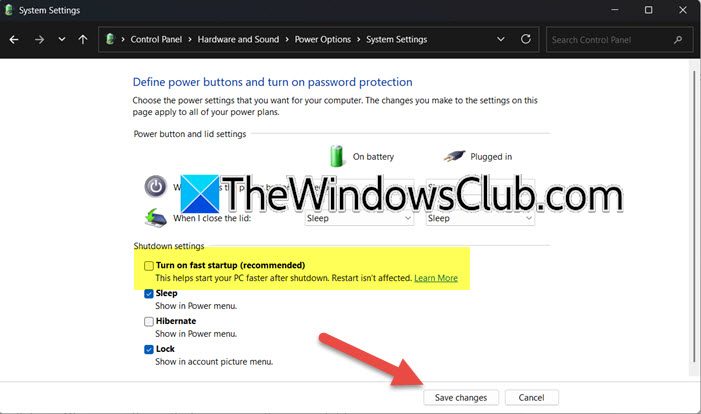
Our first solution includes disabling Fast Startup as it saves the kernel and opens registry hives (including your ntuser.dat) to hiberfil.sys when you shut down. So when you reboot your computer the next time, Windows will attempt to reload this hibernated version of the registry hive. If the hive was locked during the previous session (e.g., by a background process), it remains locked when the system wakes up. This prevents the User Profile Service from accessing your ntuser.dat during login, triggering Event ID 1552 and forcing a temporary profile.
To disable Fast Startup, follow the steps mentioned below.
- Open the Control Panel.
- Go to Hardware and Sound > Power Options.
- Click on Choose what closing the lid does.
- Now, click on Change settings that are currently unavailable.
- Untick “Turn on Fast Startup” and click on Save changes.
Finally, check if the issue is resolved.
2] Configure Antivirus
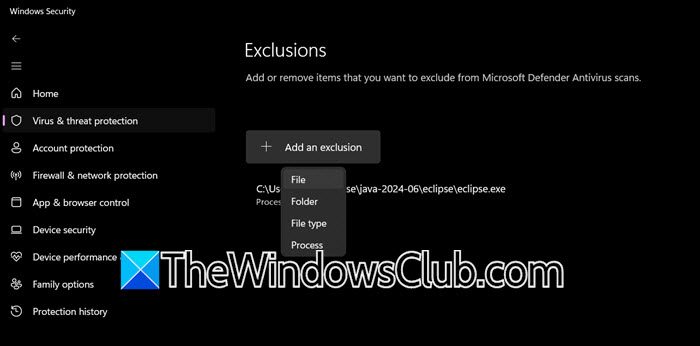
Antivirus (AV) software often scans ntuser.dat during system startup. Since AV services launch before Windows’ User Profile Service (ProfSvc), they “lock” the file. ProfSvc then fails to access it. In this solution, you need to add C:\Users\%username%\ntuser.* to an exclusion. Do keep in mind that it applies to all users dynamically, so no need to edit per account. If you use Windows Defender Antivirus, follow the steps mentioned below.
- Open Windows Security.
- Go to Virus & threat protection > Manage settings.
- Now, scroll to reach Exclusions > Add or remove exclusions.
- We need to create a new exclusion. For that, set Add an exclusion to File and path to C:\Users\%username%\ntuser.dat. Repeat for ntuser.dat.log* if present.
Now, you need to add a new script named StartAV.bat containing the following lines to Group Policy > User Configuration > Windows Settings > Scripts (Logon/Logoff) > Logon.
net start "Avast Antivirus"
Finally, check if the issue is resolved.
Read: How to Load or Unload a Registry Hive in Windows
3] Disable Conflicting Service
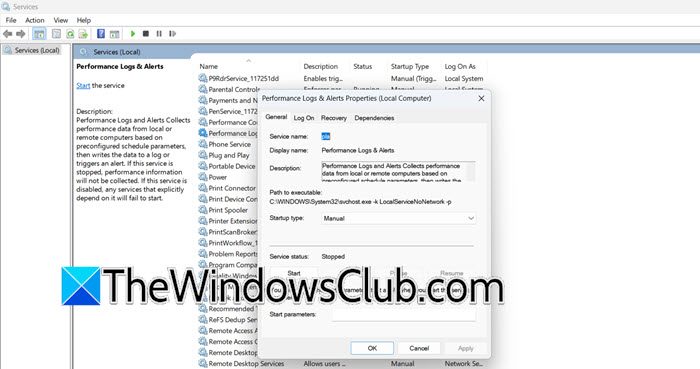
Some non-critical Windows services load before the User Profile Service (ProfSvc) during startup. If these services access the ntuser.dat file early (e.g., for logging or compatibility checks), they lock it, blocking ProfSvc and triggering the error. Disabling them removes the conflict. To do so, you need to follow the steps mentioned below.
- Open Services.msc.
- Then, look for DiagTrack.
- Right-click on DiagTrack, select Properties, and set the Startup type to Disabled.
- Click on OK.
Similarly, disable PcaSvc (Program Compatibility Assistant Service).
Set the Performance Logs & Alerts service’s Startup type to Manual, as it prevents it from auto-starting and accessing registry hives at boot
If you are a Domain User only, you need to allow RPC Traffic in the Firewall. Open Windows Defender Firewall, go to Advanced Settings, create a new Inbound Rule, and set port 135/TCP + Dynamic RPC ports (range 49152-65535) to ensure roaming profiles sync without hangs/locks.
This should do the job for you.
Read: User Profile Service failed the logon, User profile cannot be loaded
4] Create a new profile
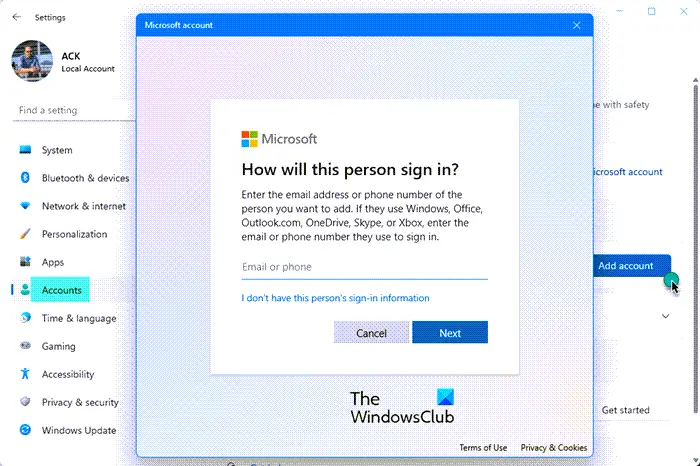
If nothing else works, our last resort is to create a new profile, as a corrupted ntuser.dat may cause locks to persist. So, go ahead and create a new profile, then see if your issue is resolved.
We hope that you will be able to resolve the issue using the solutions mentioned in this post.
Read: How to troubleshoot User Profile Service Event IDs on Windows
What is the name of the Windows profile service?
The Windows service responsible for managing user profiles is the User Profile Service, officially named ProfSvc (Profile Service). It handles the loading and unloading of user registry hives during login/logoff and ensures profile integrity.
Also Read: Edit Registry for another User in Windows.
