
Artificial Intelligence has made a lot of work easier. Today, we can use AI to generate images and videos. Even creating videos with consistent characters has also become possible, and most AI tools offer this feature today. You can also add sound effects to your videos using some AI tools. In this article, I will show you how to use Pixverse to create a video from a generated image.
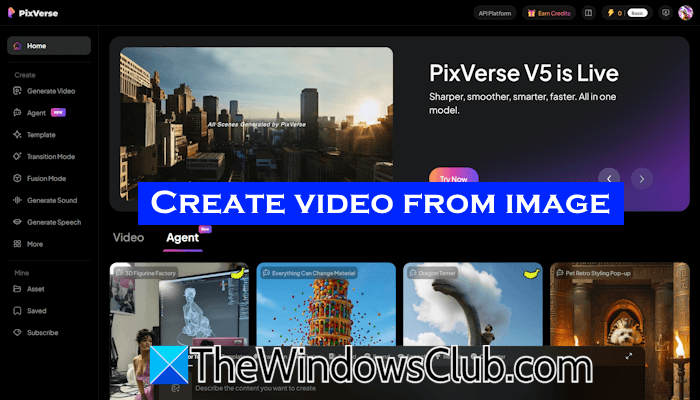
Use Pixverse to create a video from a generated Image
Use the following instructions to create a video from a generated image with Pixverse:
- Generate an image
- Convert the generated image into a video
Let’s start.
1] Generate an image
The first step is to generate an image. You can use any tool to generate an image. I have used Meta AI and Google AI Studio. I generated two images using the simple prompts written below:
A dog riding a bicycle.
Thunderstorm and tornado in a city.
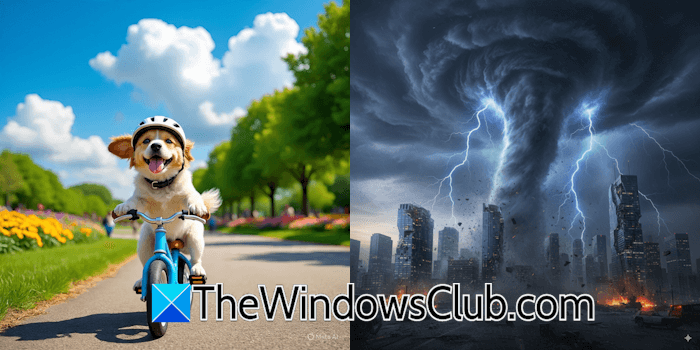
The outputs I received are shown in the above screenshot.
2] Convert the generated image into a video
The next step is to create a video from the generated image. You have to use the right prompt to convert an image into a high-quality video. Incorrect prompts lead to an undesired output.
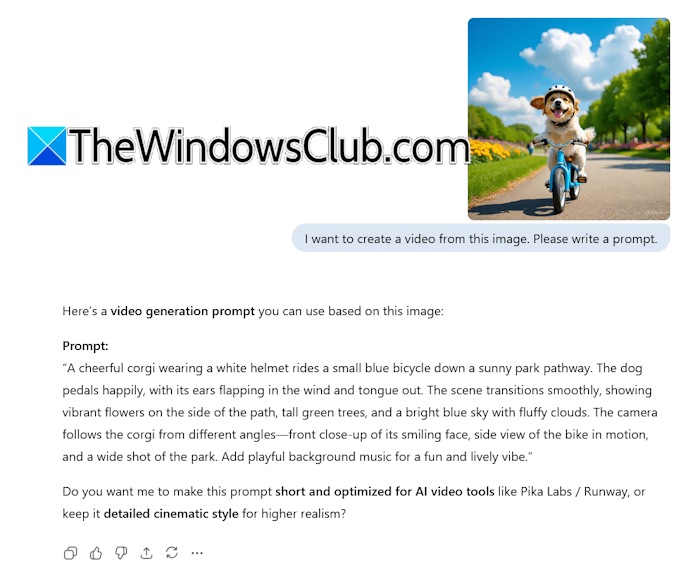
Therefore, use an AI tool to generate a prompt. For example, I generated the prompts for both images using ChatGPT. You can use any AI tool. Here are the steps:
- Open your web browser and visit ChatGPT.
- Log in to your account.
- Click on the Plus icon and select Add photos and files.
Write the following prompt in ChatGPT:
I want to create a video from this image. Please write a prompt.
Press Enter when done, and ChatGPT will write a prompt to generate a video from the required image.
Now, visit app.pixverse.ai. Create an account. When you create an account on Pixverse, you will get 60 bonus credits and 30 daily free credits. Each video consumes 30 credits, allowing you to create one video daily and three videos initially. After creating your account on Pixverse, select the Generate Video option from the left side. After that, you will see a new interface that has the following options to create a video:
- Image or Text
- Template
- Transition
- Fusion
- Extend
- Sound
- Speech
- Restyle
Let’s see some of these features.
Pixverse Image or Text feature
First, let’s talk about the Image or Text feature to generate a video. Follow these steps:
- Select the Image or Text option from the left side.
- You will see a prompt box on the right side. Click on the browse icon to upload the image to Pixverse.
- Paste the prompt you generated for the same image using ChatGPT or another AI tool.
- Select the required model to create the video. V5 is the latest model and is activated by default.
- Next, you can select the duration of your video (5 seconds or 8 seconds), resolution, aspect ratio, and other options.
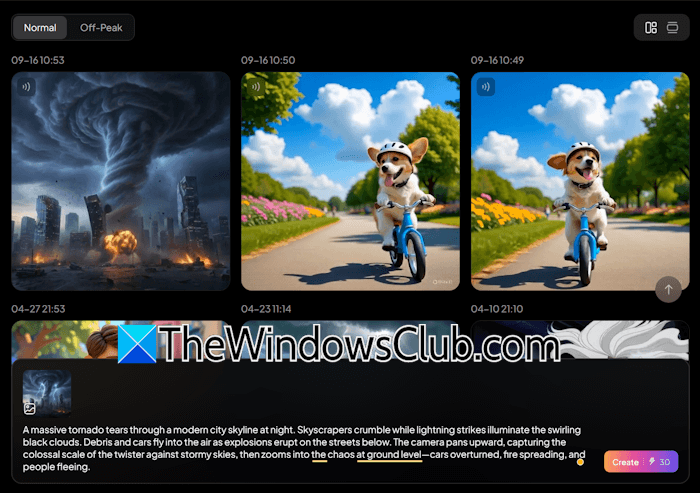
A 5-second video generation costs 30 credits, and an 8-second video generation costs 60 credits. Therefore, select the video duration wisely. You can also turn on the Auto Sound option if you want sound effects in your video. Enabling the Auto Speech option will generate videos with human speech.
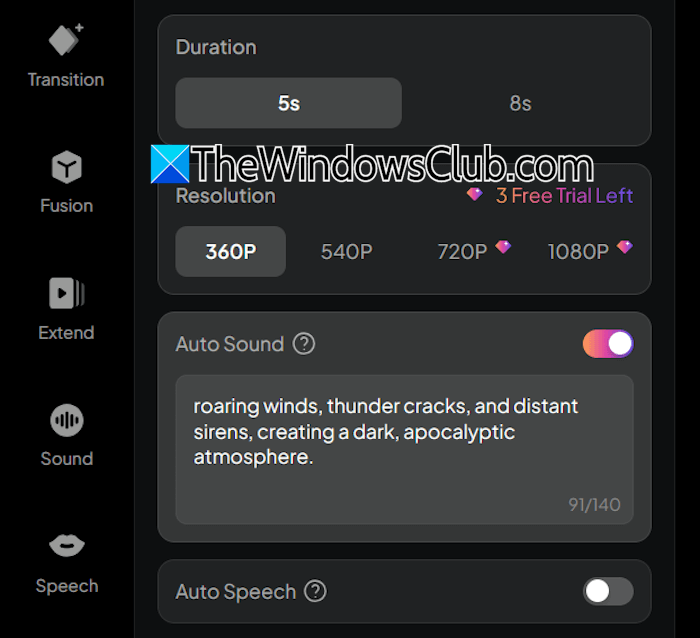
To get sound effects in your video, you have to write the required prompt in the Auto Sound field. For example, I entered the following prompt to add a sound effect to my video:
roaring winds, thunder cracks, and distant sirens, creating a dark apocalyptic atmosphere.
When you are done, click Create. Pixverse will generate the video within a few seconds.
Generate a video using a Template
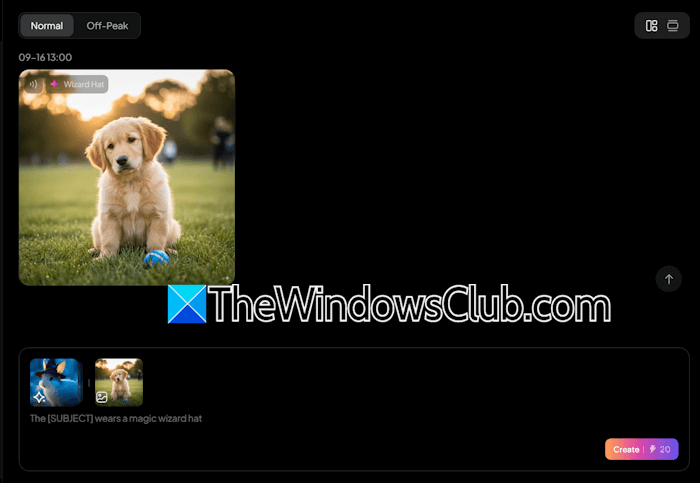
Pixverse offers a wide range of templates, including Punch Face, Ride My Porsche, Grow Up, Skeleton Dance, and more. I tried the Wear a Magic Hat template. Select your favorite template, upload the required image, and click Create. Pixverse will generate the image for you in a few seconds.
This is the output video I get from Pixverse when using a template.
Fusion
Using the Fusion feature in Pixverse, you can create a video by merging two different images. Here is how to do that.
- Select Fusion from the left side.
- Now, upload the required images. You can upload up to 3 images to create a single video.
- Write a prompt defining your video.
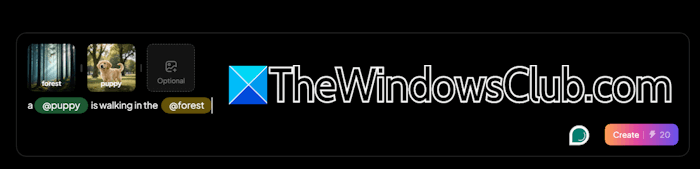
To mention the uploaded images, use the @ symbol. For example, I created a video of a puppy walking in a forest. I used the following prompt:
a @puppy walking in the @forest.
When you are done, click Create.
Have a look at the Fusion Video I generated using Pixverse.
That’s it. I hope this helps.
Can I generate a video from an image?
Yes, you can generate a video from an image. There are many different tools available online that you can use. Some of these tools are Google AI Studio, Pixverse, Leonardo AI, etc. Upload the required image, write a prompt, and click Generate. As simple as that!
How to use generative AI to make videos?
You can use generative AI to make videos by typing the text or using a reference image. Many AI tools offer both text-to-video and image-to-video generation. If you want to create a story, you can use Leonardo AI to make characters consistent in your story.
Read next: Create a 3D figurine and turn it into a video for free.
