
If you want to enable and use Picture-in-Picture mode in Microsoft Edge, follow this guide. Although it is not possible to use this mode on every website, you can use Picture in Picture on YouTube and some other popular sites. Here is how to utilize this functionality.
Microsoft Edge is better in many aspects. It is now faster, supports more extensions, and includes new features such as Picture-in-Picture mode. Most of the features are borrowed from Chrome, since both Edge and Chrome now run on the Chromium engine.
Google Chrome is already supporting picture-in-picture mode, and it only makes sense that the new Edge supports it as well. Picture-in-Picture mode is an arrangement in which videos are displayed as a floating window. It allows users to carry on with other tasks while the video plays in the corner. The best thing is that you do not need to install third-party extensions in the Edge browser.
What is Picture-in-Picture?
Picture-in-Picture creates a small, resizable video window that hovers above your desktop. You can drag it anywhere on your screen, control playback, and keep it visible even when switching between tabs or applications.
How to enable and use Picture-in-Picture mode on Microsoft Edge
Launch Edge and open an online video.
Right-click twice on the video. The first right-click usually shows the site’s own menu (like YouTube).
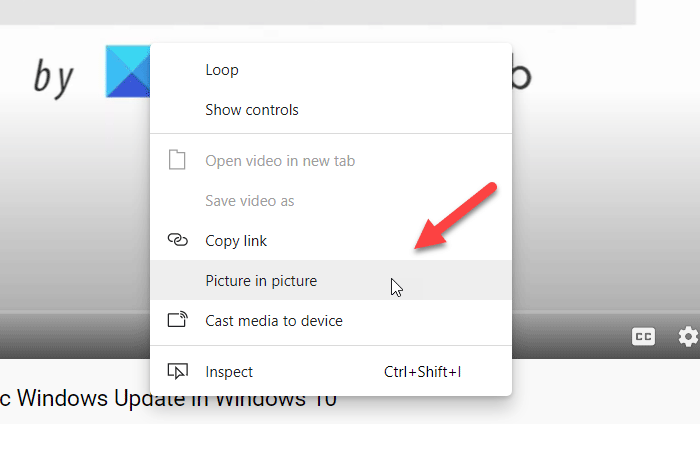
Right-click again to reveal Edge’s menu and select “Picture in Picture.” Now look for the PiP button. Clicking it instantly pops the video out.
You can also use the keyboard shortcut.
On Windows, press Alt+P while watching a video. This is the fastest way to activate PiP mode.
You can move the floating panel anywhere and resize it as needed. Even if you minimize the browser window, it will keep playing.
Read: How to use Picture in Picture on Windows 11
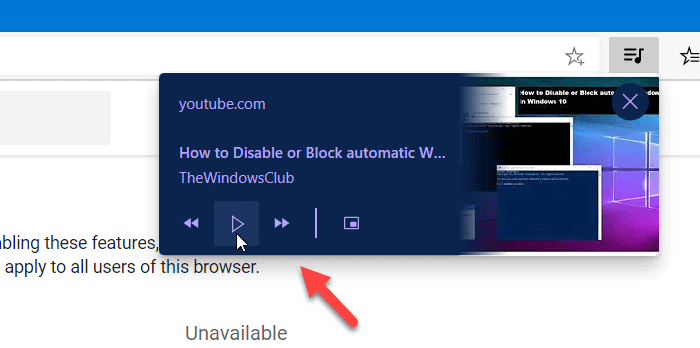
If you want to control the playback from the Global Media Controls, you need to enable it first.
For that, you must open the edge://flags window, and search for Global Media Controls. Enable the flag and restart your browser.
Now, you can see the Global Media Control in the browser that can be used to play/pause and skip the video.
PiP works best with HTML5 video players like YouTube, Netflix, and Twitch. For sites that don’t support PiP, you can install extensions such as the Picture-in-Picture Extension (by Google) to force-enable it.
I hope this guide helps.
Read:
