
If you receive usb80236.sys Blue Screen error on Windows 11 or Windows 10 computer, follow these suggestions to get rid of the issue. It occurs when there are issues with the USB driver on your computer. If so, follow this detailed guide to troubleshoot the issue in minutes.
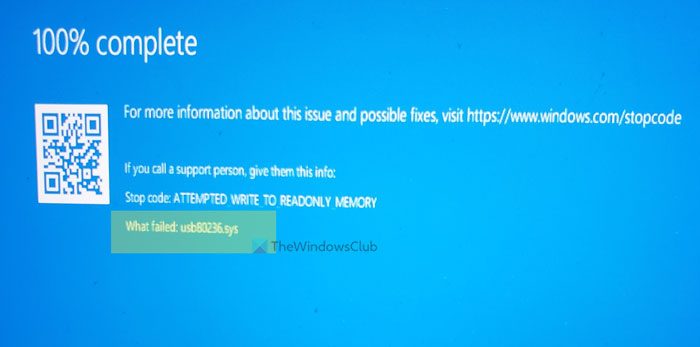
Stop code: ATTEMPTED WRITE TO READONLY MEMORY
What failed: usb80236.sys
For your information, this error might occur on any computer, including Dell, HP, Asus, etc. If your device has USB ports, you might find this BSOD at times. If you try to find the driver that is causing the Blue Screen error on your computer, you will come across usb80236.sys and USB driver.
What is the usb80236.sys file?
The usb80236.sys file is called the Remote NDIS USB Driver and this 52 KB file is a part of the Microsoft Windows operating system. It is located in the following folder on my Windows 11 Pro x64:
C:\Windows\System32\DriverStore\FileRepository\netrndis.inf_amd64_377075c6dde4133d
These are some of the situations when you might find this file causing a Blue Screen error:
- If you have recently installed a new USB device, you can see this issue.
- If you used an unsupported USB device, you may encounter this problem.
- If the USB driver has some issues, you can find this problem on your computer.
The solution is pretty straightforward. If you recently installed a driver, remove it. However, in most cases, this problem occurs even if you haven’t installed anything in recent times. In those cases, you need to try something else.
Fix usb80236.sys Blue Screen error in Windows 11
To fix usb80236.sys Blue Screen error in Windows 11/10, follow these steps:
- Press Win+Xto open the WinX menu.
- Select the Device Manager option.
- Expand the Universal Serial Bus controllers
- Right-click on USB Root Hub (USB 3.0).
- Select the Uninstall device option.
- Click the Uninstall button.
To learn more about these steps, continue reading.
First, open Device Manager on your computer. You can open it from the WinX menu. For that, press the Win+X buttons together and select the Device Manager option.
After opening Device Manager, expand the Universal Serial Bus controllers section and right-click on the USB Root Hub (USB 3.0).
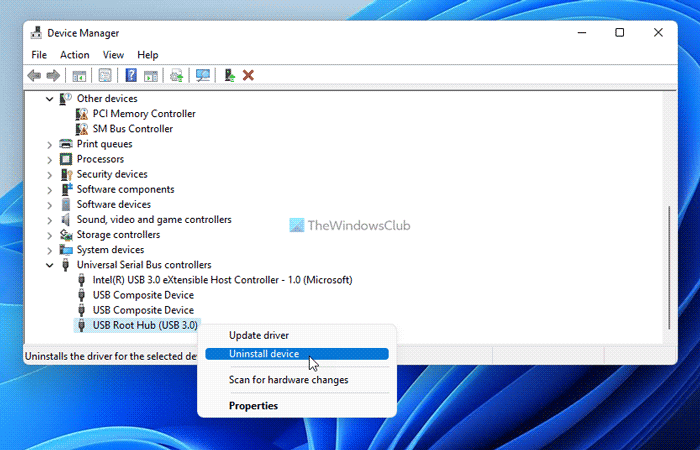
Then, select the Uninstall device option.
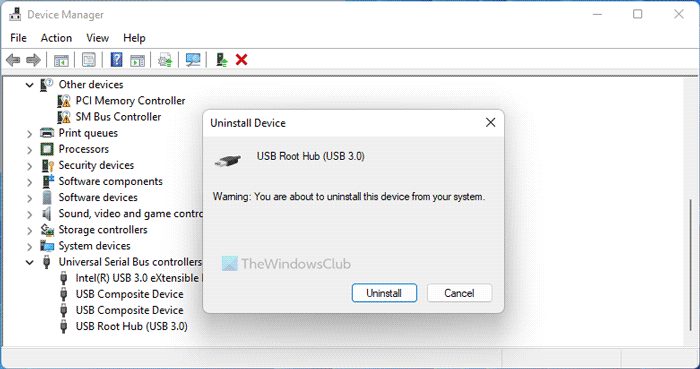
Following that, confirm the removal by clicking the Uninstall button on the popup message.
Afterward, restart your computer. After that, reinsert your USB device; the same driver will be installed again. However, you won’t find the same Blue Screen error anymore.
That’s all! I hope this guide helped.
Read: Fix NTOSKRNL.exe BSOD on Windows
How do I fix usb80236.sys Blue Screen error?
To fix the usb80236.sys Blue Screen error on Windows 11 or Windows 10, you need to uninstall the Universal Serial Bus controllers driver. You can do this using Device Manager. Follow the steps above to do so.
How to remove this usb80236.sys file?
usb80236.sys is a system file that manages USB devices and their corresponding drivers. Because it is an essential Windows operating system file, we don’t recommend deleting it. However, you can fix this file if it is corrupted by reinstalling the USB driver.
