
Searching for files or data containing an asterisk (*) or a percentage sign (%) in Excel often fails to return results, disrupting workflows. This happens because Excel misinterprets these symbols as commands rather than literal text during the search process. In this post, we will see what you can do if you are unable to search for a file with asterisk or a percentage in Excel.
Excel recognizes the asterisk (*) and the question mark (?) as wildcard characters. The asterisk matches any number of characters, making a literal search for an asterisk ineffective. Although the percentage sign (%) is not a wildcard, searches for it can fail if the cell format is incorrect or if users expect it to behave like one. This issue usually occurs when using the Find feature, applying functions such as COUNTIF, or filtering datasets that contain these symbols.
Unable to search for file with asterisk or percentage in Excel
If you are unable to search for a file with an asterisk or a percentage sign in Excel, you need to follow the solutions below.
- Use the Tilde (~) Escape Character in Find and Replace
- Apply the SUBSTITUTE Function for Formula-Based Identification
- Combine ISNUMBER and SEARCH Functions for Logical Testing
- Implement a VBA Macro for Automated Searching
Let us talk about them in detail.
1] Use the Tilde (~) Escape Character in Find and Replace
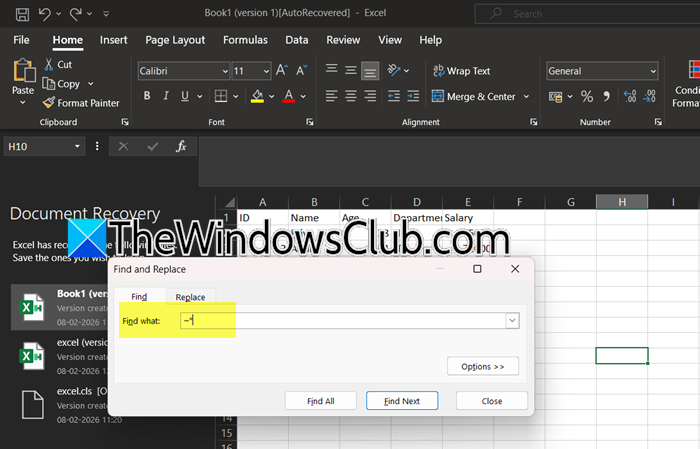
We will try prefixing the asterisk with a tilde, which signals to Excel that the asterisk is a literal character rather than a wildcard. The tilde effectively neutralizes the asterisk’s special function, allowing precise placement of the symbol.
So, hit Ctrl + F to open the Find and Replace dialog box. Then, in the Find what field, type ~* (for an asterisk) or % (for a percentage sign). Finally, click Find All to view all cells containing the literal symbol.
2] Apply the SUBSTITUTE Function for Formula-Based Identification
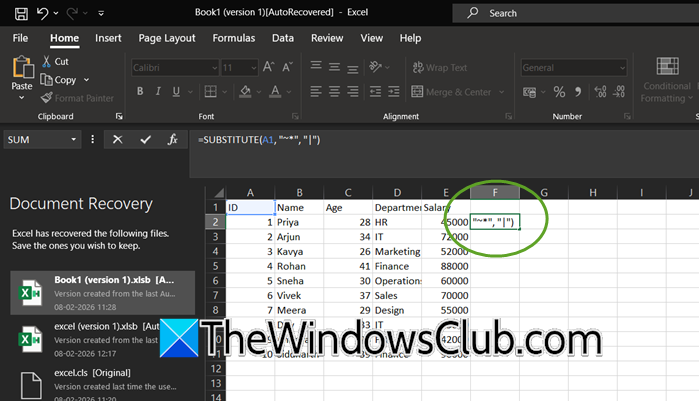
SUBSTITUTE function, when combined with the tilde (~) escape character, can target and replace the literal asterisk without triggering Excel’s wildcard interpretation. By converting the asterisk into a unique and easily searchable character (like a pipe symbol), you effectively bypass the wildcard conflict and create an identifiable marker in a helper column, all while leaving your original data completely untouched.
- Right-click on the letter at the top of the column that is immediately to the right of your data (for example, if your data is in column A, right-click on column B).
- Select Insert from the menu that appears to add a new blank helper column.
- Click on the first cell of this new helper column (cell B1 if your data starts in A1).
- Type the formula =SUBSTITUTE(A1, “~*”, “|”) and press Enter on your keyboard.
- Click on the cell containing the formula again to select it.
- Locate the small square at the bottom-right corner of the selected cell (this is called the fill handle).
- Double-click the fill handle to automatically copy the formula down to all rows containing data, or click and drag it down manually.
- Press Ctrl + F to open the Find and Replace dialog box.
- Type | (pipe symbol) in the Find what field and click Find All to locate all cells that originally contained an asterisk.
Hopefully, this will do the job for you.
3] Combine ISNUMBER and SEARCH Functions for Logical Testing
This approach creates a logical test that returns TRUE or FALSE depending on whether a cell contains an asterisk. The SEARCH function accepts the tilde escape character, while ISNUMBER verifies if the character position was found, making it ideal for conditional formatting.
Enter =ISNUMBER(SEARCH("~*", A1)) in an adjacent cell. Then, drag the formula down to apply it to your entire dataset. Filter for TRUE values to isolate cells containing asterisks.
4] Implement a VBA Macro for Automated Searching
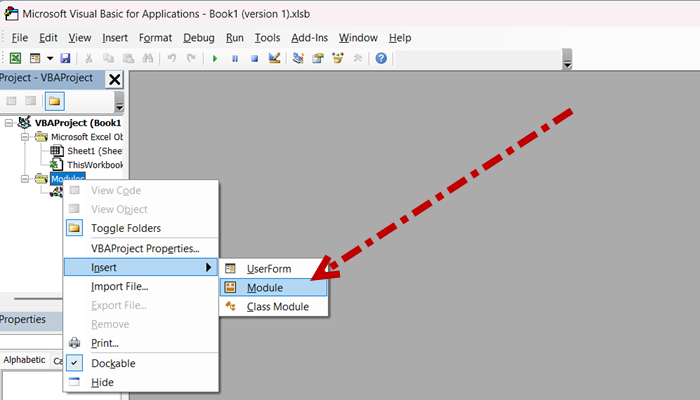
If you are someone dealing with large datasets or needing to perform this search repeatedly, a VBA macro provides an automated solution that bypasses Excel’s standard search limitations. This method can scan entire workbooks and highlight or extract matching cells. Follow the steps mentioned below to do the same.
- Press Alt + F11 to open the Visual Basic Editor.
- Insert a new module and paste code such as If InStr(1, cell.Value, “*”, vbTextCompare) > 0 Then.
- Run the macro to automatically identify and highlight cells containing asterisks.
Finally, you need to check whether you can find your data.
Hopefully, with these solutions, you will be able to resolve the issue.
Read: Fix REFRESH RECOMMENDED Excel error message
How to search in Excel for an asterisk?
To search for an actual asterisk (*) in Excel, you must prefix it with a tilde (~) character in the Find dialog box, as Excel normally treats the asterisk as a wildcard representing any number of characters. Simply press Ctrl + F to open Find and Replace, type ~* in the “Find what” field, and click “Find All” to locate all cells containing the literal asterisk symbol.
Read: What is IFERROR function in Excel?
Why is the search option not working in Excel?
The search option in Excel often fails because special characters like asterisks and question marks are misinterpreted as wildcards, or because the search scope is limited to the current sheet instead of the entire workbook. Other common reasons include hidden rows or columns, filtered data that excludes visible results, mismatched cell formatting (like searching for numbers in text-formatted cells), or accidentally enabling match case or match entire cell contents options that narrow the search too specifically.
Also Read: Excel showing formulas, not results.
