
It is quite frustrating to face a creative block, especially when you are ready to bring it to life, only to encounter issues with DALL-E on your Windows PC . This is a fairly common issue where the image does not generate, fails to start, or displays an error message. These interruptions are often caused by something small and can be easily fixed, like a conflict between the browser, system settings, or network configuration. In this guide, we will see what to do if you are unable to generate images in DALL-E.
Unable to generate images in DALL-E
Before troubleshooting, ensure your subscription is active. If you are using the free tier, you may have reached your image generation limit. Generating images requires a ChatGPT Plus, Pro, or Team subscription, or available credits if using the API.
If you are unable to generate images with DALL-E, follow the solutions below.
- Disable hardware/graphics acceleration in the browser
- Clear cache and cookies
- Disable the browser extension temporarily
- Flush DNS and reset network settings
- Use a different browser or create a new user profile
Let’s get started with the troubleshooting guide.
1] Disable hardware/graphics acceleration in the browser
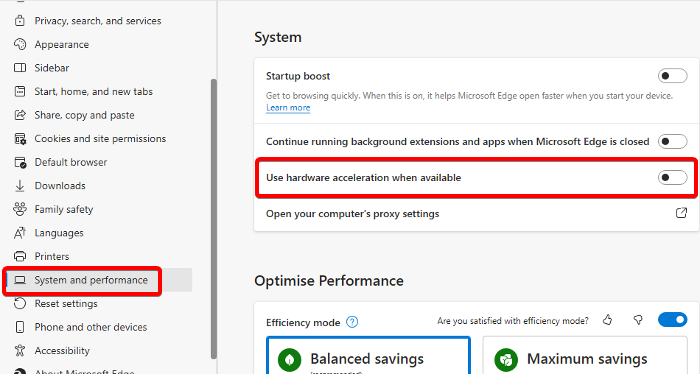
Hardware/graphics acceleration can boost performance, but outdated drivers can cause glitches that block DALL-E. Disabling it forces the browser to use software rendering, which helps bypass potential GPU-related issues. Follow the steps mentioned below.
- Launch the browser, click on the three-dot menu, and select Settings.
- Scroll down to find the System option, click on it, and find the Use hardware/ graphics acceleration when available toggle key.
- Turn it off, and restart the browser when prompted.
Once done, visit the DALL-E website and try generating an image again. If this doesn’t resolve the issue, proceed to the next solution.
2] Clear cache and cookies
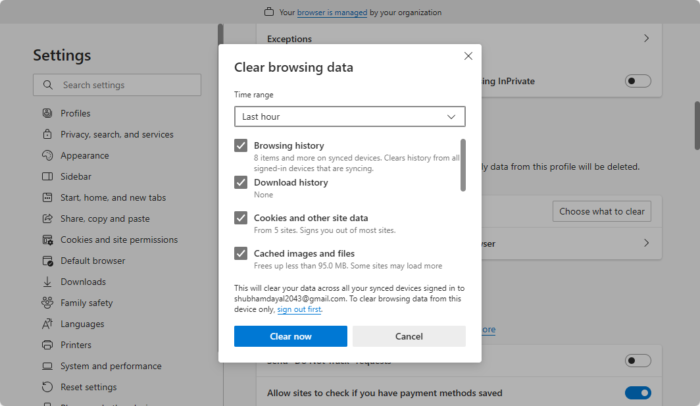
Browsers store website data and login information to speed up future visits, but oftentimes, they become outdated. When it is cleared, all temporary folders are removed, which forces the browser to download fresh files. This clean state ensures that DALL-E’s latest code loads without corruption that blocks image generation.
- Launch your browser, click on the three-dot menu, and go to Settings.
- In Edge, click on Privacy, search, and services, and then select Clear browsing data. For Chrome, navigate to the Privacy and Security tab and click on Delete browsing data.
- Now, choose what to clear and then hit the Clear Now /Delete data button to finish the process.
Reload the DALL-E tab and see if you can generate images. If not, see the next solution.
3] Disable the browser extension temporarily
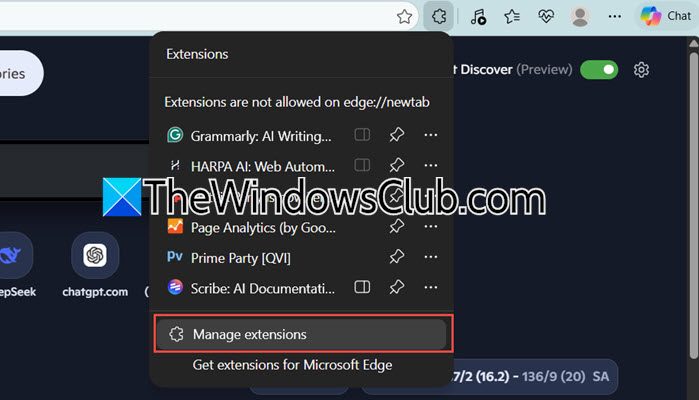
Browser extensions, especially ad blockers, privacy tools, or script managers, can block or alter the scripts that DALL-E depends on to function. To remove this block, we are going to turn off all the extensions to force the browser to a default state.
- Click on the extension puzzle icon or click on the three-dot menu, select the Extension tab, and then click on the Manage Extension option.
- Toggle off each extension to disable, or use Incognito/Private mode to test quickly.
- Refresh the DALL-E page, and try generating an image.
If this works, re-enable extensions one at a time and see if the image generates to single out the culprit. Once identified, consider removing it or adding an exception for it.
4] Flush DNS and reset network settings
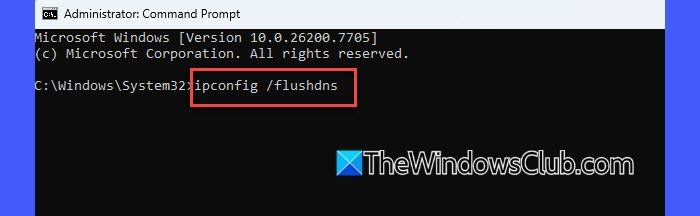
Windows PC stores a local cache of DNS, which can get corrupted or contain outdated information. Additionally, network settings like Winsock can become misconfigured, and combining them can cause connection errors and blockage. To ensure our computer can reach DALL-E’s server, we will flush DNS and reset network settings.
- Click Win + X to open the Quick Link Menu, and select Windows Terminal (Admin) or Command Prompt (Admin).
- Now run the following commands one by one and press Enter after each command:
ipconfig /flushdns

ipconfig /release

ipconfig /renew
- To reset network settings, execute the following command:
nets winsock reset
After the last command, reboot the device, and check whether the issue is resolved or not. Proceed to the next solution if it persists.
5] Use a different browser or create a new user profile
Sometimes the problem is connected to the specific browser installation or user profile. Corrupted profile data, misconfigured settings, or even a bug in that particular browser version can prevent DALL-E from working.
In this situation, it is recommended to either test DALL-E in a different browser or create a new user profile in the current browser with default settings and no extensions. A clean environment confirms whether the problem was profile-centred. If DALL-E works in the new browser or profile, users can continue using that or migrate their old settings.
Read: How to create realistic images using DALL-E AI service
What is the limit of images in DALL-E free?
There is no fixed limit of images in the free tier of DALL-E; it might vary from 2-3 images to 20 images per day. However, the ability to generate images in the free tier is generally restricted and limited.
What AI has free unlimited image generation?
There are many options available in the market. However, Zimage.run and Raphael AI are two options that require no login and offer free image generation.
Read: Best free AI Image Generators to generate AI Images.
