
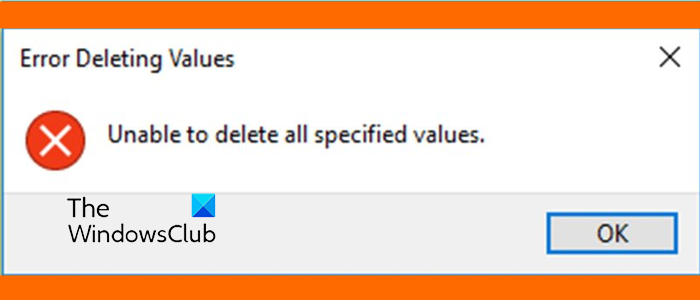
This guide shows you how to fix the Error deleting Values, Unable to delete all specified values error message while deleting a key using Registry Editor.
Why can’t I delete a key from Registry Editor?
If you cannot delete a key in Registry Editor, you likely don’t have sufficient permissions to modify or delete the key. It could also happen that the Key is locked or the key might contain embedded null characters that you cannot delete using the standard Registry Editor.
Note: It is recommended to keep a backup of your Registry before you proceed with the methods below. In case of any unintentional modifications, it will help you restore your Registry to avoid system failure.
Error deleting Values, Unable to delete all specified values in REGEDIT
If you get the Error deleting Values, Unable to delete all specified values error message while trying to delete a key in Registry Editor in Windows 11/10, here are the fixes you can use to get around the error:
- Modify permissions for the key.
- Delete the key using Command Prompt.
- Delete the registry key using Systernals RegDelNull.
- Use PSExec to delete the key.
- Boot Windows into Safe Mode and try.
1] Modify permissions for the key
If you keep receiving this error message when trying to delete a stubborn Registry key, you can change its permission,d take ownership of the Registry key and then, try deleting the key. Here’s how you can do that:
First, open the Registry Editor app and then move to the Registry key you can’t delete due to this error message.
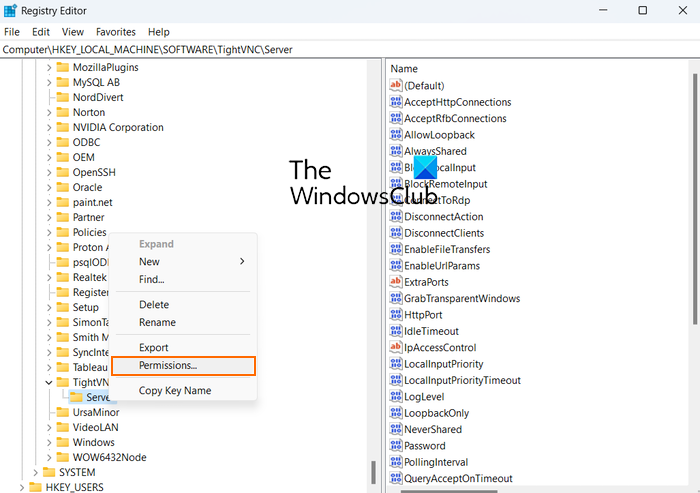
Now, right-click on the problematic Registry key and then select the Permissions option from the context menu.
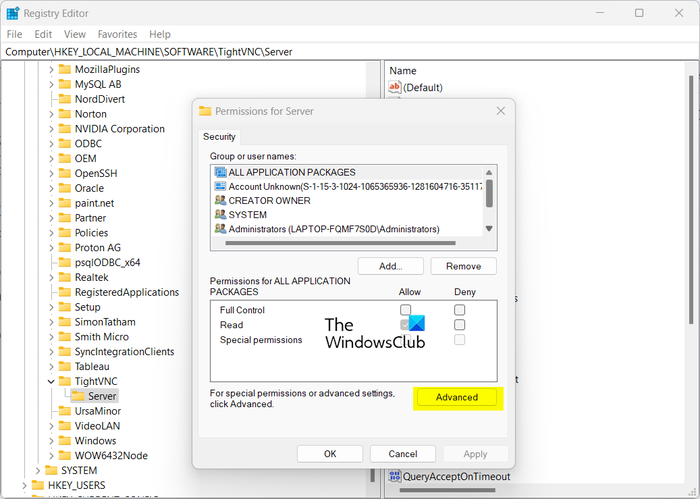
In the opened window, press the Advanced button.
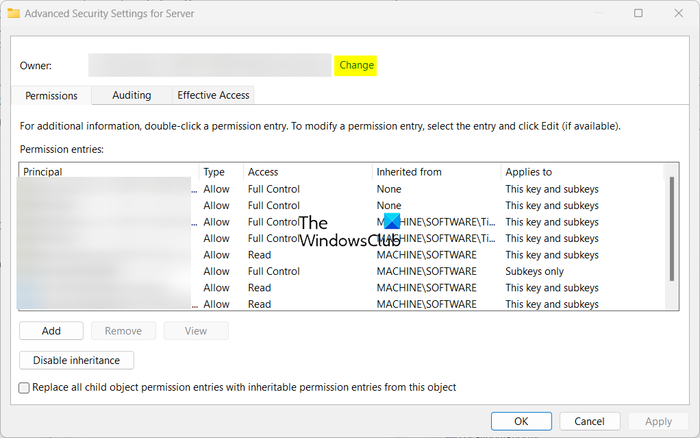
Next, click on the Change link present next to the Owner field.
After that, type your username inside the Enter the object name to select box and then press the Check Names button. And press the OK button.
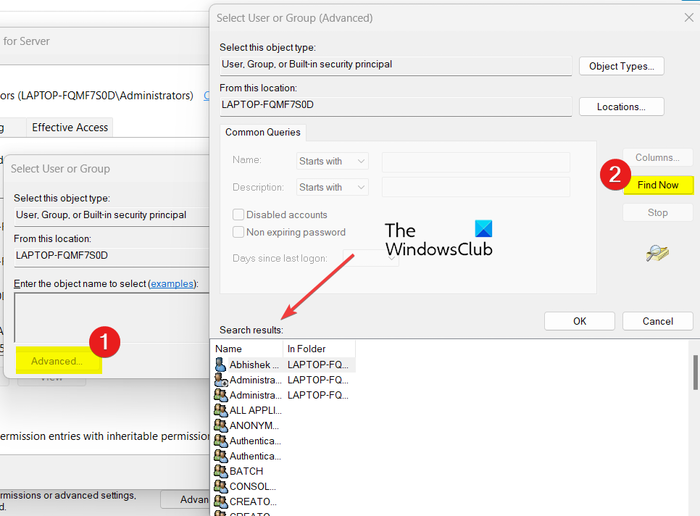
In case you can’t remember the username, click on the Advanced button and then press the Find Now button. From the search results, select your username and then click on the OK button.
Now, press the Apply > OK button in the Advanced Security Settings window.
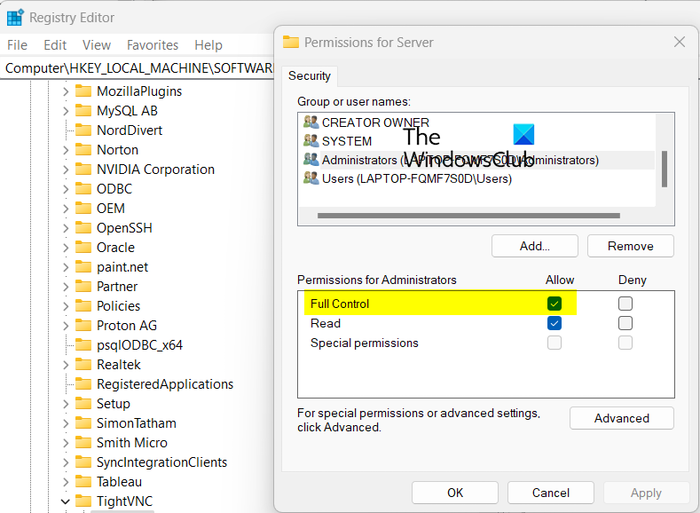
Next, in the Permissions window, select your username, tick the Allow checkbox present next to the Full Control option, and press the Apply > OK button.
After that, you can try deleting the Registry key, and hopefully, you won’t get the Unable to delete all specified values error message.
Read: Registry Editor cannot rename, Specified key name already exists.
2] Delete the key using Command Prompt
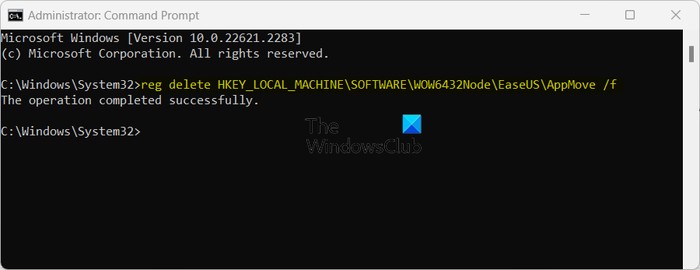
If the above method didn’t help you fix the error, you can try deleting the Registry key using Command Prompt and see if it helps. Here are the steps to do that:
First, open the Command Prompt with administrator rights.
Now, open the Registry Editor app, go to the infected or stubborn key that you are unable to delete, copy its path, paste the path into Notepad or some other text editor, and close Registry Editor.
Next, in the Administrator Command Prompt window, enter a command in the following syntax:
reg delete <Path_of_Registry_key> /f
Your command will look something like the below command:
reg delete HKEY_LOCAL_MACHINE\SOFTWARE\WOW6432Node\EaseUS\AppMove /f
Once done, you will get The operation completed successfully message.
See: Registry Editor, Cannot import reg file, Error accessing the registry.
3] Delete the registry key using Systernals RegDelNull
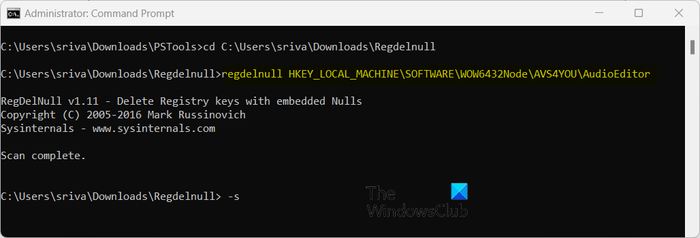
You can also use the SysInternals RegDelNull tool to delete the stubborn Registry keys that keep causing this error. It is a command-line utility that lets you delete Registry keys that contain embedded null characters. Also, it can delete keys that are not deletable via Registry Editor. So, you can try using it and see if it helps you remove Registry keys without the “Unable to delete all specified values” error message.
To use RegDelNull, download it from Sysinternals and extract the downloaded folder. After that, run the main executable and follow the instructions that appear.
Now, open the Command Prompt with admin rights and navigate to the extracted RegDelNull folder. You can enter a similar command like the one below to do that:
cd C:\Users\sriva\Downloads\Regdelnull
Next, enter the command below to delete the Registry key that you are unable to:
regdelnull <Registry_key_path> -s
Check if the problem is now resolved.
Read: Cannot create value or key, Error writing to the registry.
4] Use PSExec to delete the key.

If you still get the same error, you can take the help of another Registry delete application to delete problematic Registry keys. This app is called PsExec. You can download it from here and unzip the folder.
Now, open Command Prompt as an administrator and navigate to the folder where the main PsExec executable is located (see fix 3).
Next, run the below command, and it will open up the Registry Editor app:
psexec -i -d -s c:\windows\regedit.exe
After that, you can try deleting the key that was previously giving you the “Unable to delete all specified values” error message.
TIP: How to repair or fix a corrupt Registry in Windows?
5] Boot Windows into Safe Mode and try
If none of the above solutions helped you resolve the error, boot your Windows into Safe Mode and then try deleting the problematic Registry keys. In safe mode, Windows starts with a minimal set of processes and services. So, if a third-party service or program is causing the error, booting Windows in safe mode might help you delete a Registry key that can’t be deleted otherwise.
I hope the above solutions help you fix the error.
Related: Error deleting key, Cannot delete Registry key in Windows 11
How to delete value in regedit?
To delete or change the value of a Registry key, open Registry Editor and then navigate to the location where the target Registry key is present in the left-side pane. Now, you can also right-click the Registry value and select the Delete button to remove it. You can also double-click the Registry value in the right-side panel to clear or change the value in its Value data field.
Now read: Registry Editor not opening, crashing or stopped working in Windows.
