
In this post, we will see how you can troubleshoot and fix Xbox One Errors E100, E101, E102, E200, E203, E204, E206, E207, E305 using the Xbox Startup and Online Troubleshooter.
All electronic devices, be it a gaming PC or a gaming console face a technical issue at some point in time. Xbox also is not immune to this problem. From time to time, there have been reports from Xbox One and Xbox One S users complaining that just when they are in the middle of a decisive gaming moment or trying to update their system they get error messages that either breaks their game progress or stops them from signing in. The latter – Error E20XXX, is usually more complex. So, let us in this post see the method to troubleshoot Xbox One and Xbox One S errors and problem using an Online Troubleshooter provided by Microsoft.
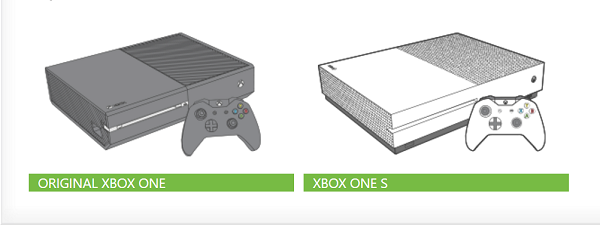
Fix Xbox One E errors
First things first, to troubleshoot the system update error, check the error message or error code under the heading ‘Something went wrong’.
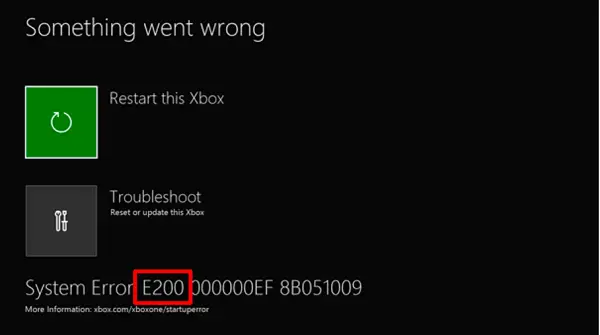
If the error code starts with the letter ‘E’ in the beginning, then, look for the other three letters following it. This can be,
- E100
- E101
- E102
- E200
- E203
- E204
- E206
- E207
- E305
To know more about these error codes, go to Xbox error code lookup page here and enter the error code/status code in the search field.
If the ‘Something went wrong’ screen is still visible to you, use the ‘+’ button on the D-pad and ‘A’ button on your controller to select ‘Restart this Xbox’ option.
If you do not see this error message, try the Xbox One System Update Solution to troubleshoot other types of startup errors. This method helps you update your console offline.
Alternatively, you can press and hold the Xbox button on the front of the console for approximately 10 seconds to turn off the console. Thereafter, you can press the Xbox button again to turn the console on and see if the problem is resolved.
If not, you’ll have to resort to an offline system update method.
To perform this, the following are required-
- A Windows-based PC with an active Internet connection and featuring a USB port.
- A USB flash drive with a minimum of 4 GB of space formatted as NTFS.
Most USB flash drives come formatted as FAT32 and will have to be reformatted to NTFS. You will have to know how to convert a hard disk or a partition to NTFS format.
Kindly bear in mind that formatting a USB flash drive for this procedure will result in a complete erase of data and all files on it. It is advisable to keep a back up of the files ready or transfer any files on your flash drive before you format the drive.
Now, to reformat your flash drives from FAT32 to NTFS, plug your USB flash drive into a USB port on your computer and click open the Offline System Update file OSU1.
Then, click ‘Save’ to save the console update .zip file to your computer.
Next, unzip the file you just created and extract all its contents.
Now, copy the $SystemUpdate file from the .zip file to your flash drive. The files should be copied to the root directory within a few minutes.
Finally, unplug the USB flash drive from your computer and get ready to perform an offline system update.
Read: How to update Xbox console offline using Xbox Offline System Update
Xbox Startup Troubleshooter
Turn off your Xbox One S gaming console, then unplug the power cord to ensure it is completely powered off. Wait for few seconds and then plug the power cord back in.
Now, press and hold the BIND button (located on the left side of the console) and the EJECT button (located on the front of the console), and then press the Xbox button on the console.
Continue to hold the BIND and EJECT buttons for few more seconds, until you get to hear two “power-up” tones. Upon hearing the sound, release the BIND and EJECT buttons.
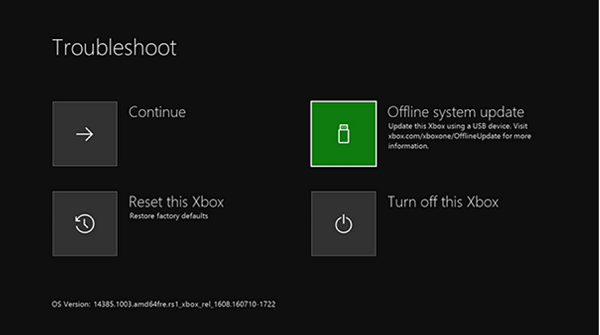
Your XboxOne should start up immediately and take you directly to the Xbox Startup Troubleshooter screen.
When you see the screen, plug the USB flash drive with the offline system update files into a USB port on your Xbox One console. As soon as you insert the disk into the system, the Offline system update option on the Xbox Startup Troubleshooter will become active.
Use the D-pad and A button on your controller to select the Offline system update to initiate the update using the files saved on your flash drive. After the process is complete, your Xbox One S console will restart and return you back to the Home screen.
During the process, you may find the system restarting multiple times. If you are using a wired connection, be sure to plug your network cable back into the console. If you have never connected your console to the Internet, you will need to connect it to get your system started. This should resolve your issue. If not, you can try this final method of resetting your console. To do so, restart the Xbox Startup Troubleshooter and follow these steps in the order provided.
Use the ‘D-pad’ and ‘A’ button on your controller to select Reset this Xbox. When prompted with a message, select Keep games, and apps. This option will reset the OS and delete all potentially corrupted data without deleting your games or apps.
Read: How to fix Xbox One startup errors or E error codes.
Xbox Online Troubleshooter
If, all of the above methods fail and you continue to see this error, try using this online troubleshooter and include a full description of your problem along with any error messages you may have received while starting it. This online troubleshooter will help you all these errors as well as error codes 0x803f9007, 0x80bd0009, 0x87e00005, 0x91d7000a and more!
Does resetting Xbox One deletes everything?
When you reset your Xbox One console, it shows you the following two options:
- Reset and remove everything
- Reset and keep my games & apps
If you select the first option, all your data will be deleted. But if you select the second option, your data will not be deleted. In some cases, the second option does not work, hence, users have to select the first option. If you find yourself in such a situation, back up your data to the cloud before proceeding.
How do I fix error code 0x80070570 on Xbox?
If you see error code 0x80070570 on your Xbox console, you can fix it with a few simple solutions. Power Cycle your console. If this does not work, reset your Xbox console but select the “Reset and keep my games & apps” option while resetting it. If this does not work, uninstall and reinstall your game.
