
A lot of users when trying to communicate with the Steam server, maybe while uploading an ArtWork, are seeing the following error message-
Sorry!
An error was encountered while processing your request:
There was a problem processing your request.
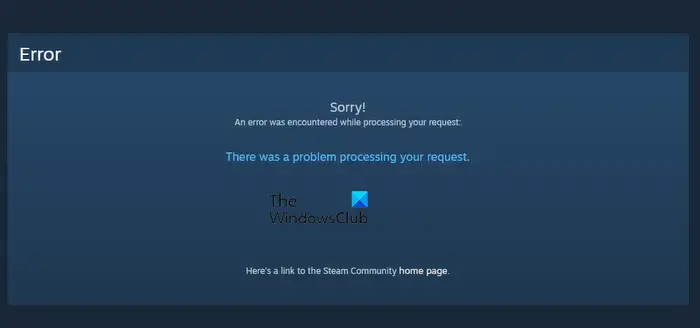
This error message is very common in the Steam client app. In this article, we will explain why you are seeing the “There was a problem processing your request” error and what you can do.
What is causing There was a problem processing your request Steam error?
Users have reported multiple instances of the error message in question. For the most part, this occurs when users try to change the Profile Pic or Avatar, or upload Fanart. In this very case, you strictly need to follow the guidelines given on the upload page, especially, the format in which you are supposed to upload.
Also, you need to check the server and make sure that is not down. If so, you will need to wait for it to get back on track. There are additional reasons we will discuss in detail below.
Is the Steam server down?
Before starting troubleshooting, check whether the Steam server is down. If it is down, then there is nothing you can do other than wait for the engineers to resolve the server. You can use any of the mentioned down detectors to know the server status. If you conclude that the server is down, wait for some time and hopefully, the issue will be resolved.
Fix There was a problem processing your request Steam error
If there was a problem processing your request in Steam, then check out the following solutions to resolve the issue.
- Restart Steam or computer
- Check the image’s format
- Refresh Steam files
- Turn off and Turn on Network Devices
- Flush DNS, Reset Winsock, Release IP
- Workaround: Use Steam in Browser.
Let us talk about them in detail.
1] Restart Steam or computer
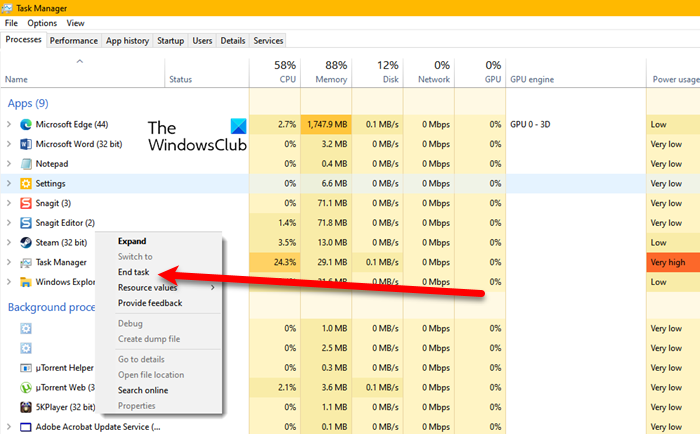
Let us start with the most basic solution. You need to restart Steam and they see if that works. Not just click on the close button of Steam, but also, end all the related tasks from the Task Manager. To do that, open Task Manager by Ctrl + Shift + Enter. Then right-click on Steam and click End Task. Then, reopen Steam and see if that works. If it is no avail, then restart your system. Hopefully, this will do the job for you.
2] Check the image’s format
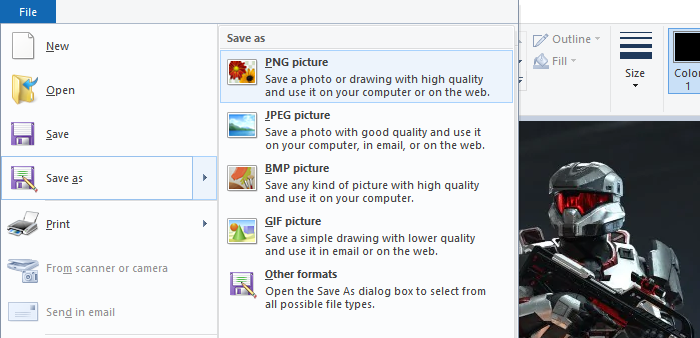
If you are trying to upload an image to the Steam server and seeing the error message in question. Then check its extension. You need to make sure that the image you are uploading is a JPG, GIF, or PNG. If it is not in the specified format, the Steam server will refuse to upload the image.
We would recommend you change the extension, to do that, you can use MS Paint to make the changes. Just right-click on the image that you were planning to upload, and select Open with > Paint. Then, click on File > Save as > PNG picture.
Hopefully, this will work for you.
3] Refresh Steam files
The issue may be due to corrupted files or a glitch in the files. We will remove all files that could cause the issue and retain the important ones. This way, we can resolve the issue without removing the games. Open File Explorer and go to the location where you have installed Steam. Then, delete all the files except Steam.exe, steamapps and userdata.
Finally, restart your computer, refresh Steam, and see if that resolves the issue.
4] Turn off and Turn on Network Devices
The issue may also be due to a network glitch. There are two solutions we will explore to resolve the network issue. Restarting the Network Devices is the first step; if that doesn’t resolve the issue, proceed to the next step. Follow the steps below to restart your network devices.
- Turn off your Router
- Plug the router out from the power source and wait for a minute.
- Plug the router back in, and turn it on.
Now, connect your computer to the network and see if that works.
5] Flush DNS, Reset Winsock, Release IP
Next up, we need to refresh some network protocols and see if that works. So, open Command Prompt and run the following command.
- To reset Winsock, execute the following command.
netsh winsock reset
- To flush DNS, execute the following command.
ipconfig /flushdns
- To release IP, run the following commands.
ipconfig /release
ipconfig /renew
Finally, restart your computer and check if the issue persists.
6] Workaround: Use Steam in Browser
For a lot of users, using Steam in a browser has worked. While not a solution, this workaround can be used while you wait for Steam developers to release an update to resolve the issue.
That’s it!
Also Read:
