
Are you unable to log or sign into Steam? Here is a full guide to fix the issue of being unable to sign in to your Steam account. A lot of users have encountered this problem, where, after several attempts, they just can’t log into their Steam account. When the login fails, you receive an error message like the ones below:
Steam is having trouble connecting to the Steam servers
Steam cannot currently process your request
You have entered your password or account name incorrectly
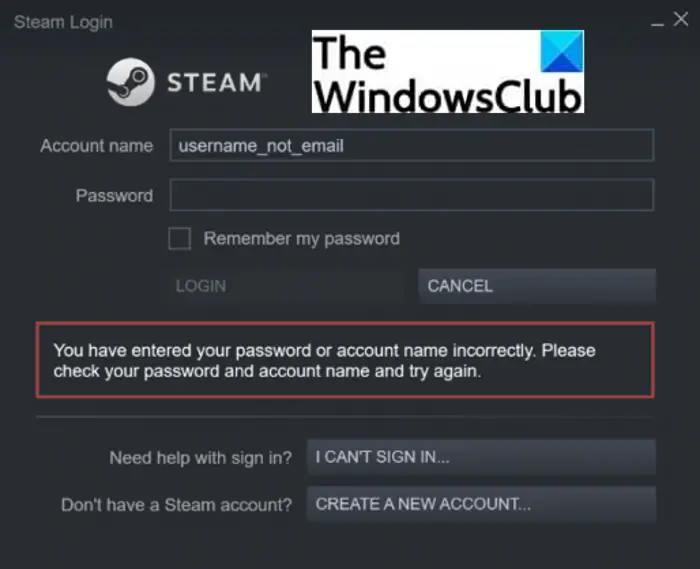
The error message displayed might not indicate the exact cause of the login issue. For example, you might not log in to Steam even after entering the correct credentials multiple times.
Why can’t I log into my Steam?
The login issues on Steam can occur due to varying reasons. Here are some of the possible causes that might prevent you from logging in to Steam:
- It can be a result of a server outage. The server might be down or experiencing some issues. So, you should ensure that Steam servers are working fine at the moment.
- Another common cause is that you have entered incorrect login credentials. It’s obvious if you have entered the wrong password or username, you won’t be able to log in to your account.
- Various internet problems, including weak or unstable internet, lagging issues, router cache, and more can cause the login issue. Test your internet connection in that case.
- Any third-party app conflicts or interference with Steam also causes login issues. This usually happens with your antivirus. If the scenario applies, disable your antivirus and then attempt to log in to Steam.
- A corrupted or outdated Steam cache is another reason for the same issue.
- There might be some bugs in the Steam client preventing you from signing into your account.
If you’re unable to log in to Steam despite multiple attempts, this post should help you. Here, we will list all possible methods to help you fix the login problem.

Can’t sign into Steam with correct password
If you can’t sign into Steam client even with the correct password or after changing the password, try these suggestions to fix the issue.
- Make sure you have entered the correct login credentials.
- Check Steam server status.
- Try logging in to Steam from a web browser.
- Clear Steam cache.
- Check your internet connection.
- Add Steam to the whitelist of your antivirus and firewall.
- Close background programs.
- Use a VPN.
- Check for new Steam Client Updates.
Let us discuss these fixes in detail now!
1] Make sure you have entered the correct login credentials
The first step in resolving the issue is to ensure you have entered the correct username and password for your account. If you are unable to log in to your account due to incorrect credentials, you should try signing in with the correct username and password. I will suggest you type your password in Notepad and then copy and paste it on Steam. This ensures you have entered the correct password.
If your login credentials are correct and you still cannot sign in to your Steam account, proceed to the next potential fix.
Read: Fix Steam App Configuration Missing or Not available error
2] Check Steam server status
You might not be able to log in to your account on Steam because Steam servers are currently down. In that case, you will have to wait for Steam to fix the issue from their end. You can check the current status of Steam using some free websites. If the servers are indeed down, the issue should be fixed shortly. So, try signing in to Steam after some time. Meanwhile, you can try playing games on other platforms.
3] Try logging in to Steam from a web browser
This problem might be related to the Steam client and not with your account. o, try logging into your account via a web browser instead of the Steam client. If the problem is resolved, congratulations! If not, you should try some other solutions to fix the error.
See: Steam games won’t launch; Stuck on Preparing to Launch on Windows
4] Clear Steam cache
Corrupted Steam cache files can prevent you from logging in to your account. If the scenario applies, you should be able to fix the issue by clearing up the Steam cache. Here are the steps to delete Steam cache files:
- Firstly, press Windows + E to open the File Explorer.
- Now, navigate to the following location in the File Explorer:
C:\Users\[Username]\AppData\Local\Steam
In the above address, replace [Username] with your username.
- In this location, select all the temporary files using the Ctrl + A hotkey.
- After that, delete all files using the Delete option.
- Next, relaunch the Steam client and then try logging in to your account.
See if this method is able to fix the issue. If not, there might be some other reason behind this issue. So, try some other solution from this list to fix the issue.
See: An error occurred while installing or updating the Steam game
5] Check your internet connection.
If you are not connected to a stable internet connection, it can prevent you from successfully logging into your account on Steam. So, do check your internet connection and if there is some issue with your network, troubleshoot network and internet problems. Also, check the speed of your internet connection and if it is slow, consider switching your WiFi.
Additionally, you can also power cycle your router and modem to fix internet problems. To do that, unplug your router and modem and then wait for at least 30 seconds to let them shut down completely. After that, plug in your router and modem and restart them.
Try logging into your account now and see if the error is fixed.
6] Add Steam to the whitelist of your antivirus and firewall
Your antivirus or firewall can block Steam-related tasks and processes, potentially preventing you from signing in to your account. Try disabling your firewall/ antivirus to see if the issue is resolved. If so, the problem is likely caused by your security suite.
Disabling your security suite can expose your PC to various threats. So, we don’t recommend doing that. Instead, you can whitelist the Steam program in your firewall or antivirus so that it doesn’t block Steam. If you are using Windows Firewall, you can follow this guide to add Steam to the whitelist. Similarly, you can add Steam to the exception list of your antivirus.
See: How to fix Steam Error E502 L3 on Windows PC
7] Close background programs
If background programs are interfering with Steam and preventing you from logging in, close them. To do this, open the Task Manager using the Ctrl + Shift + Esc hotkey and then select the suspected background programs. After that, press the End Task button to close them. Try relaunching the Steam client to see if you can log in without any issues.
8] Use a VPN
If you are locked out of Steam after too many login attempts, you can use a VPN aka Virtual Private Network. VPN anonymizes and encrypts your internet traffic, enabling you to log in to your Steam account if it’s blocked after several unsuccessful login attempts. You can use a Gaming VPN. There are some more free VPN software that you can use for Windows 11/10.
Read: Fix Steam FRIENDS NETWORK UNREACHABLE error
9] Check for new Steam Client Updates
The login issues might be triggered due to bugs in the software. However, these bugs are fixed by the developers with new updates. So, make sure you have installed the recent updates for the Steam client. To update Steam, you can use a free third-party software updater application that will check and update Steam.
Another way to update Steam is to first uninstall the program from your system via Settings. And then, download the most recent version of Steam from its official website. Run the installer and follow the prompted instructions to complete Steam installation.
Why is my Steam not letting me log in?
The main reason why you are seeing this error is that there are some issues with the Steam servers. Also, you need to verify your username and password minutely. Even a small mistake will prevent you from logging in to your account. Apart from that, the old cache of Steam could also be the problem.
How to bypass Steam too many login failures?
Usually, there is no way to bypass this error on your computer apart from waiting for approximately thirty minutes. Nonetheless, you can also try to log in from a different network, use a proxy or VPN, etc. It could also help if you could clear your browser cookies and cache.
Now read: Steam is having trouble connecting to Steam servers.
