
Some players of The Sims 4 have been complaining that the game fails to start properly, or that after booting, it simply cannot respond to what you’re doing. The question is, what is the cause behind this issue, and can it be fixed? Well, the short answer to that question is a simple, yes.
The Sims 4 not responding or working on Windows PC
When it comes down to getting this error under control, we suggest reading the information below as we believe it is good enough to get things moving again. If The Sims 4 game is not responding to commands or working on your Windows 11/10 PC, here are some suggestions that are sure to help you fix the problem:
- Open the game in Compatibility Mode
- Repair the game
- Exclude The Sims 4 from your anti-virus
- Check Mods in Sims 4
- Reinstall Sims 4 or the Origin client.
1] Open the game in Compatibility Mode
Before we go any deeper, the first thing you will want to do is to launch The Sims 4 in compatibility mode. Let us look at how to get this done in the right way.
Close The Sims 4 before all else
Yes, the first thing you should do here, is to close the game. You can do this by clicking on the X button located at the top-right corner, or use the in-game exit option.
Go to The Sims 4 icon Properties
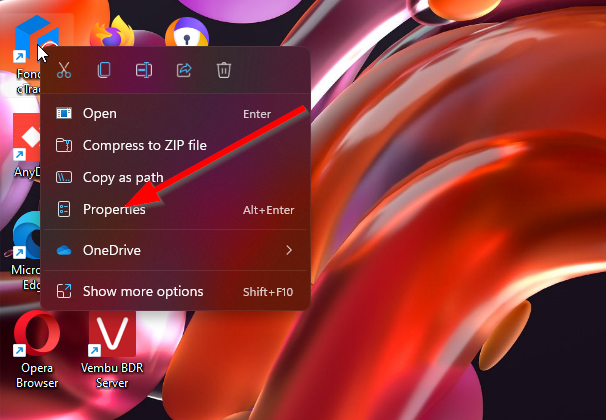
The next step, then, is to right-click on The Sims 4 executable shortcut or icon on the Desktop, and from the context menu, please select Properties.
Navigate to Compatibility Mode
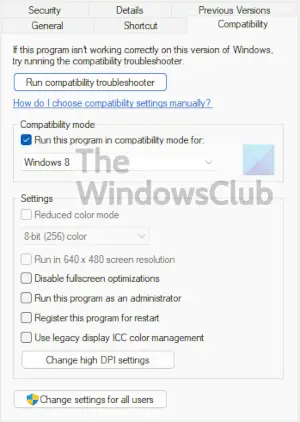
After opening the Properties window, please select the Compatibility tab, and from there, look for Compatibility Mode.
Choose the preferred Windows version
To move on, you’ll need to select one of several Windows versions. If you are using Windows 11 or Windows 10, then choose either Windows 8 or Windows 7 from the dropdown menu. Finally, hit Apply > OK, and that’s it. You can now test to see if The Sims 4 is still acting up when attempting to launch it.
Read: The Sims 4 not opening or launching on Windows PC.
2] Repair the game
The first thing to do when Sims 4 won’t launch or open on your PC is to repair the game. As it turns out, one of the common reasons for not being able to launch Sims 4 is corrupted game files. So, if the scenario applies, you should be able to fix the problem by repairing the game files. To do that, you can follow the steps:
- First, open the Origin client on your PC.
- Now, navigate to your Game Library and locate the Sims 4 game.
- Next, right-click on the Sims 4 game and press the Repair option from the context menu.
- After that, wait for the repair process to complete.
- When done, try launching the Sims 4 game and see if it opens up without any issue.
In case this method doesn’t work for you, you can try the next potential fix to resolve the problem.
3] Exclude The Sims 4 from your anti-virus
Maybe your antivirus tool is viewing The Sims 4 executable file as a threat, and as such, it is being blocked in some form. To solve this issue, it would make sense to ensure The Sims 4 is no longer viewed as a threat by adding it to the exclusion list.
Open the Settings app
The first thing to do here is to launch the Settings app by clicking on the Windows key + I. The Settings app should appear right away.
Go to Virus & threat protection
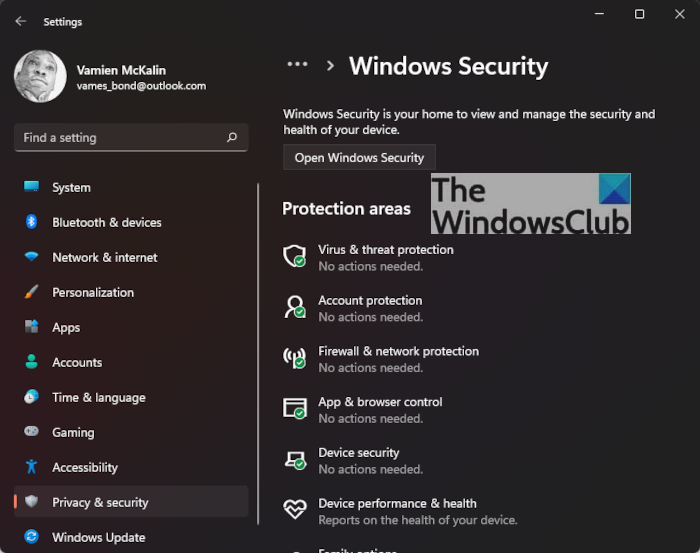
After opening the Settings app, you must now navigate to Virus & threat protection. This can be done by clicking on Privacy & Security > Windows Security, and from there, go to Virus & threat protection as soon as possible.
Move over to Add or remove exclusions
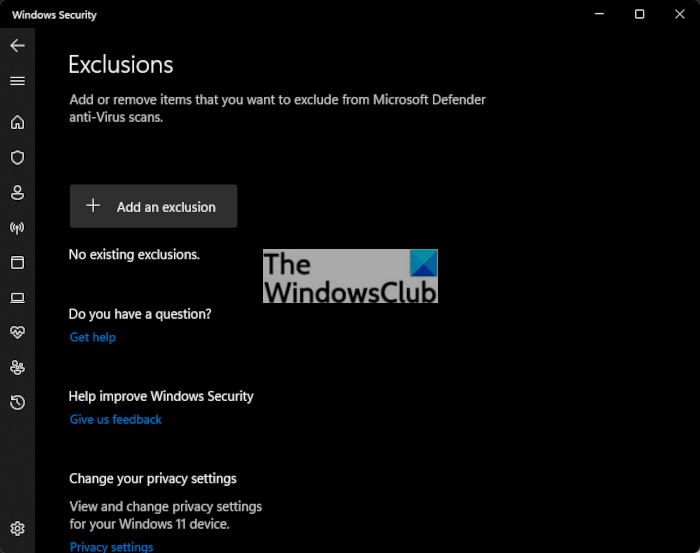
The next step to take is to click on Managed Settings, and once you’ve completed that task, you should then select Add or Remove Exclusions that are located under Exclusions.
Add The Sims 4 as an exclusion
In the new window, you should see a button that reads “Add an exclusion > Folder.” Locate the folder containing The Sims 4, and select it. Finally, restart your computer and check again if The Sims 4 is working properly.
4] Check Mods in Sims 4
Mods used in Sims 4 can cause the game to fail to launch. Hence, you can try removing Mods in Sims 4 and then see if the issue is fixed. Here is how to do that:
- Firstly, open the Documents > Electronic Arts > The Sims 4 folder and go to the Mods folder.
- Now, cut all the files and then paste them on your desktop.
- Next, try opening the game and see if you are able to launch the game.
If so, you can be sure the Mods were causing the problem. You can try moving the Mods one by one to the original folder and analyze which one was causing the issue.
5] Reinstall Sims 4 or the Origin client
If none of the above solutions work for you, there is a high chance that you are dealing with corrupted installation files. That might be why you are unable to open Sims 4. Hence, you can try reinstalling the game and then see if the problem is fixed. Sometimes, the issue might be with the Origin client. In that case, you can try uninstalling Origin and then reinstall it back on your PC.
Why does The Sims 4 keep crashing?
This is a question many people have been asking, so let us try to answer it real quick due to its importance. OK, if your version of The Sims 4 keeps crashing regularly, chances are it’s due to an outdated or missing graphics card driver. Furthermore, overclocking your computer could be one of the causes of the game crashing. And on the other hand, one might be suffering from corrupted game files.
The Sims 4 fails to load after a recent update
In some cases, The Sims 4 won’t load if an update was recently downloaded and installed. This can be an issue, so what to do? Well, the best step here is to simply repair the game via Origin. If that doesn’t help, you must clear Origins’ cache and restart your computer.
Read: Best high-quality Video Games for Windows from Microsoft Store.
