
Windows and private VPN companies are working to fix known errors and their resolutions. However, at times the VPN functionality can give trouble in Windows. Most users face one issue or another with VPN connectivity.
Error 868, The remote connection was not made because the name of the remote access server did not resolve
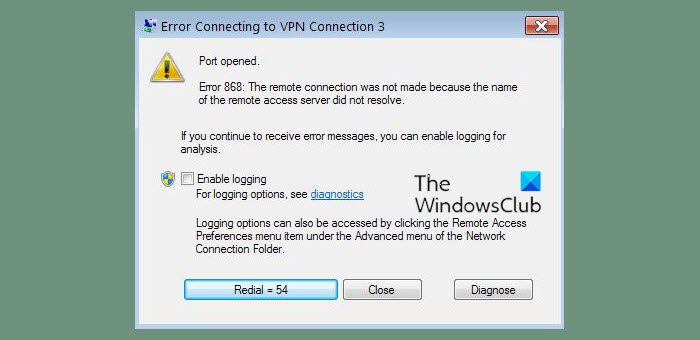
One such error with VPN connectivity occurs when the remote server cannot be resolved. Earlier, with Windows 7, this VPN issue was indicated by error code 868; however, we no longer see the code, nor is it mentioned in Windows’ recent error code list. The reason for the error could be an issue with the VPN server or with connecting to the PC itself, the latter being more likely. Most VPN issues display an error code, and the exact issue associated with the code can be checked on Microsoft’s website. Knowing the error code can help you troubleshoot in the right direction.
Fix VPN Error 868, Name of the Remote Access Server did not resolve
If you encounter this error message in Windows 11/10, start with basic troubleshooting before trying anything more advanced. The following steps could be tried in a sequential manner:
- Clear DNS cache, Winsock, etc.
- Disable the firewall and the anti-virus
- Change the Network.
1] Run a few command prompt commands
Run the following commands in a command prompt window one by one and restart the system. Basically these commands – renew the IP address, reset Winsock and Flush DNS cache.
ipconfig /release

ipconfig /renew

netsh winsock reset

netsh int ip reset

ipconfig /flushdns

ipconfig /registerdns
Restart the system after running these commands. Try connecting to the VPN and check if it resolves the issue.
2] Disable the firewall and the anti-virus
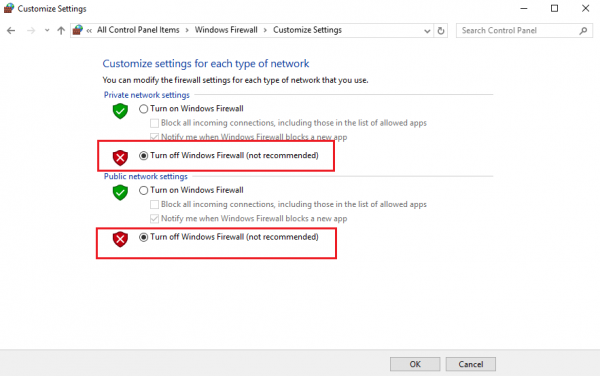
At times, the anti-virus software could interfere with the functioning of the VPN software. It is the same with the Firewall. To isolate the issue, we could disable or uninstall the antivirus software and check whether it resolves it. It could be reinstalled or changed later.
To disable the Firewall you can follow this process:
1] Open Control Panel after searching in the Windows search bar.
2] Open the option for Windows Firewall.
3] Among the options on the left-hand side, choose the option which says ‘Turn the Firewall ON or OFF’.
4] Turn OFF the Firewall and save the settings by clicking in OK.
3] Change the Network
Sometimes, the Network might pose restrictions while connecting to a VPN client. Changing the network could help isolate the issue in this case.
If the steps mentioned above help resolve the issue with the VPN client, good enough, or else some of these advanced VPN error troubleshooting suggestions.
Read:
- VPN Error 800, The remote connection was not made because the attempted VPN tunnels failed.
- VPN Error 789, The L2TP connection attempt failed
- VPN Error 691, The remote connection was not made or denied because the user name and password combination you provided is not recognized.
